
Every eWebinar session now gives attendees a way to capture what matters to them and walk away with something they can return to. While watching, they can bookmark key moments and add their own notes. After the session, they get a personalized summary page that pulls together their highlights, their responses, and an AI-generated summary of the session.
This turns your eWebinar into an ongoing resource rather than a one-time watch. Attendees can come back to their summary whenever they need it, for as long as the eWebinar stays published.
This article covers what attendees experience, what each part of the summary page contains, and how you surface it as a creator.
See it in use below:
There is nothing to set up. Bookmarks, notes, and summaries are on by default for every published eWebinar. The related controls are in each eWebinar's Settings page: choosing what happens When exit room ends, and Hide the summary until the eWebinar is completed.
What attendees can do during a session
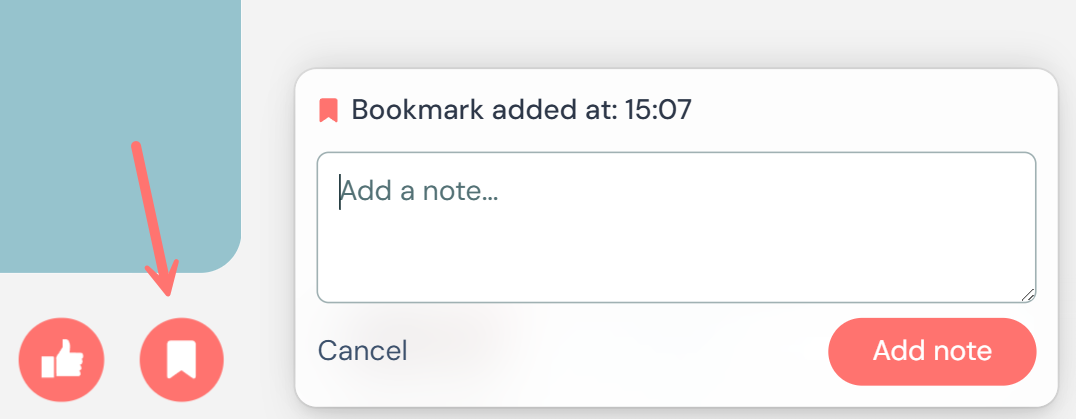
While a session is playing, two buttons appear in the video control bar: a bookmark button and a thumbs-up (like) button. They show up only while the video is actively playing, during the intro and main presentation (not the waiting room or the exit screen).
Bookmarking a moment
Tapping the bookmark button drops a bookmark at the exact moment in the video and opens a small note panel. The panel shows Bookmark added at: MM:SS and an optional text field where the attendee can jot down a thought if they want. Bookmarks are added to the summary regardless of if a note is written.
The panel saves the note in a few ways, so attendees do not have to think about it:
- It saves automatically after about 10 seconds of no typing.
- Pressing Enter saves it right away.
- Pressing Escape or clicking Cancel discards the bookmark entirely.
The first time an attendee saves a bookmark in a session, a brief message appears letting them know a summary of their session will be sent to them. Attendees can bookmark as many moments as they like throughout the session.
The thumbs-up (like) button
The thumbs-up button has been part of the player for a while as a quick, in-the-moment reaction. What is new is that those likes now show up on the attendee's summary page too.
Each like is recorded with the exact moment it happened, so it behaves like a lightweight, one-tap bookmark: there is no note attached, but the attendee can jump back to that moment later from their summary. A bookmark is the deliberate "save this and maybe write something" action; a like is the quick "that was good" tap that now also gets remembered.
What attendees see after a session
After a session, each attendee gets their own summary page for that eWebinar. It is personalized: the highlights and responses on it belong to that attendee, not to everyone who watched.
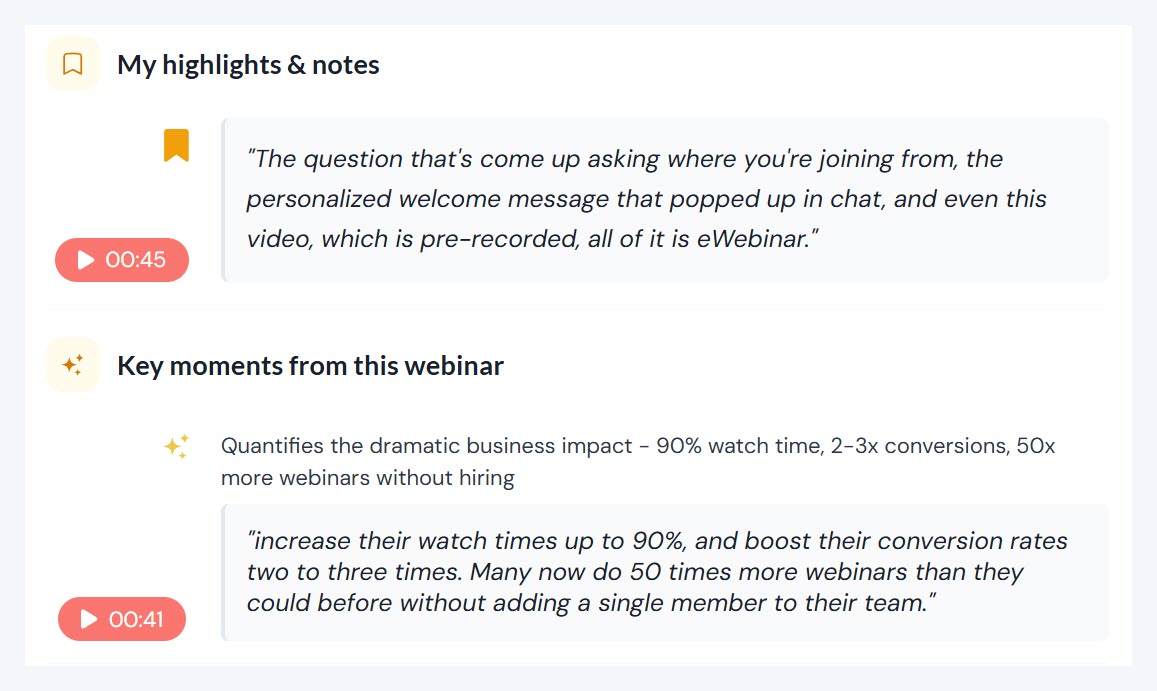
The page is organized into a few clear sections:
My highlights & notes
Everything the attendee saved during the session, gathered in one list. This includes the moments they bookmarked, the notes they wrote, and the moments they liked with the thumbs-up button.
Each entry shows the timestamp as a button, so the attendee can jump straight back to that point in the replay, along with a short excerpt of what was being said at that moment. Bookmarks with notes show the note text; likes appear as a quick highlight with no note.
Key moments from this eWebinar
A separate set of highlights, identified by AI rather than by the attendee. These are the segments the AI considers most worth revisiting, each with a brief reason why and a button to jump to that point in the replay.
The difference is simple: My highlights & notes are the moments the attendee chose to save, while Key moments are the moments AI suggests are important. The first is personal to each attendee; the second is the same for everyone who watched.
My responses
A record of everything the attendee participated in during the session, such as polls, quizzes, and other interactions, shown alongside the answers they gave.
Adding notes after the session
The summary page is not just a read-only recap. As long as a replay is available, attendees can revisit the page and keep adding notes to it after the session has ended.
AI generated summary
A written summary of the eWebinar, generated by AI from that eWebinar's transcription. It is organized for quick reading and retention, and typically includes:
- Key takeaways: the 3 to 5 most important insights from the session.
- What you learned: the main content broken into clear sections with supporting points, examples, and specifics mentioned during the eWebinar.
- Action items: a few concrete next steps.
- Quick reference: a short list of any tools, frameworks, resources, or key terms that came up (shown only when relevant).
The summary is written in the same language as the eWebinar. An eWebinar recorded in Spanish produces a Spanish summary, a Japanese eWebinar produces a Japanese summary, and so on. This section appears as long as the eWebinar has a transcription, which is generated automatically for videos uploaded to eWebinar.
How attendees access their summary
There are two ways an attendee reaches their summary page.
- From the follow-up email. After a session, the follow-up email includes a View your summary and highlights link that goes directly to that attendee's summary page.
- Through the Attendee Hub (if enabled). If your team has the Attendee Hub enabled, attendees can also reach their summary by clicking an eWebinar card in the Hub. See Attendee Hub for the full guide.
The summary link does not require a login to open, so attendees can view their summary with a single click. If an attendee does choose to log in, using their email and a one-time code, they get the logged in full participant view, which brings together their activity across multiple sessions of the same eWebinar (useful for anyone who watched more than once).
Summaries stay available for as long as the eWebinar is published. If an eWebinar is unpublished, the summary page is no longer accessible.
Settings for creators
There is no separate toggle for bookmarks, notes, or summaries. One setting changes how attendees reach the Summary page per eWebinar, and another can hold back part of it (see below).
To find it, edit an eWebinar and go to the Settings tab, then the Exit room section. The relevant control is Show eWebinar summary. You cannot turn the Summary page off entirely for any eWebinar, but you can stop attendees from automatically being sent to it after they exit the room by changing this setting to Redirect to a custom URL. Attendees still have access if the link is in a follow-up email and through the Attendee Hub.
.jpeg)
Hide the summary until the eWebinar is completed
You can also hold back the AI summary and key moments until an attendee has completed the eWebinar, as defined by your completion requirements. Edit the eWebinar, go to the Settings tab, then the Completion section, and turn on Hide the summary until the eWebinar is completed. It takes effect when you publish.
Until the attendee completes the eWebinar, the exit room, their summary page, and the Attendee Hub show what they still have to do, with what is done ticked off, in place of the AI summary and key moments. Their own highlights, notes, and responses are not held back. The summary stays hidden after their replay link expires, so attendees who never complete the eWebinar never see it.
The eWebinar summary is always enabled, which means bookmarks, notes, and personalized summaries are available out of the box.
A few more things worth knowing, especially about what you can and cannot control:
- There is no way to turn off the summary page on its own. You can control whether attendees are sent to their summary page after the exit room, and you can hide the AI summary and key moments until they complete the eWebinar.
- The AI summary cannot be edited or customized. It is written for attendees, much like an automatically generated meeting summary, and is the same for everyone who watched that version of the eWebinar.
- What is personal to each attendee is their own highlights, notes, and responses, not the AI summary text itself.
- Attendees lose access to their summary page and it's contents upon an eWebinar's unpublishing.
- The link in the follow-up email opens the summary page directly, no login required. Logging in with an email and a one-time code is optional and gives attendees a combined view across multiple sessions of the same eWebinar.
- Bookmarks, notes, and personalized summaries are included for all customers at no additional cost.