
The Attendee Hub is a personal dashboard where each attendee can return to every eWebinar they have attended from your team. Instead of searching through old follow-up emails to revisit a session, attendees go to one place and find all their eWebinars, with replays, AI summaries, bookmarks, and notes.
The Hub reinforces the principle that eWebinars are ongoing resources rather than one-time events. Attendees can revisit sessions, see how far they got, and pick up where they left off, which means the value of your eWebinar content extends well beyond the initial watch.
This article covers what the Hub looks like for attendees and how they access it.
The Attendee Hub is on by default for all teams. There is nothing to set up. Every published eWebinar automatically appears in your attendees' Hub.
What the Attendee Hub is
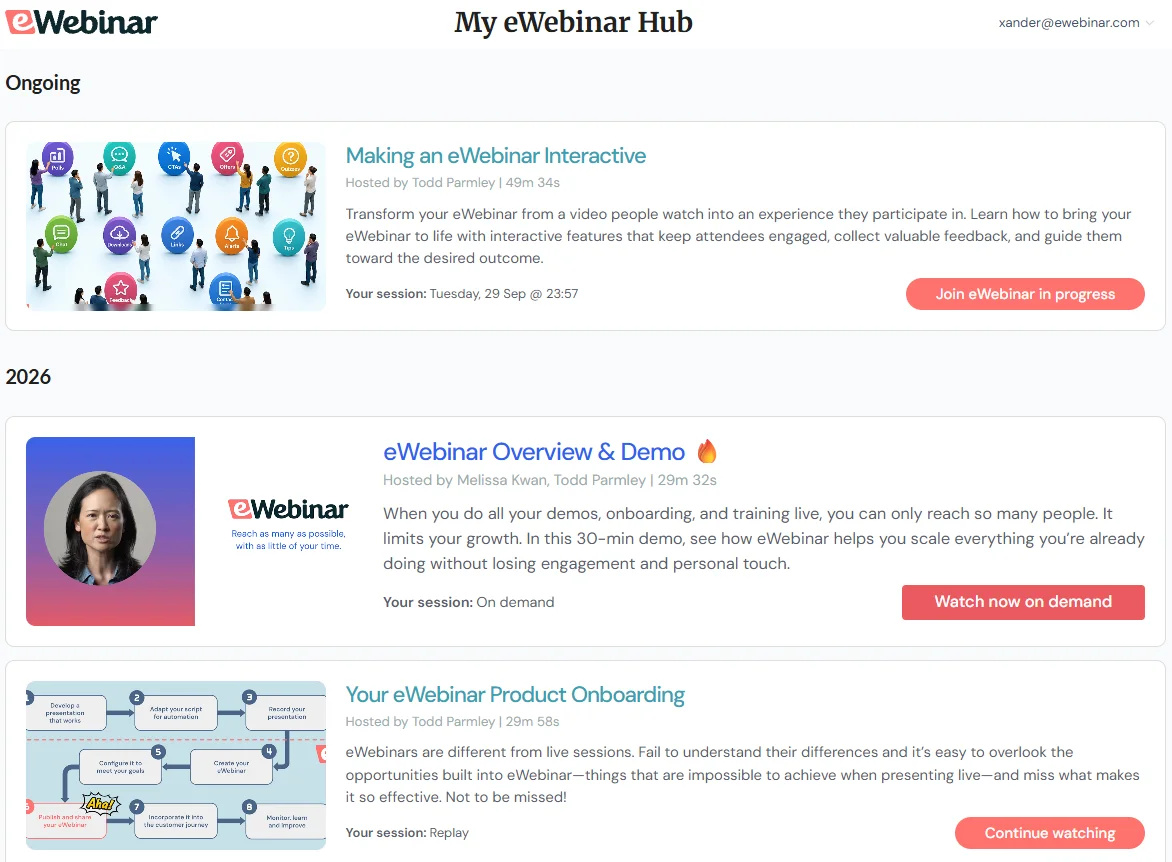
The Hub is a cross-eWebinar dashboard that lives at hub.ewebinar.com. When an attendee verifies their email, they land on a page called My eWebinar hub that shows every eWebinar they have registered for or watched, organized by status.
Each eWebinar appears as a card with the session thumbnail, title, and a progress bar showing how much the attendee has watched. Clicking any card opens that eWebinar's personalized summary page, where they can review their AI summary, bookmarks, notes, and interaction responses.
The Hub pulls in eWebinars from every team the attendee has registered with, matched by email, as long as each team has the Hub enabled. This means a single login can surface eWebinars from multiple eWebinar customers in one place.
What attendees see
The dashboard organizes eWebinars into three sections, each of which only appears when it has content:
- Ongoing: sessions that are live right now, plus on-demand sessions the attendee left before the end, which they can pick up where they left off. An on-demand session moves to Watch history once they reach the end of the video.
- Up next: upcoming sessions the attendee has registered for, with start times in the future.
- Watch history: past sessions and on-demand replays, ordered newest first.
Watch history grouping
The watch history section automatically groups sessions by recency: This week, Last month, then one bucket per calendar year (for example, 2025), and finally Earlier for anything older. Sessions load progressively as the attendee scrolls down, so the list is never overwhelming regardless of how many eWebinars they have attended.
Your eWebinars
Each card displays the eWebinar thumbnail, title, description, and their last session type. Clicking a card opens that eWebinar's personalized summary page if unfinished.
For details about what the summary page contains, including the AI-generated summary, bookmarks and notes, key moments, and interaction responses, see Attendee bookmarks, notes & personalized summaries.
How attendees access the Hub
There are three ways in:
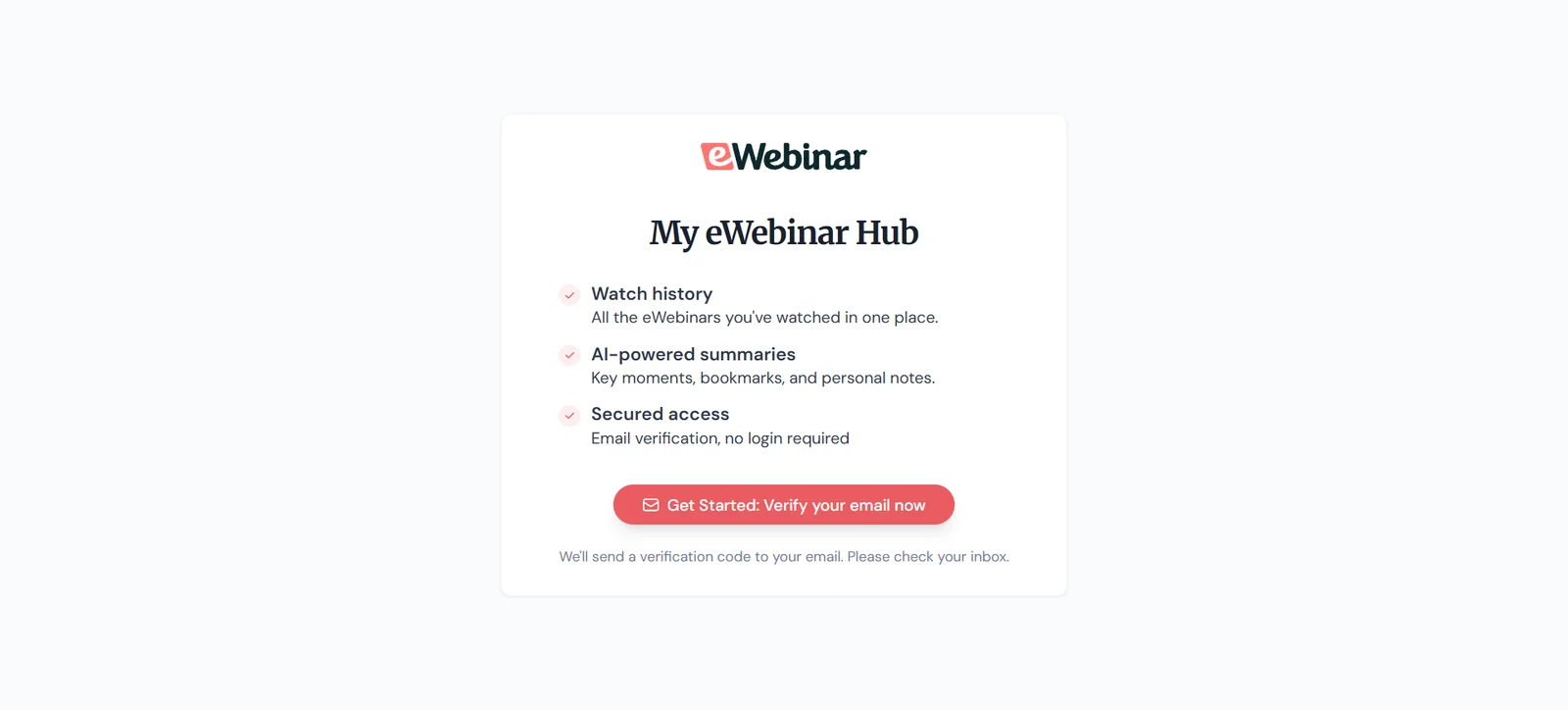
- Directly at hub.ewebinar.com. Attendees visit the Hub URL and see a landing page called My eWebinar hub with a prompt to verify their email.
- From any session summary page. When the Hub is enabled, a See all my eWebinars link appears in the header of each summary page, linking back to the Hub.
- From the replay page. When the Hub is enabled, a My eWebinar hub link at the top of the replay page leads back to the Hub (unless your team removes eWebinar branding).
Logging in
The Hub uses a passwordless login. No account or password is needed:
- The attendee enters the email address they registered with.
- A 6-digit verification code is sent to that email.
- They enter the code and land on their dashboard.
This is the same login that powers the per-session summary's full participant view. One login unlocks both the Hub dashboard and the cross-session view of any individual eWebinar.
The attendee can sign out from a user menu that shows their email address. If an email address has no eWebinar registrations, the Hub shows a No registration found for this email message. If the email has registrations but no eWebinars are currently available, the attendee sees a No eWebinars yet panel.
Settings for creators
The Hub has one control: a team-level toggle.
To find it, go to your account Settings, then the eWebinar section. The toggle is labeled Do not show eWebinars in the eWebinar attendee hub.
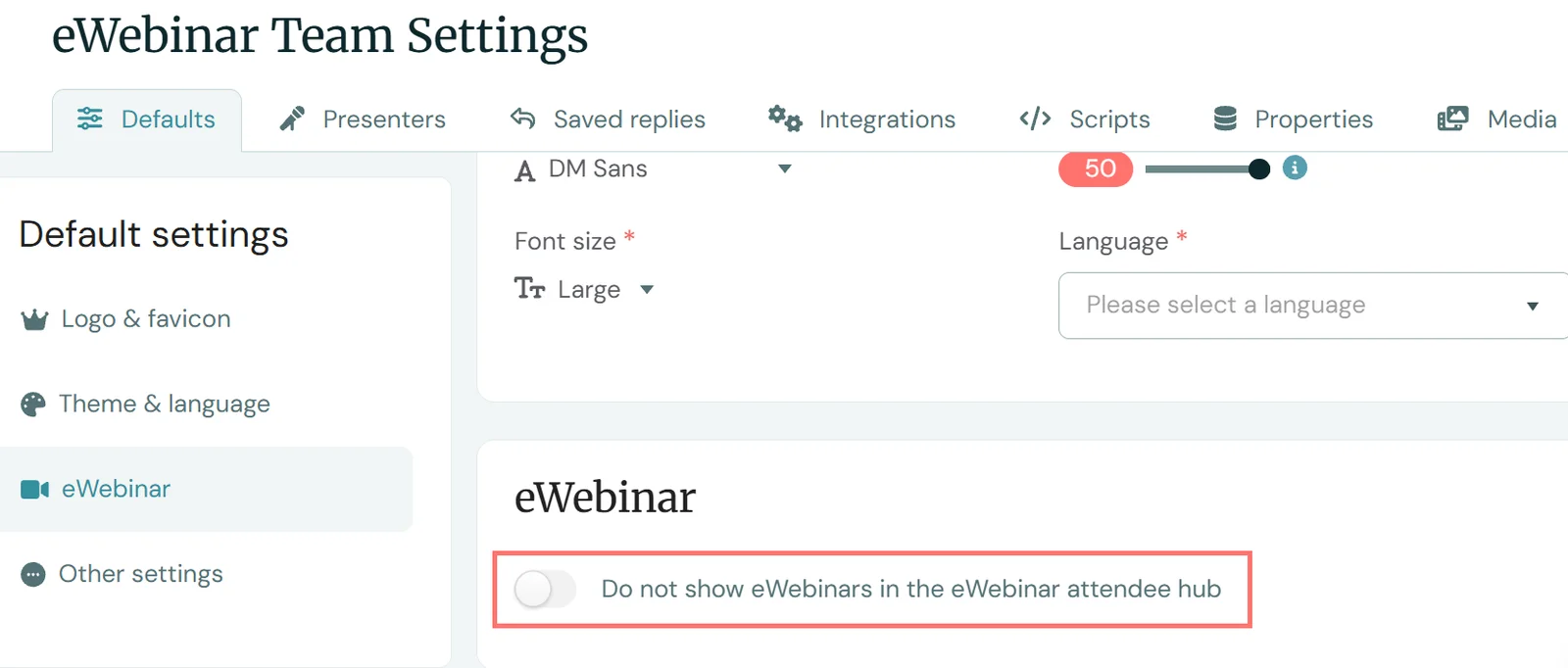
This is a negative toggle: leaving it off means the Hub is on. By default, the toggle is off, so the Hub is enabled for all teams out of the box.
When the Hub is enabled:
- All published eWebinars from your team automatically appear in your attendees' Hub.
- The See all my eWebinars link appears on session summary pages.
- Attendees can access their personalized dashboard at hub.ewebinar.com.
When the Hub is turned off:
- Your team's eWebinars no longer appear in the Hub.
- The See all my eWebinars link disappears from summary pages.
- Attendees can still access their individual session summaries through the follow-up email link.
Turning off the Hub only hides your team's eWebinars from the dashboard. It does not affect the summary page itself or the attendee's ability to bookmark moments, take notes, or view their personalized summary. See Attendee bookmarks, notes & personalized summaries for details.
How the Hub connects to summaries and notes
The Hub and the per-session summary page are complementary features connected by a shared login:
- The summary page is where an attendee reviews a single eWebinar session: replay, AI summary, their bookmarks and notes, key moments, and interaction responses.
- The Hub is where an attendee finds all of their sessions in one place and navigates into any one of them.
Think of the Hub as the starting point and the summary page as the destination. The Hub answers "what have I attended?" while the summary page answers "what happened in this eWebinar?"
For a complete guide to the summary page, bookmarks, notes, and AI summaries, see Attendee bookmarks, notes & personalized summaries.
Common questions
How do I turn the Hub on or off?
Go to Settings → eWebinar and look for the Do not show eWebinars in the eWebinar attendee hub toggle. Turning it on disables the Hub for your team. Leaving it off (the default) keeps the Hub enabled.
Why isn't a eWebinar showing in the Hub?
The eWebinar must be published and your team must have the Hub enabled. Unpublished eWebinars do not appear. If your team's subscription is suspended, your eWebinars also drop out of the Hub until the subscription is restored.
Do attendees need to create an account?
No. The Hub uses a passwordless login with a one-time verification code sent to the attendee's email. There is no account, username, or password involved.
Can attendees see eWebinars from different teams?
Yes. The Hub automatically aggregates eWebinars from every team the attendee has registered with (using their email address), as long as each team has the Hub enabled. The attendee does not need to configure anything.
What is the difference between the Hub and the summary page?
The Hub is the dashboard where attendees see all their eWebinars at a glance. The summary page is the detail view for a single eWebinar, with the AI summary, bookmarks, notes, and responses. Clicking a eWebinar card in the Hub opens that eWebinar's summary page.
Does turning off the Hub affect summaries?
No. Disabling the Hub only removes your eWebinars from the Hub dashboard and hides the See all my eWebinars link. Attendees can still access their individual session summaries through the follow-up email link. The Hub toggle does not control summaries. To hold the AI summary back until an attendee completes your eWebinar, use Hide the summary until the eWebinar is completed in the Completion section of your eWebinar's Settings tab.
Is there an extra cost?
No. The Attendee Hub is included for all customers at no additional cost.
Does the Hub show the team's branding?
Yes. The Hub header displays your team's logo when one is set. If no logo has been uploaded, the eWebinar logo is shown instead.