Quick Summary
Interactive video is video that viewers can respond to while it plays, by clicking, choosing, answering, or asking a question. It comes in three kinds, depending on what responds when the viewer acts: the video itself (branching paths, hotspots, shoppable video), a presenter during a live session, or your team on demand (on-demand video with timed interactions and chat). Pick the kind that fits the job: exploring on their own, a one-time event, or a session you’d otherwise present over and over.
Most Video Asks Viewers to Watch. Interactive Video Asks Them to Act.
A regular video only asks one thing of the viewer: keep watching. Interactive video gives them something to do along the way, like choosing what happens next, clicking a product, answering a quiz, or asking a question.
This guide covers the interactive video most people search for, where viewers click hotspots or choose their own path. It also covers a kind most guides leave out: on-demand video where viewers can ask a question and hear back from a person. You’ll find the elements you can add, real examples, the use cases each kind fits, and how to make your own.
Why Listen to Us?
“Most webinars and videos are boring, and great content gets lost in the delivery. That’s why I made interaction the center of eWebinar, so viewers have something to do and someone to talk to while they watch.” Melissa Kwan, Cofounder and CEO of eWebinar
Today, eWebinar has 25+ interactions that teams place on a video’s timeline, and companies like SuperOffice, Follow Up Boss, and The Receptionist use it for product demos, customer onboarding, and training. Christian Wyrwich, Presales Consultant at SuperOffice, describes it this way: “eWebinar’s format is so interactive and personal; the chats, polls and all the engagement features make it really feel alive.”
What Is Interactive Video?
Interactive video is video the viewer takes part in, not only watches. While it plays, viewers click, choose, answer, or ask, and something responds: the video changes, a result appears, or a person replies.
The easiest way to tell the kinds apart is to ask one question: when the viewer acts, what responds?
Self-guided video | Live video | On-demand video with chat | |
What responds | The video | The presenter, in the moment | Your team, right away or later by email |
Viewers can | Click, choose, answer, buy | Chat, vote, ask questions | Answer, click, chat, ask questions |
When it works | Anytime | Only during the session | Anytime |
Best for | Exploring, shopping, stories, practice | Launches, events, one-time sessions | Demos, onboarding, and training you’d otherwise repeat |
Example tools | Vimeo, Mindstamp, H5P, Stornaway | Live streaming and webinar tools | eWebinar |
The 3 Kinds of Interactive Video
1. Self-Guided Video: The Video Responds
This is what most people mean by interactive video. The viewer’s click or answer changes what happens on screen: a new scene plays, a product card opens, or the video waits for a quiz answer. Everything is built ahead of time, so it works the same at 3 a.m. as it does at noon.
It’s the best fit when viewers should explore on their own, like choosing a storyline, browsing products, or practicing a decision. The trade-off is that the video can only respond in ways you planned. If a viewer has a question you didn’t script, there’s no one to ask.
2. Live Video: The Presenter Responds in the Moment
Live streams and live webinars are interactive too. Viewers chat, answer polls, and ask questions, and the presenter responds on the spot. That makes live the best format for things that happen once, like a launch, an AMA, or a conference session.
The interaction only lasts as long as the session. Viewers have to show up at the same time as your team, and on most platforms the replay is a regular video, with the chat and polls gone.
3. On-Demand Video With Chat: A Kind You May Not Know Yet
The third kind takes the best of both. Like self-guided video, it’s ready whenever the viewer is. Like a live session, there’s a person on the other end. Polls, quizzes, and offers appear at set moments, and viewers can send a question in chat while they watch. Someone on your team replies right away, or later by email if no one’s around, so every question gets answered.
That’s what eWebinar does. It’s an on-demand video platform with chat, and teams use it for the sessions they’d otherwise present over and over, like product demos, customer onboarding, and training. Viewers start the moment they’re ready, and your team still gets the conversation.
People use the chat even when they know nobody is presenting live. Kyle Racki, Co-Founder and CEO of Proposify, put it this way: “Nobody has complained about eWebinar’s hybrid format, and that’s a good thing in and of itself! I’ve had really good interactions with attendees in general. Nobody has said, ‘This is weird, this is pre-recorded.’ That’s just never come up.”
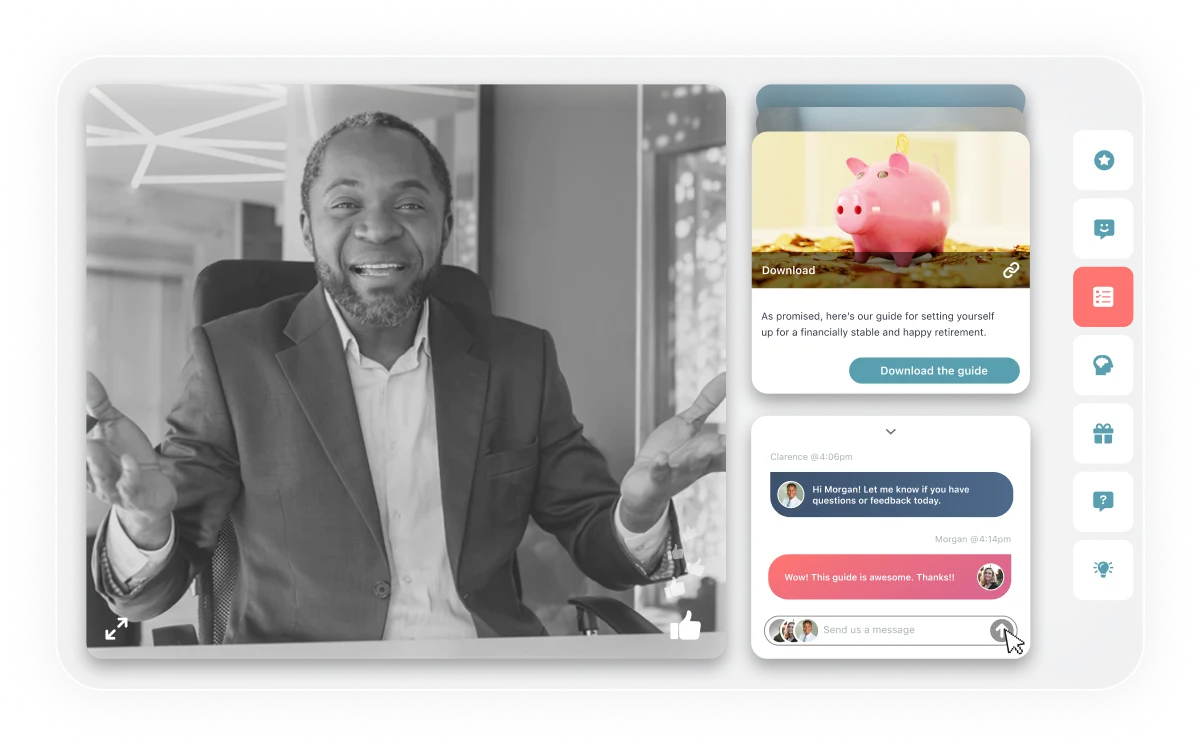
Want to see what this feels like as a viewer? Join our on-demand demo, which runs on eWebinar.
Why Interactive Video Works
- It keeps attention. In a Harvard study published in PNAS, students who answered short quizzes between segments of a recorded lecture mind-wandered about half as often, took about three times as many notes, and learned more than students who didn’t get the quizzes.
- It tells you what viewers want. Every answer, click, and question is a signal: what viewers care about, where they get stuck, and who’s ready for a next step. That gives your team far more to work with than a view count.
- It moves people to act while interest is high. A next step that appears at the right moment gets more clicks than a link someone has to find later. Spencer Russell at Toddlers CAN Read moved the same video from a landing page into eWebinar, and his non-viral conversion rate went from 3.5% to 11.1%.
- It can start a conversation. When viewers can ask a question while they watch, they don’t leave confused, and your team learns what to explain better next time.
11 Types of Interactive Video Elements
Whichever kind you use, interactive video is built from the same set of elements. Here are the ones you’ll see most, what each is good for, and how it works in eWebinar where it applies. You can see all of them on our interactions page.
1. Branching Paths
Branching video lets the viewer choose what happens next. At a decision point, they pick between two or more options, and their choice decides which scene plays. The best-known example is Netflix’s Bandersnatch, a 2018 Black Mirror film where viewers chose what the main character did next. Netflix removed it in May 2025, but it’s still the example most people know.
Branching also works well for scenario training: show a situation, ask the learner what they’d do, then play the scene that shows the result. The trade-off is production. Every decision means more scenes to plan, record, and update. If you want each viewer to get a path that fits them without recording extra scenes, see conditional content below.
2. Clickable Hotspots
A hotspot makes part of the video frame clickable, like a product, a person, or a button. When a viewer clicks it, they see more detail, open a link, or jump to another scene. Non-stop dogwear uses clickable videos on its product pages, where shoppers click parts of a harness to see explanations or learn how to measure their dog. According to Vimeo’s case study, return rates dropped as more customers chose the right size.
In eWebinar, a hotspot is a clickable area you place over the video, like over a button in a product walkthrough that links to that page. You set its size, position, link, and how long it stays on screen.

3. Shoppable Video
Shoppable video puts products inside the video, so viewers can buy what they see without searching for it. YouTube Shopping lets creators tag products in videos, Shorts, and live streams, and viewers find them on a product shelf below the video. It’s a good fit for retail and ecommerce, where the next step after watching is buying something.
4. Quizzes
A quiz checks whether viewers understood what they watched. Research on the testing effect has found that recalling something you just learned helps you remember it later, more than studying it again does. So place quizzes right after the ideas they cover, not all at the end. Education tools like H5P are built around this, with question types that work inside Canvas, Moodle, Blackboard, Brightspace, and WordPress. Quizzes work in marketing too: a product quiz asks a few questions and ends with the product that fits.
In eWebinar, you can pause the video at a quiz so viewers have time to answer before it continues, and see who answered correctly.
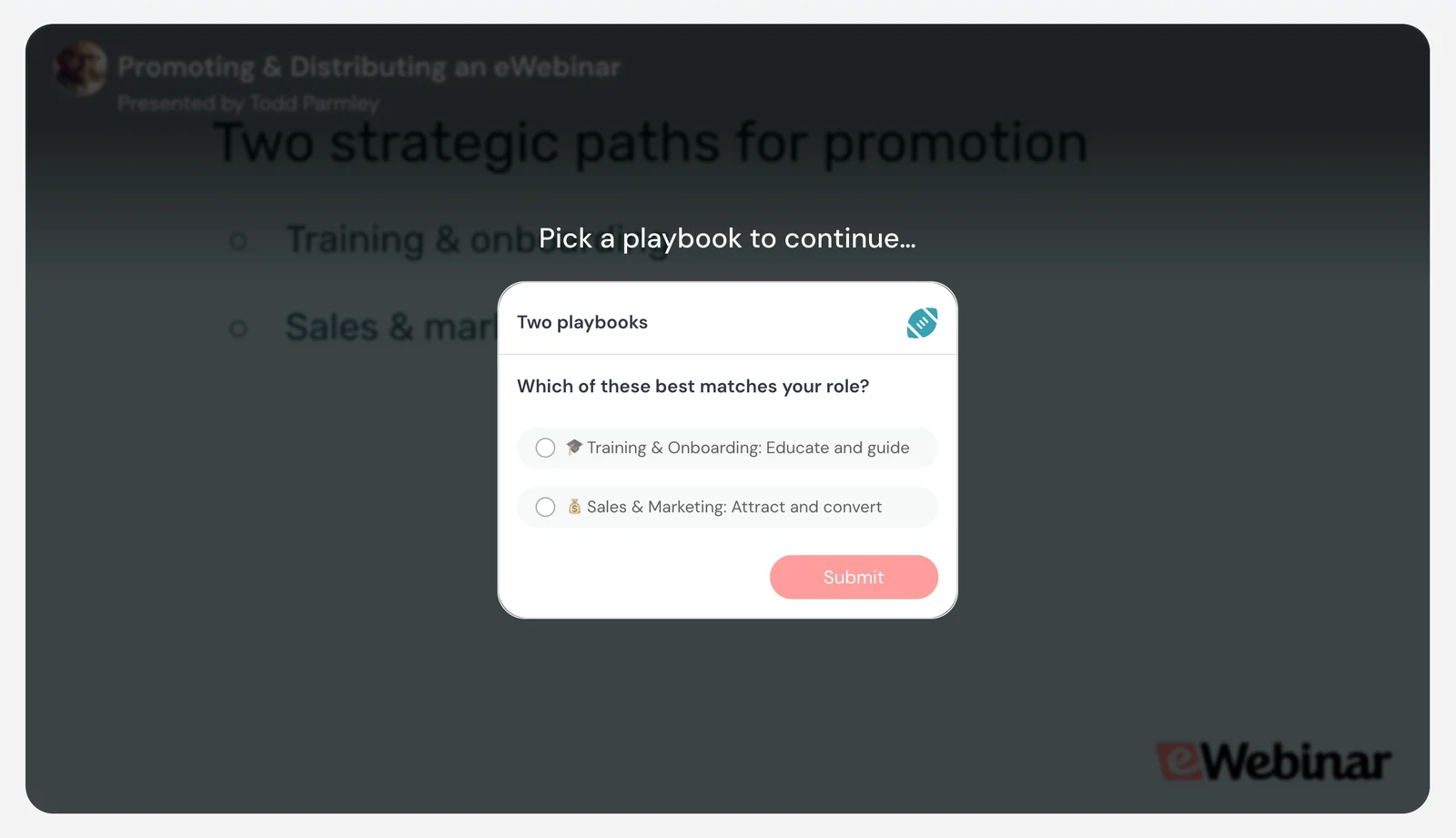
5. Polls
A poll asks viewers for an opinion or a preference, and the answers tell you what they need. A poll in a product demo can show your sales team which use case matters to a prospect. A poll in a training can show where learners need more help.
In eWebinar, a poll appears at the second you choose, and viewers answer while the video keeps playing, or you can pause it for their response. Dylan O’Brien at BePrepared uses polls to read the room: “I find that by having those interactions on the side, I can poll their buying temperature.”
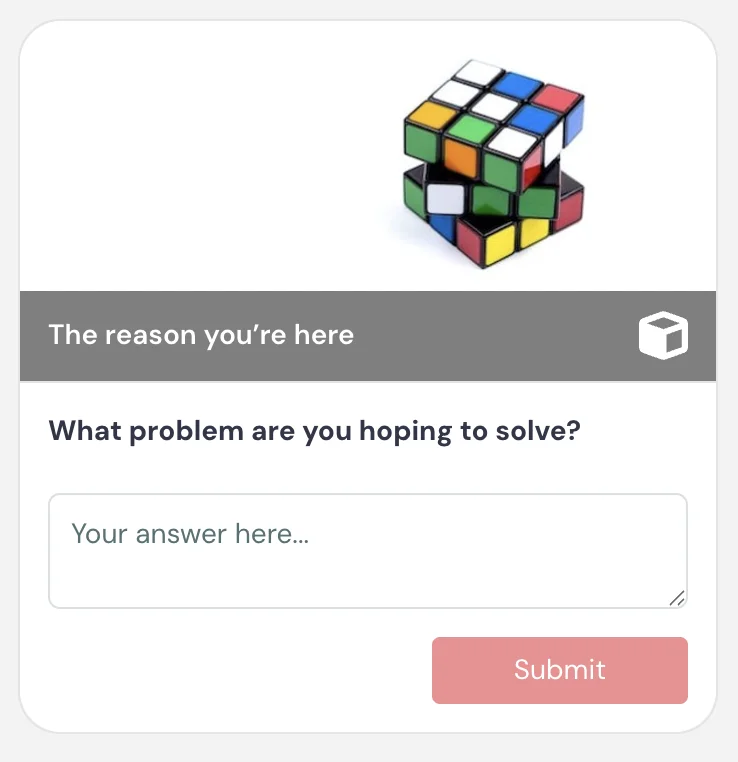
6. Open-Ended Questions
A poll gives viewers set options, while an open-ended question lets them answer in their own words. Use it when each viewer’s situation matters, like asking “What’s your biggest challenge with this process?” in a product demo.
In eWebinar, answers are saved with each viewer’s details and can flow to your CRM, so your team can follow up with context.
7. Calls to Action
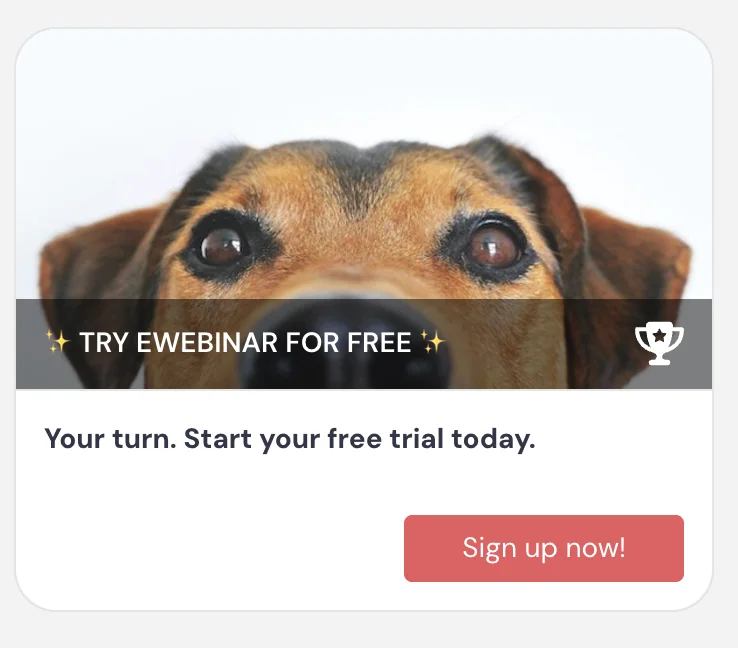
A call to action (CTA) asks viewers to take a next step at the moment it makes sense, like starting a trial, booking a call, or reading a related page. It works best when the video has led up to it, instead of appearing at a random point.
In eWebinar, you place the CTA at the right second and can pin it above the video, so it stays visible after it first appears.
8. Forms and Lead Capture
A form collects details inside the video, like a name, an email, or a request to be contacted, so viewers don’t have to leave to raise their hand.
In eWebinar, a contact form lets viewers ask your team to reach out without leaving the session.
9. Conditional and Personalized Content
Conditional and personalized content changes what each viewer sees based on who they are or what they told you, so each person gets something that fits them without you recording separate scenes.
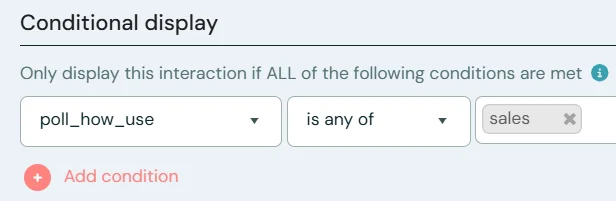
In eWebinar, conditional display shows or hides an interaction based on a registration answer or an earlier response. You could ask about someone’s role when they register and later show them a case study for that role, or ask about their use case in a poll and follow up with the resource that fits. You can also time a private message that greets each viewer by name, like “Hi John, what do you think so far?”
10. Chapters
Chapters split a long video into labeled sections, so viewers can see what’s coming and jump to the part they need. They’re most useful for training and anything people come back to later.
In eWebinar, agenda items build a list of sections that viewers can open to jump around the session.
11. Chat With a Real Person
This is the element most interactive video doesn’t have. In eWebinar, viewers send a private question in chat while they watch. Your team gets notified by email, browser notification, or Slack, and replies right away or later by email if no one’s around.
Meghan Porter, Former Director of Customer Advocacy at Follow Up Boss, said: “Any companies out there that only offer help guides and videos should know that eWebinar adds another dimension to all of that because of the interactive experience. It just feels different.”
Interactive Video Use Cases
Use case | Kind that fits | Elements to use |
Product demos | On-demand video with chat | Polls, open-ended questions, CTAs, chat |
Customer onboarding | On-demand video with chat | Quizzes, chapters, CTAs, chat |
Customer education | On-demand video with chat | Conditional content, quizzes, chat |
Employee and sales training | Self-guided, or on-demand with chat | Quizzes, branching scenarios, chat |
Marketing and ecommerce | Self-guided | Hotspots, shoppable video, product quizzes |
Stories and campaigns | Self-guided | Branching paths |
Product Demos
A demo is the same pitch every time, and prospects want to see it when they’re ready, not a week from now. With on-demand video and chat, they can watch right away, polls and questions show you how qualified they are, a CTA gets them to a trial or a call, and chat answers their questions before they leave. Tom Foster, Director of Sales at The Receptionist, said: “eWebinar basically doubled our sales team by allowing demos to happen 24 hours a day, 7 days a week, 365 days a year.” See how sales teams use eWebinar.
Customer Onboarding
New customers have the most questions right after they sign up. An onboarding walkthrough with quizzes checks that the key steps landed, chapters let them come back to a specific step, and chat gives them a place to ask while they’re setting things up. See how customer success teams use eWebinar.
Customer Education
Once customers are up and running, they need to keep learning as you ship new features. Conditional content shows each viewer the parts that fit their role or plan, and quizzes check that the important ideas stuck.
Employee and Sales Training
Quizzes reinforce what people learn, and branching scenarios let them practice decisions, like handling a tough customer call, before they face them for real. For training your team keeps repeating, on-demand video with chat lets people ask the trainer questions without waiting for the next session.
How to Make a Video Interactive
1. Decide What Viewers Should Do
Start with the action, because it decides the kind and the elements you need. If viewers should choose a story or practice a decision, that’s branching. If they should buy, that’s shoppable video. If they should learn something and ask questions about it, that’s on-demand video with quizzes and chat.
2. Map the Interaction Moments
Interactions work best when the video sets them up. Mark the natural moments in your script, like a question you’d ask a room, a pause after a key idea, or the start of a new topic. For branching, map every decision and every path before you record anything, including where each one ends.
3. Choose Software That Matches the Kind
- Branching: Stornaway and Near-Life are built around branching scenarios and interactive stories.
- Shoppable: YouTube Shopping works if you sell through a YouTube channel.
- Quizzes in courses: H5P plugs into the learning platform your students already use.
- Hotspots and mixed types: Mindstamp and Vimeo cover hotspots, questions, and branching in one editor.
- Timed interactions with chat: eWebinar turns a video you already have into an on-demand session with interactions and chat.
4. Add the Interactions
Most tools start from a finished video, so you can use one you already have. Upload it, place each interaction at the second it should appear, and decide whether the video pauses for it. Give each interaction one clear job, and keep choices to two or three options so viewers don’t stall.
5. Test Every Path and Interaction
Watch the video the way a viewer will, on a laptop and on a phone. Click every hotspot, answer each quiz both right and wrong, and follow every branch to its end. Then ask someone who hasn’t seen it to try it, since they’ll find the confusing spots you’ve stopped noticing. On a phone, check that buttons are big enough to tap, captions are on, and nothing covers the part of the screen viewers need to see.
6. Measure, Follow Up, and Adjust
Once it’s live, viewers’ responses show you what to fix. Check which answers people choose, which hotspots they click, and where they stop watching. If most people miss the same quiz question, the explanation before it probably needs work, so fix that moment first. Then use what each viewer did. Someone who answered a pricing question or clicked a demo link is telling you they’re ready for a conversation, so send responses to your CRM and follow up with context instead of sending everyone the same email.
Choosing the Right Kind of Interactive Video
If viewers need to explore on their own, like choosing a storyline, browsing products, or practicing a decision, use self-guided video. If it’s a one-time event, go live. If the video stands in for a session you’d otherwise present over and over, like a demo, an onboarding call, or a training, viewers will have questions along the way, so pick a format where someone can answer them.
eWebinar is an on-demand video platform with chat, built for that last kind. If you want to see what it feels like as a viewer, join our on-demand demo, or start a free trial to build your own.
FAQs
What Is an Example of Interactive Video?
Netflix’s Bandersnatch (2018) is the best-known example of branching video, where viewers chose what the main character did next. Non-stop dogwear’s clickable product videos are an example of hotspots in ecommerce. And our own on-demand demo is an example of interactive video with chat, where viewers answer polls and can ask our team questions while they watch.
Is Interactive Video the Same as an Interactive Demo?
No. An interactive demo is a click-through tour of a software product, where the viewer clicks around a copy of the interface. Interactive video is any video the viewer can respond to while it plays. A product demo can be either one: a click-through tour shows the product, while an interactive video can tell the story behind it and answer questions along the way.
What’s the Difference Between Branching Video and Interactive Video With Chat?
Branching video gives each viewer a choice of prepared paths, so the video changes based on what they pick. Interactive video with chat plays the same video for everyone, with polls, quizzes, and offers at set moments, and viewers can message your team and get a reply. Branching suits stories and scenario practice. Chat suits demos, onboarding, and training, where questions come up.
Can Interactive Video Include a Real Conversation?
Yes, though most interactive video tools don’t offer one. With eWebinar, viewers can send a private chat message while they watch. Someone from your team replies right away, or later by email if no one’s around. Either way, the viewer hears back from a person. Chat is a feature that is unique to eWebinar.
Does Interactive Video Improve Completion Rates?
It can. Interactions give viewers a reason to keep watching, but completion still depends on the video, the audience, and how you use the interactions. Place them throughout the video, not only at the start, and make sure each one has a clear purpose.
Can I Make an Existing Video Interactive Without Re-Recording?
Yes. With eWebinar, you can take a video you already have and add timed interactions. You can also add image overlays to show information you left out of the original video. Kelly Bojarski, Director of Training Systems at Inside Real Estate, uses this to get ahead of repeat questions: “What I love about eWebinar is I don’t have to re-record the entire webinar if I get the same question over and over. I can just pop in an interaction two minutes before I expect that question to come in, and offer some additional information. You can’t do that in a live experience.”
Can You Make a YouTube Video Interactive?
Partly. YouTube’s built-in options are cards, which link to other videos, playlists, channels, or (for creators in the YouTube Partner Program) outside websites, with up to five per video, and end screens, which show up to four elements in the last 5 to 20 seconds. For quizzes, hotspots, branching, or chat, you need a tool with its own player, and the interactions only work where that player is embedded. The same goes for social platforms: upload the file to Instagram or LinkedIn and it plays as a regular video.
Can Interactive Video Work Inside an LMS?
Yes. Many interactive video tools export SCORM packages, so quiz results report back to your learning management system. eWebinar can also run as an interactive module inside a course, like in Thinkific, so learners get interactions and chat without leaving it.
How Do You Measure Interactive Video?
Look past view counts. Track watch time, where people drop off, and how they answer each question, poll, and quiz. In eWebinar, analytics show all of that, plus the questions viewers ask in chat, which tell you what to explain better next time.
Curious to see how eWebinar can help run your demos, onboarding, and training sessions on autopilot?
Watch a one-minute explainer video for a quick overview of the eWebinar platform. Or, better yet, join our on-demand demo to learn more!