
What's an intro? What is housekeeping?
"During our time together, you'll see questions and polls pop up, please take a second to answer them. If you have any questions, type them in the chat and I'll get back to you asap."
That's an intro to your eWebinar. By including this in your script, you turn a passive viewer into an active participant by setting expectations and inviting attendees to take part.
If you've never incorporated our recommended intro script into your eWebinar, it's okay. Most people don't, and we get. It breaks the flow when you're recording, or maybe you're working with a previous recording and never had the chance. But now you can add a video or audio intro to the beginning of any eWebinar, including ones you've already published, without re-recording a thing.
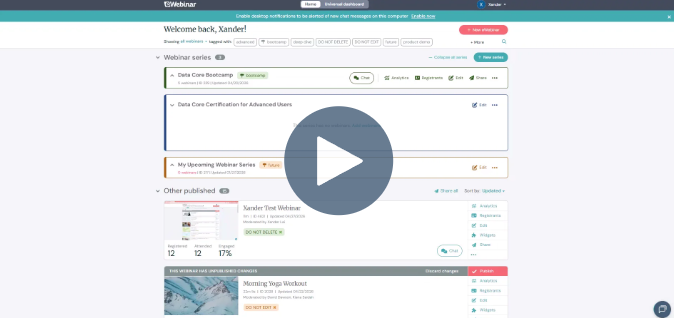
Three reasons Intros are powerful:
- Add them to eWebinars you've already published. No re-recording. Just create an intro and attach it.
- AI-powered visual spotlights. When your intro mentions the chat or a poll, our AI highlights that part of the UI in real time, in any language.
- One intro, or one per presenter. Use a single company-wide intro, or let every team member record their own. Reuse them across as many eWebinars as you want.
Want to record your own? Use our built-in script template as a starting point and translate it into any language right in the interface. (Profile > Settings > Media): SOn
How to set it up:
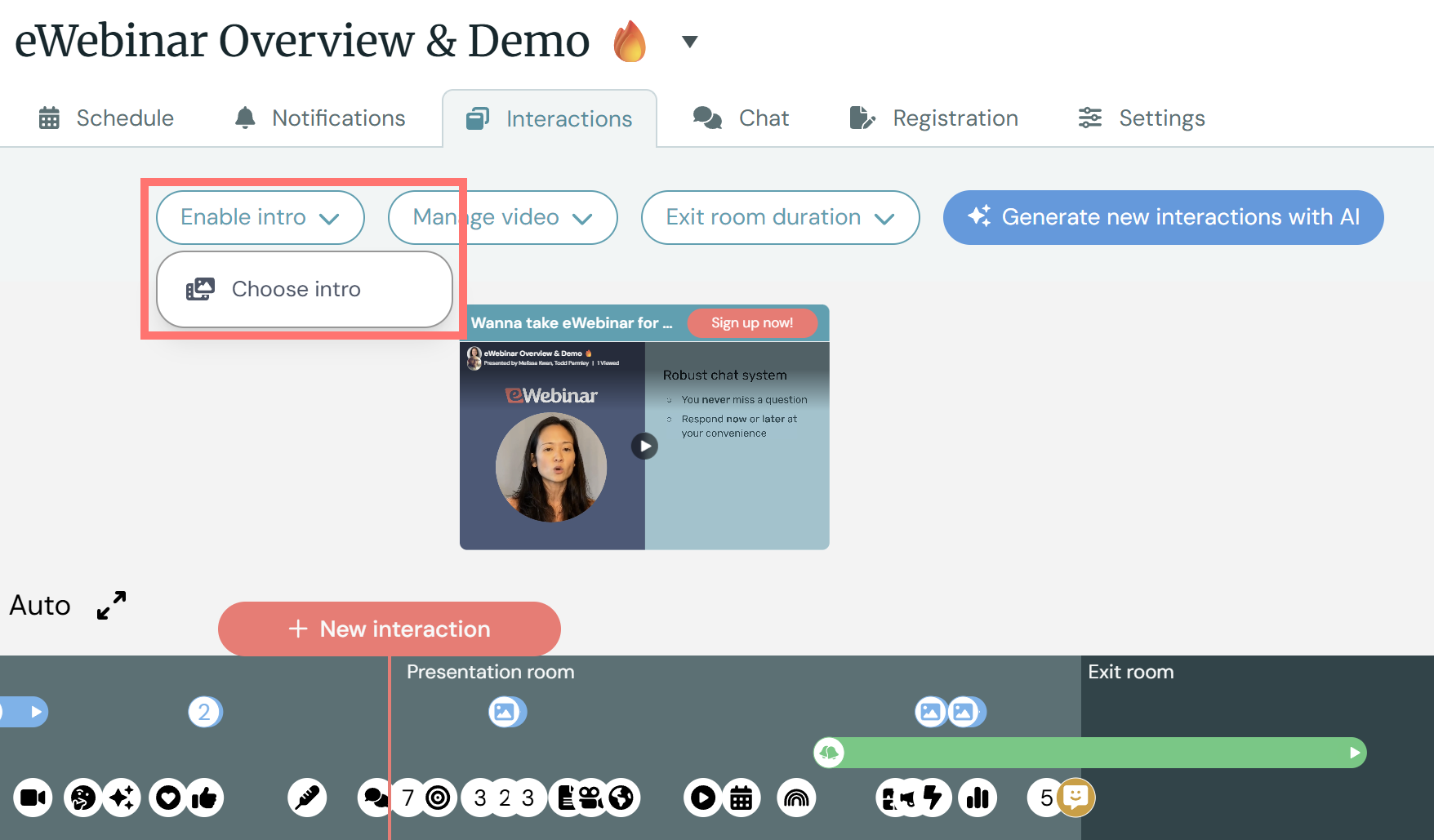
Step 1: Go to the Interactions tab of any eWebinar and click Enable intro, then Choose intro.
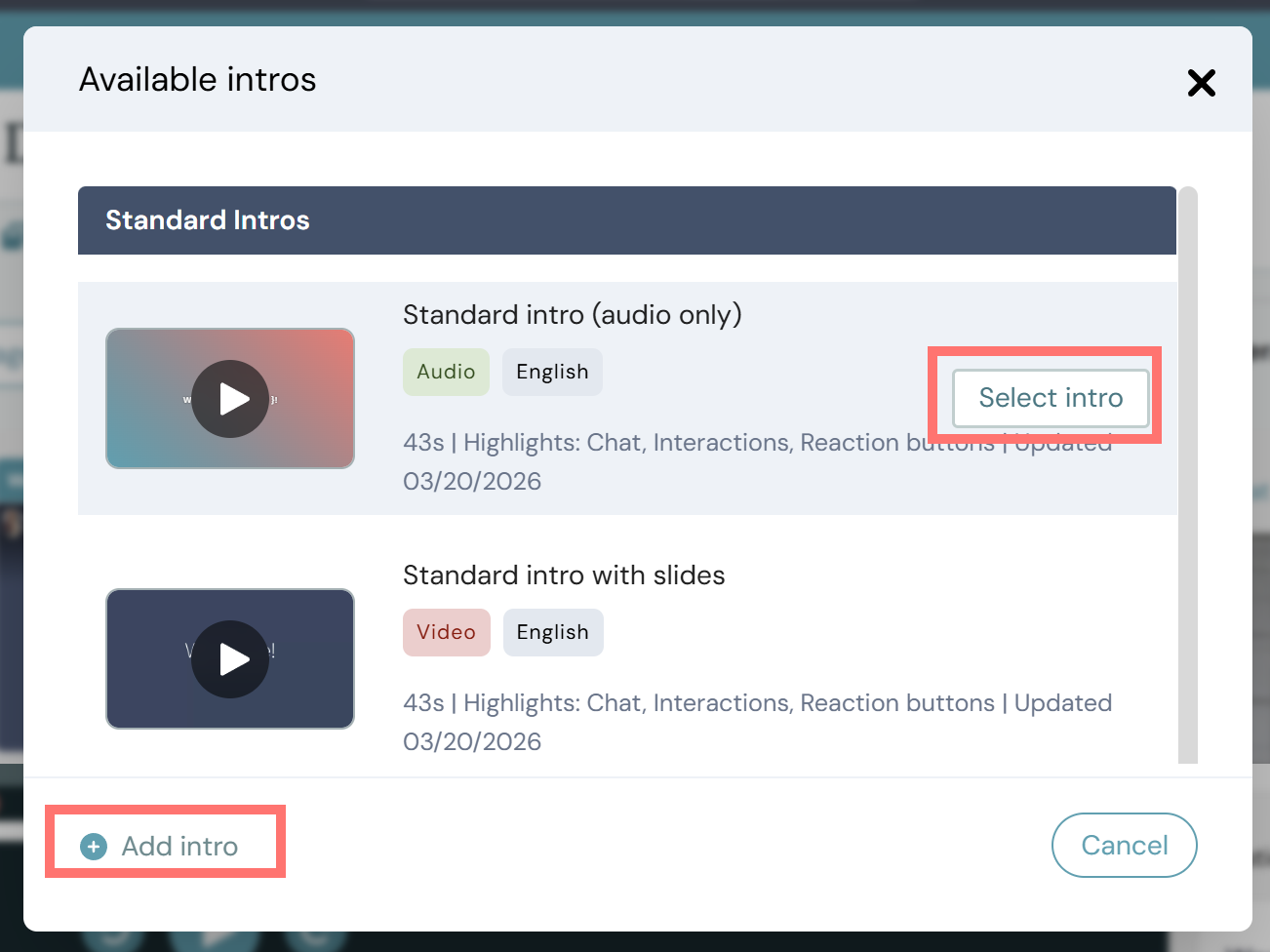
Step 2: Choose one of our pre-made Standard Intros by clicking Select intro. The intro has been added to your eWebinar (make sure to save and publish). To record your own using our standard script template, click Add intro to be brought to the Media tab of your team’s Settings where you can upload one.
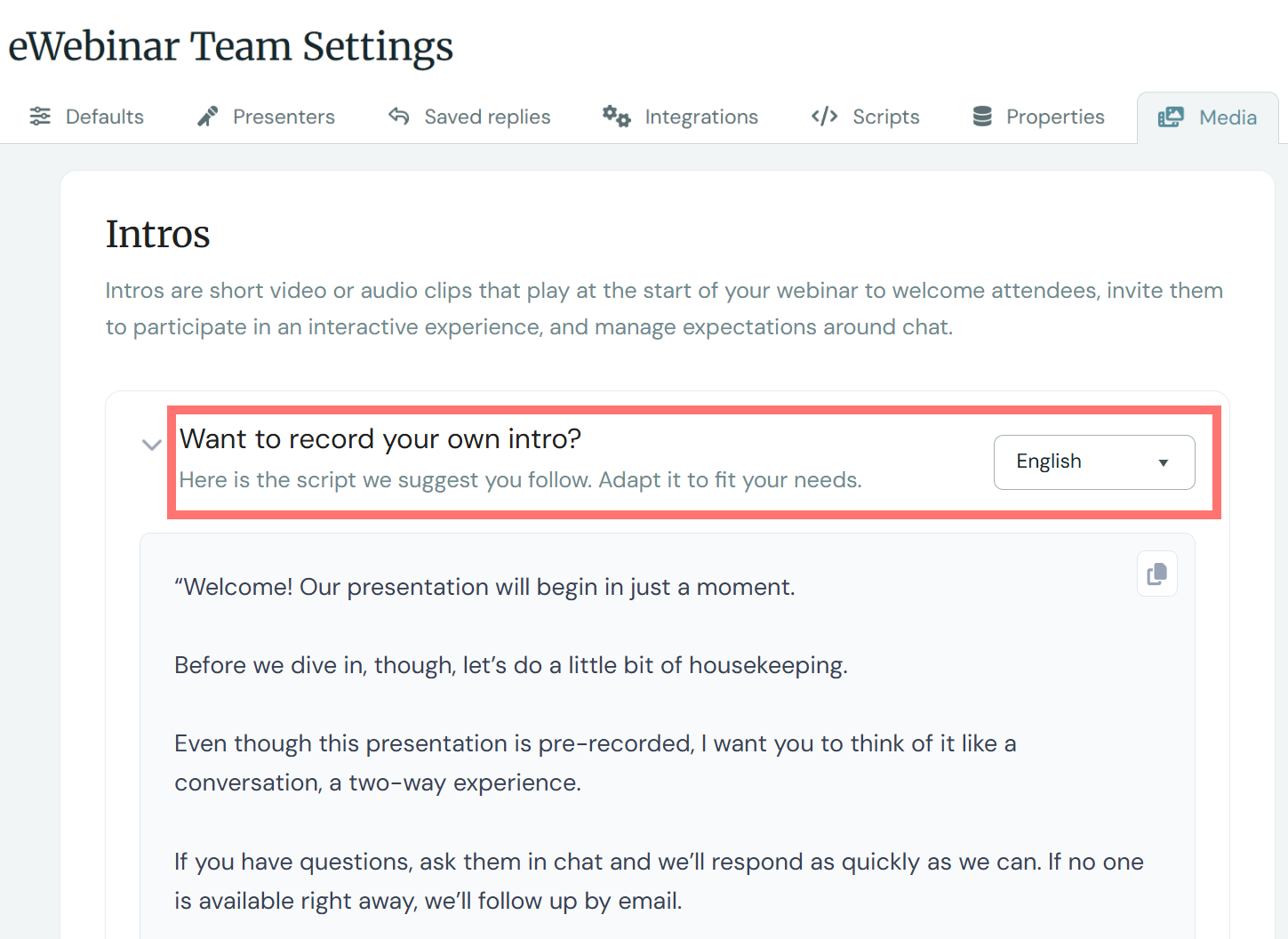
Step 3: On the Media tab, if recording your own, use the built-in script template as a starting point by clicking Want to record your own intro? You can translate it into any language right in the interface.
Step 4: Once it is recorded, on the same page click Add intro and upload the file. You can now apply your intro to any eWebinar, new or existing.
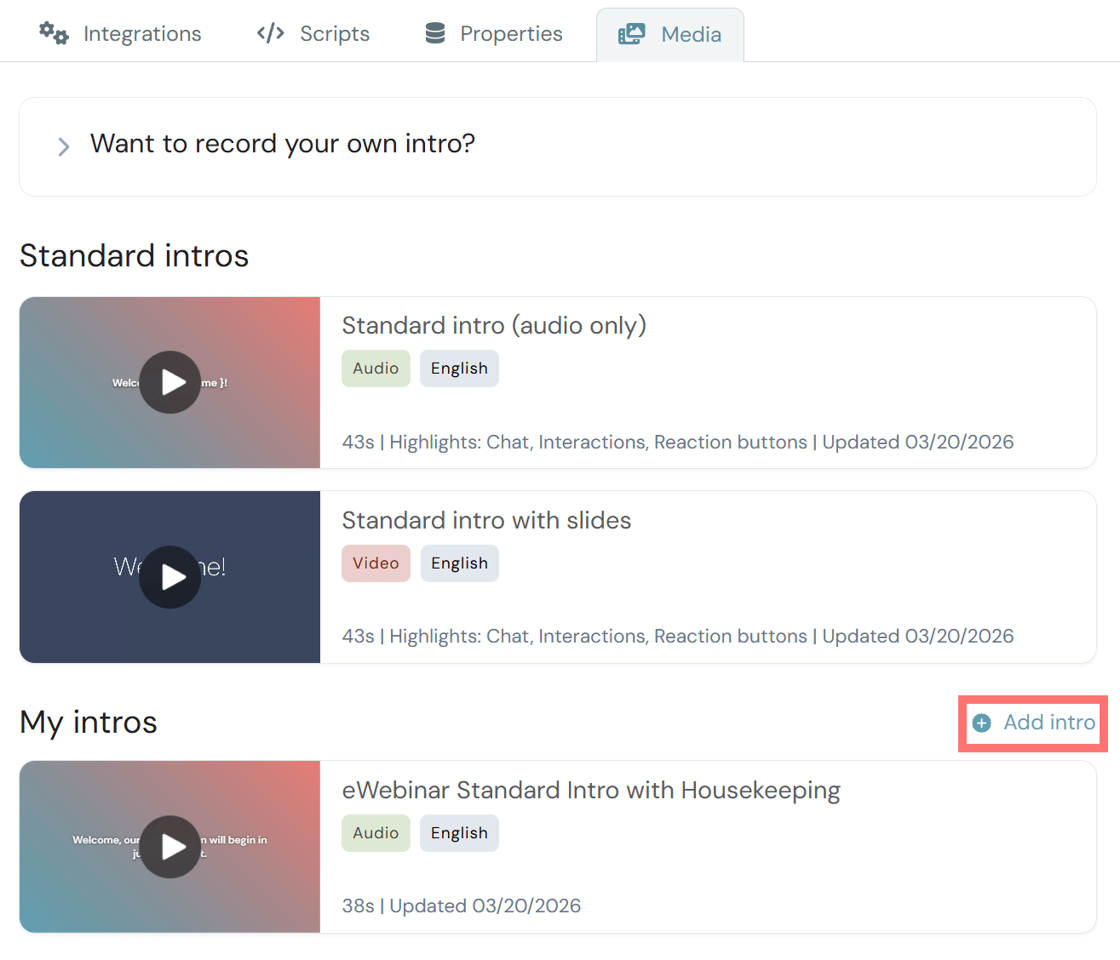 Make sure to turn on AI Highlights when uploading!
Then publish your eWebinar! Your attendees will now hear the pre-recorded intro before your main presentation.
How intros affect cards and drafts
Interaction cards are timed from the start of their own room (waiting room, intro, presentation, or exit). Turning an intro on or off, or replacing its file, no longer shifts your presentation cards.
Each published or draft version pins the intro file it plays. Replacing a clip in Profile → Settings → Media does not change published eWebinars by itself. When drafts still use an older file of that intro, the media page offers Update drafts (and can publish drafts that have nothing else pending). In the editor you may also see an offer to use the newest file of the intro on that draft.
While a replacement file is processing, only one new file can be in flight. Use Discard replacing if you change your mind before it goes live — the ready intro stays in place. Only Admins and Creators can change the team intro library; eWebinars play intros from your team's library or eWebinar's standard templates.