
How do I pre-populate a registration form using URL parameters?
Pre-populating your registration form allows you to pass information about a known contact directly into your eWebinar landing page or any page that contains an eWebinar registration widget. This reduces friction and makes it faster for people to register.
How it works
You can add URL parameters to your webinar landing page link (or to any page where an eWebinar registration widget is embedded) to automatically fill in the form fields when someone clicks it.
For example, you can add parameters like these to the end of your landing page link:
?name=Jane%20Doe&email=jane@example.com&session=ondemand&showform=1Click this example link to see how it works:
Required fields
You must include the contact's name and email in your parameters, since they are required for registration.
Name field(s)
Registration forms may use one or two fields for the contact's name, so make sure the URL parameters you use match your form.
If your form uses one field (Name):
name=Jane%20Doe
If your form uses two fields (First name and Last name):
firstName=JanelastName=Doe
Email field
email=jane@example.com
Note that properties are case-sensitive.
How to build your URL
Start with your webinar landing page link (or a link to a page with an embedded form)
Add a question mark (?) to begin parameters
Add your fields using this format:
field=value
Separate multiple parameters with an ampersand (&)
Add a space within a parameter with
%20
Example:
?name=Jane%20Doe&email=jane@example.comOptional parameters
Automatically open the registration form
On standard eWebinar landing pages, you can automatically open the registration form by adding:
showform=1Pre-select a session
You can pre-select a session in the dropdown. In this example, "Watch now on demand" would be pre-selected:
session=ondemandIf you would like to learn about the most common fields used for pre-populating registration forms, including your options for pre-populating the sessions drop-down, read this article.
NOTE: Consent checkboxes may not be pre-selected. Registrants must check it themselves.
Pre-populate hidden fields
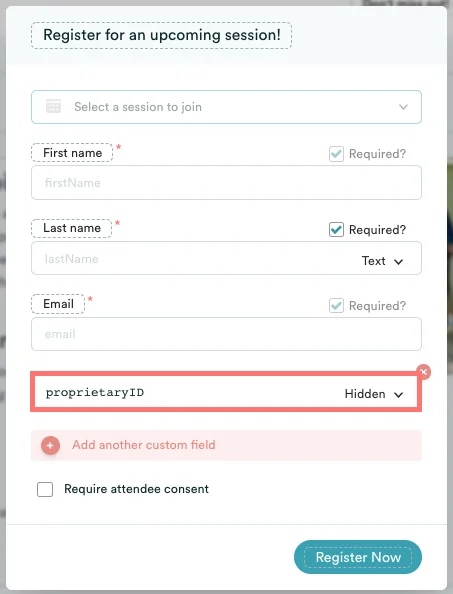
We support Hidden fields in our registrations forms, so you can pass data through in the URL without registrants being able to see or change it.
This is useful if you want to associate the registrant with an existing record in your system.
For example, you might pass a proprietary ID from your CRM in the URL to a hidden field in the form. When the attendee registers, that ID is stored alongside their registrant data in eWebinar. When the data is sent back to your system (via integrations or exports), you can use that same ID to match the attendee to their existing record.
Properties built-in to the registration form
There are a few properties that are built in, but which you can use to pre-populate your registration form in via the mechanism above. They are:
| session |
Used to specify the session time to register for. The value must be either: YYYY-MM-DDTHH:MM:SS+HH:MM This specifies the time of the session in ISO 8601 format. It's a standard format between services. You can specify any valid session time based on the schedule you set for this webinar. replay This states the attendee wants to register for a replay session. |
| firstName | First name of attendee |
| lastName | Last name of attendee |
| Email of attendee | |
| source | Any text of your choosing used to track where this registration came from typically |