
Most series follow the same pattern. The first eWebinar gets strong attendance. Then numbers drop with every eWebinar after that.
People start the series. They just don't finish it.
This playbook shows you how to keep them moving, from the first eWebinar to the last.
Who this is for
Anyone trying to raise attendance across a series. It's especially useful if you can't make training mandatory, or if you don't control how it gets promoted.
eWebinar Series is a subscription add-on. See what's included →
The core idea
Send people to one link, every time: their own series page.
Set up your series
If you haven't created your series yet, start here: How do I create an eWebinar Series?
A few setup choices affect how well people move through it.
Decide what "complete" means for each eWebinar
Completing a series depends on completing its eWebinars, so start here.
In each eWebinar's Settings tab, set its completion requirements. Watch time is the default, set to 95%. Change it to the point in the video you actually care about. You can also base completion on quiz responses. Attendees only have to respond, not get the answers right.
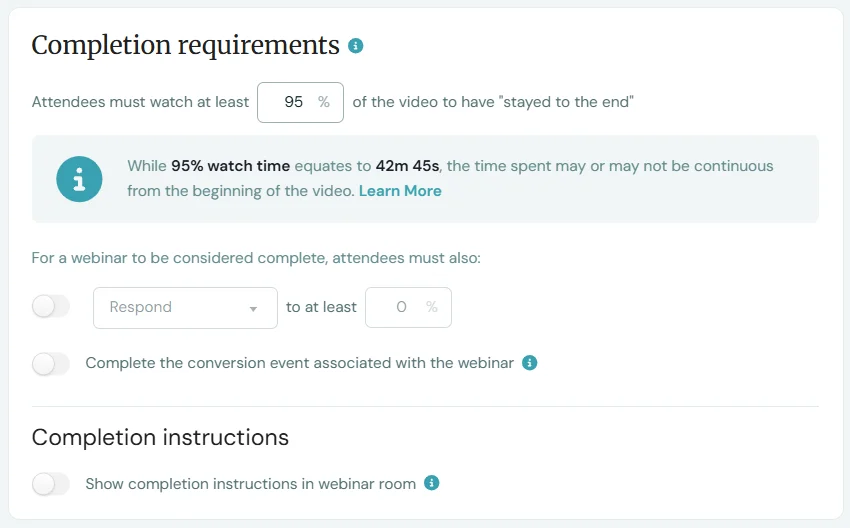
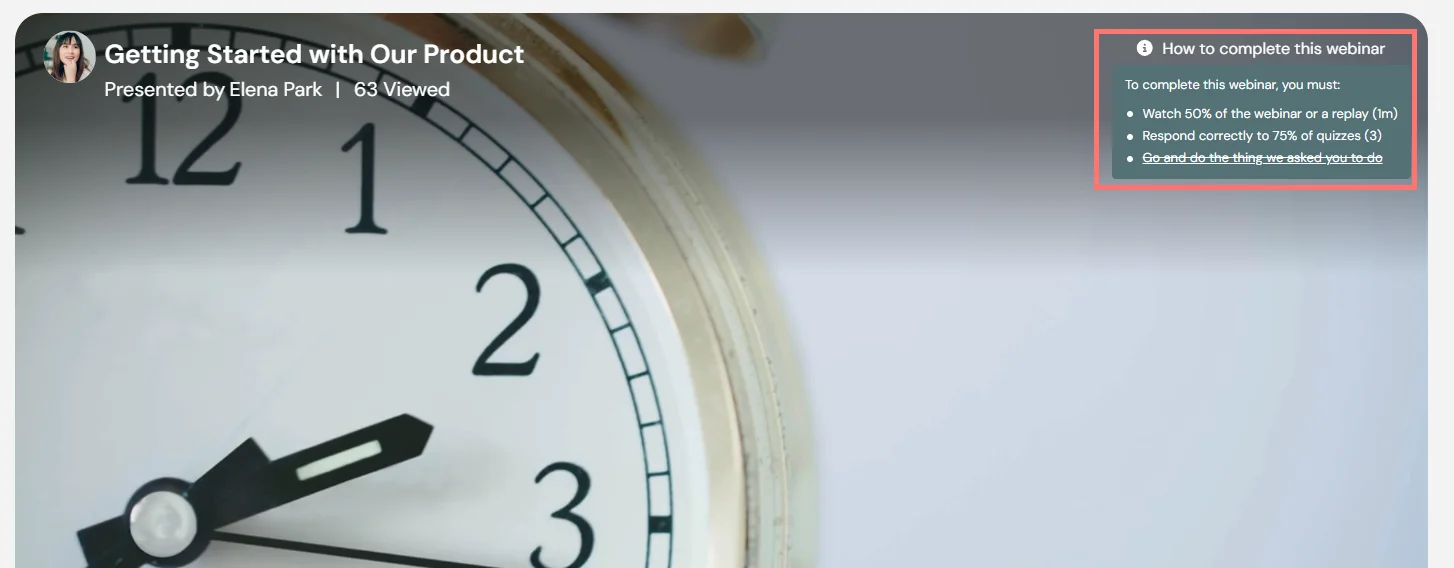
In the same place, you can turn on Show completion instructions in eWebinar room. Attendees hover over the info icon at the top right of the player to see what they need to do to complete it.
Learn more about completion requirements →
Decide what "complete" means for the series
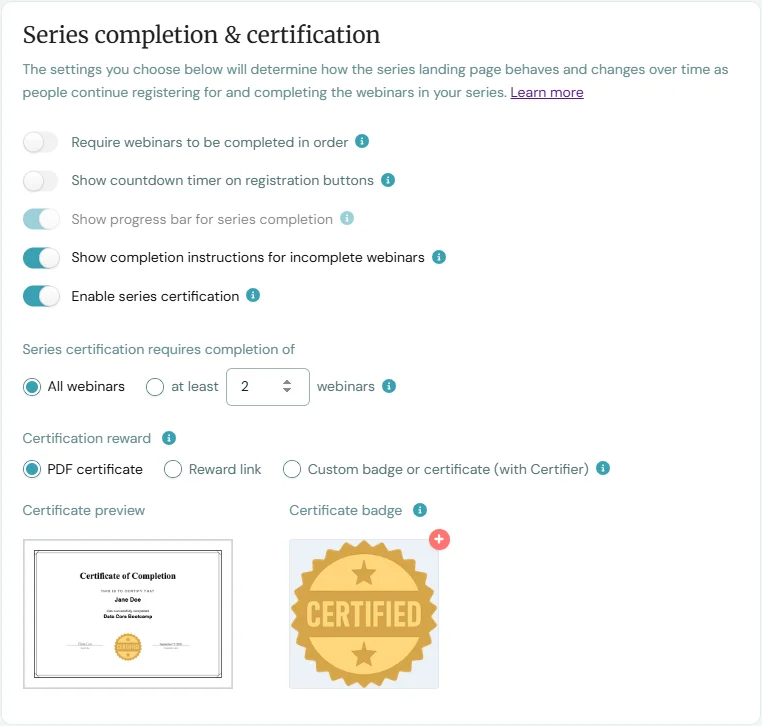
In your series, go to the Registration page and open Series completion and certification. Choose how many eWebinars someone needs to complete, and whether they have to complete them in order.
Give people a reason to finish
In the same section:
- Turn on the progress bar, so registrants see what percentage of the series they've completed.
- Turn on Show completion instructions for incomplete eWebinars. Registrants can hover over any eWebinar they haven't finished to see what's left. Usually that's how much they need to watch. If you've added other requirements, like quizzes, they see those too, crossed off as they complete them.
- Turn on series certification, so registrants get a certificate when they finish.
eWebinar's built-in certificate shows the registrant's name and the series name, and you can add your logo. If you need full control over the design, or if others need to be able to confirm someone completed your training, use Certifier. This is common for continuing education.
Building your training from scratch? One advantage of a series is that you can break your curriculum into smaller pieces. Shorter eWebinars are easier to start and easier to finish, and people can watch the next one right away if they want to keep going.
Send people to one link, every time
The most common mistake is linking to each eWebinar separately. One link in an email, another in your help center, another in your app. Every link is a fresh start, and people lose track of where they left off.
Instead, always send people to the series page.
Each registrant sees their own series page. It shows:
- Which eWebinars they've completed, and which they haven't
- Their overall progress, if you've turned on the progress bar
- What's left to finish each eWebinar, if you've turned on completion instructions
- A replay link next to every eWebinar they've already attended
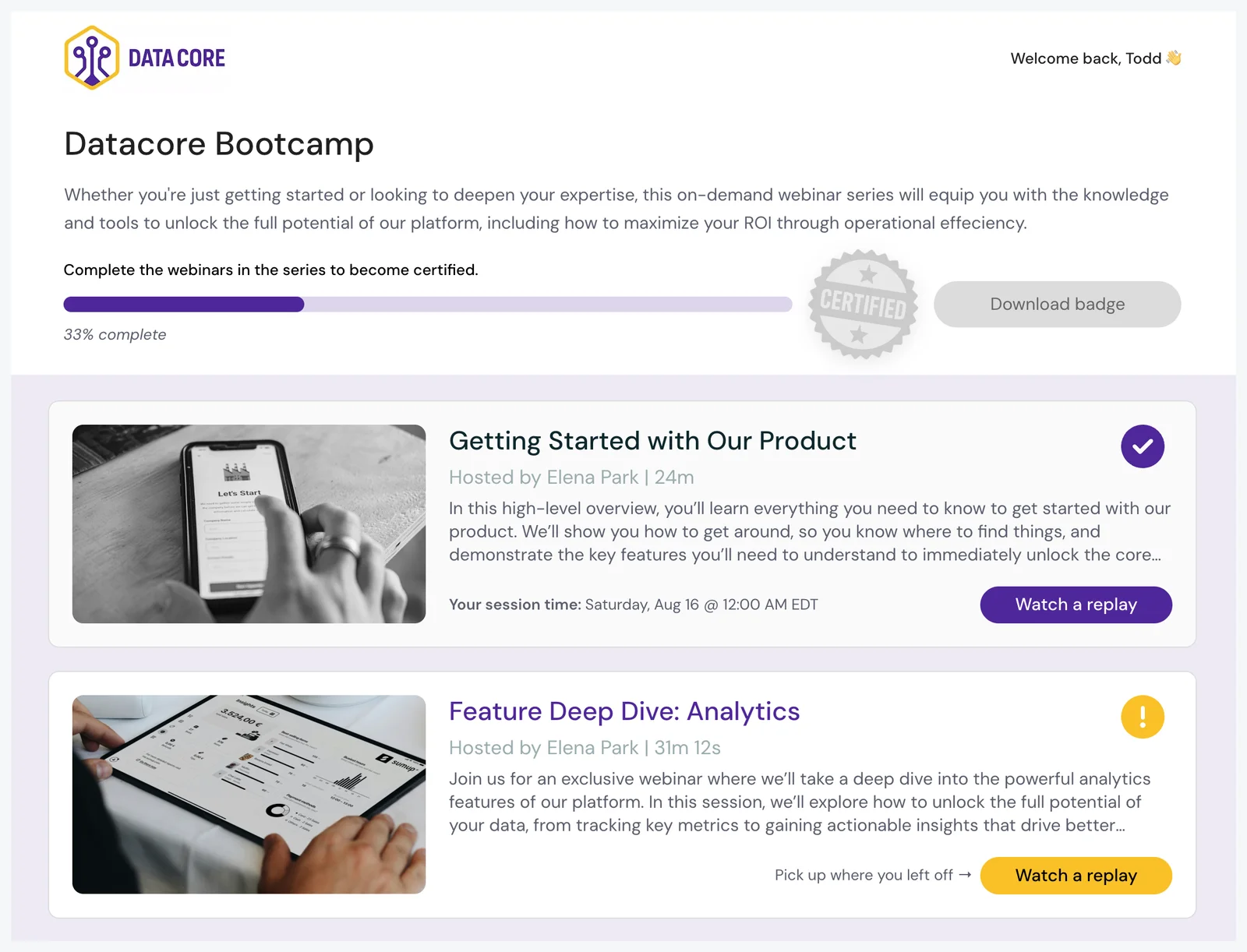
The page remembers them on the same device, so they pick up where they left off. If they switch devices, there's no password to remember. They enter their email, we send them a code, and they're back on their page.
Put this link everywhere you promote your training. That includes your help center, your app's navigation, onboarding emails and anywhere else people look for training.
Still need to point someone to one specific eWebinar? Use that eWebinar's link from your series' Share page. It opens the series page with that eWebinar's registration form on top, so people still land on their series page.
Give your series page a name
Treat your series page as a destination, not just a link. Give it a name people will remember, like "eWebinar Academy," "Your Training" or "[Your Company] Classes." Then market it as the one place to find all your training sessions.
A name makes the page easier to promote. "Go to your Training page" is simpler than sending a new link every time. It also gives the link a label everywhere it appears, like a "My Training" button in your product or a "Your Academy" link in your emails.
Here's how we do it in eWebinar. "Academy" sits in the app's main navigation, right above the help center:
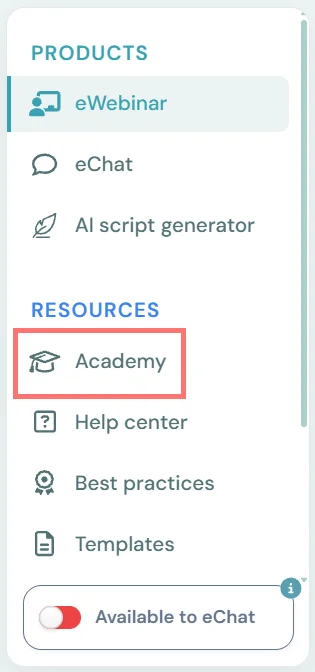
This doesn't replace your help center. Your help center answers quick questions. Your series page is where all your training sessions live.
Get people into the series
This part is simple. Send people a link to your series page, or to any eWebinar in your series. That's all you have to do.
Once someone registers for any eWebinar in a series, they're registered for the series.
Option 1: Send them to their series page (recommended)
Use this most of the time. It's the one link you'll keep sending people back to.
Option 2: Start with one eWebinar
Use this when joining a whole series could feel like too much to start with, and you just want people to show up to the first thing.
In these cases, send them the link to the first eWebinar's landing page. It opens as a pop-up over the series page.
After they attend, tell them they've been enrolled in the full series. From then on, send them to your series page.
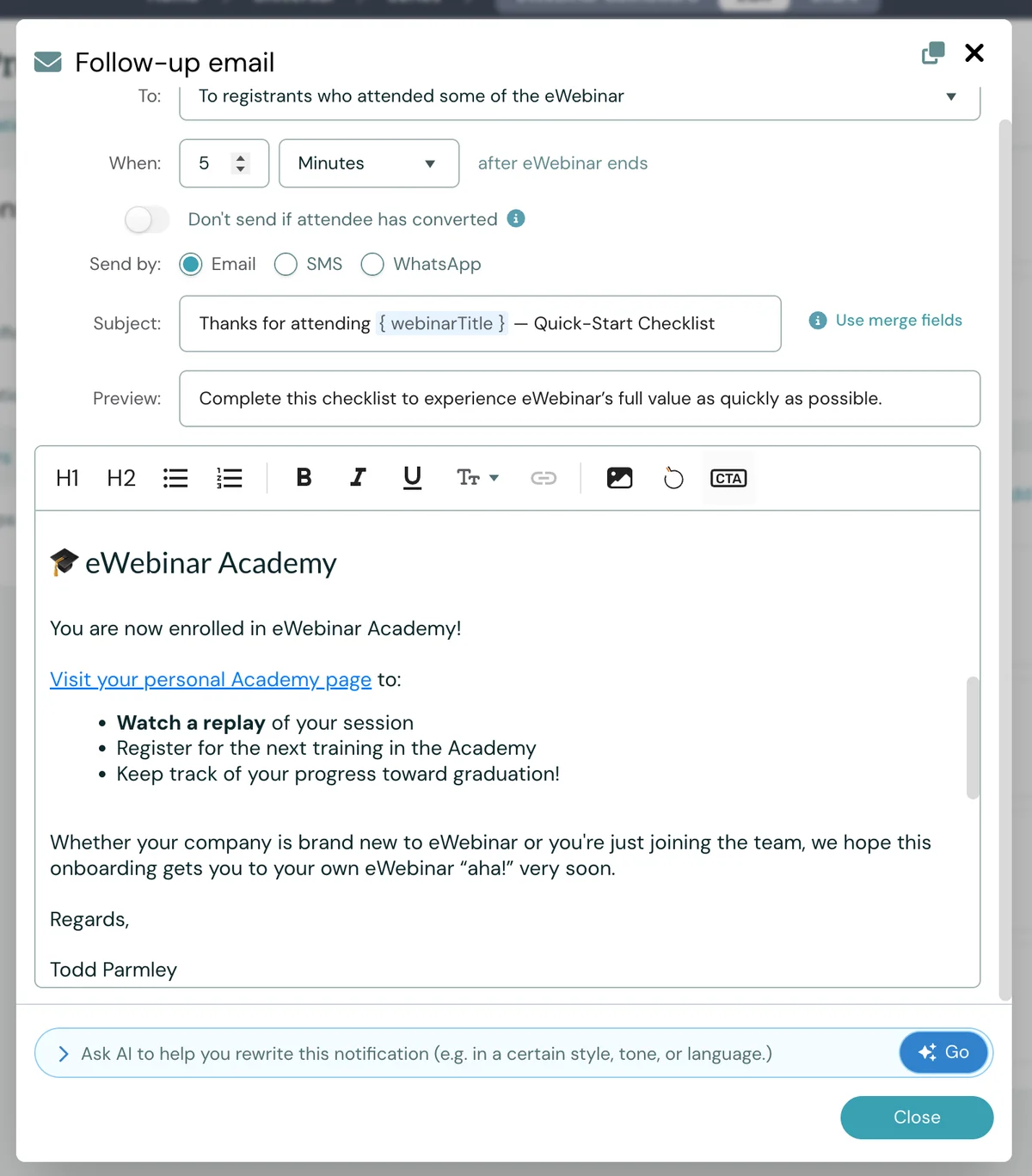
We do this with eWebinar Academy. New customers get invited to their product onboarding. Afterward, we let them know they've been enrolled in the Academy, and every email after that links to their Academy page.
Where to use these links
Use these links everywhere you reach people: in emails, in in-app messages and in your product. In your product, add a link to your series page in your navigation, using the name you gave it, like "My Training."
That's enough to get people into your series. Everything below is optional.
Optional: Personalize your links
If you know who people are, you can make getting in even easier. Add their name and email to the end of either link. This removes the last bit of friction between people and your training.
A personalized series link takes them to their series page, already recognized. When they click it:
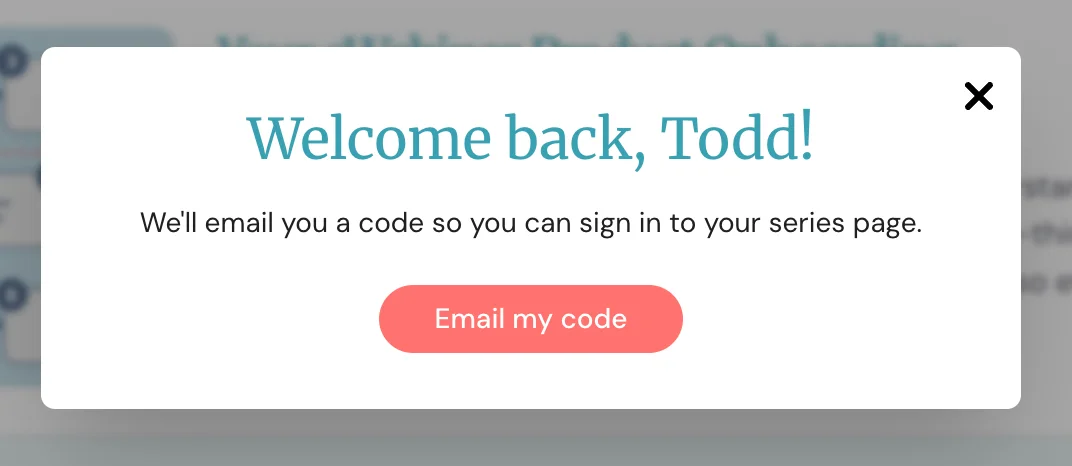
- If they've registered for the series before, a "Welcome back" window opens. They click Email my code, enter the code we send them, and they're back on their series page.
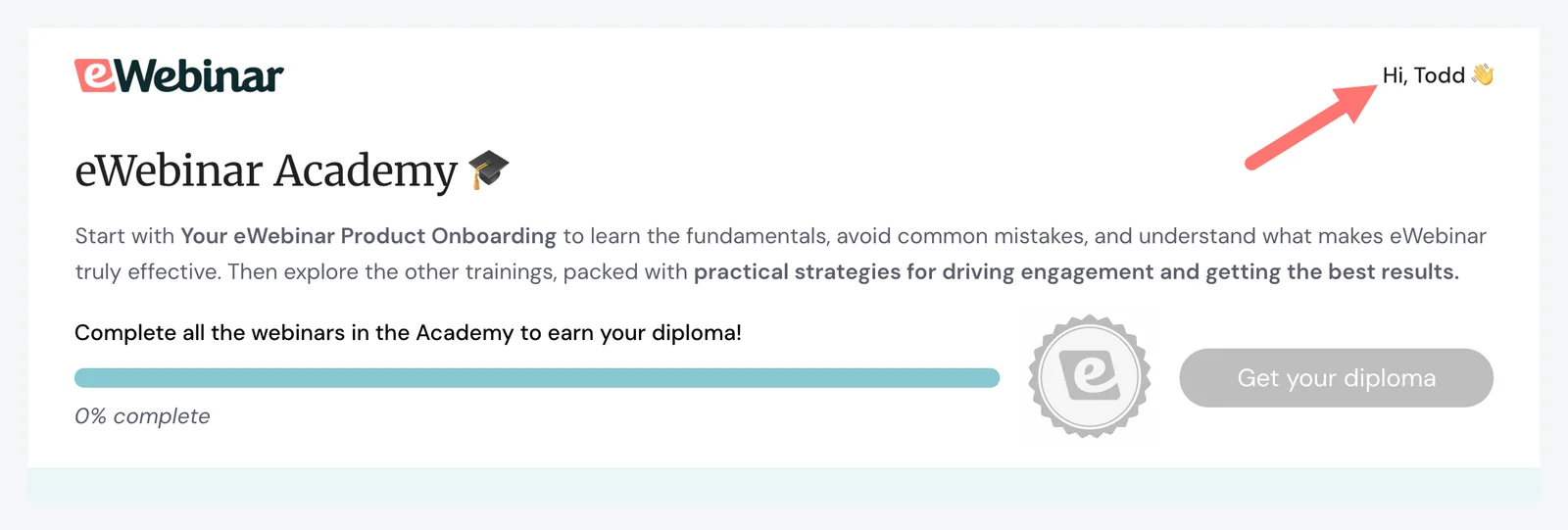
- If they haven't, the series page greets them by name in the top right corner. When they choose an eWebinar, they skip the email field. They pick a session, confirm their name, and click to register. That registers them for the series too.
Their email is locked the whole time. They always register with the email you gave them. This matters most when your users have several email addresses, and you need them to use one in particular, like the one they use to log in to your platform.
This is common in real estate, for example. Agents often have a personal email, a brokerage email and the one they use to log in to your platform.
A personalized instant join link to the first eWebinar takes them straight into a session with one click. They're also registered for the series.
How to personalize links where you use them:
- In emails, most email tools and CRMs can add each contact's name and email to a link with merge fields.
- In in-app messages, most in-app messaging tools can do the same.
- In your product, your developers can have your training link fill in the logged-in user's name and email automatically.
How to create personalized series links →
How to create instant join links →
Keep them moving between eWebinars
Getting people into the series is half the job. These settings keep them going once they're there.
Add a Next eWebinar interaction
Add it near the end of each eWebinar. Registration takes one click. If they choose to watch now, they go straight into the next eWebinar when the current one ends, like moving to the next episode of a show.
Send people back to the series page in your follow-up emails
In your follow-up emails, use the { seriesLink } merge field instead of { replayLink }. The series page already has a replay link next to every eWebinar they've attended, and it shows them what's next.
NOTE: All notification emails for eWebinars in a series automatically include a footer that links to the series page.
Use your exit room to keep them going
The exit room starts when the video ends. It gives people time to finish a chat conversation. They rarely need more than 5 to 10 minutes, so keep it short.
On the Exit room settings:
- Choose "Display call to action." Name the button after the next eWebinar, like "Continue Watching: [Next eWebinar]." For the link, use that eWebinar's join link with name and email merge fields added. One click, and they're in the next eWebinar.
- Set the duration to 5 to 10 minutes.
- Under "When exit room ends," choose "Redirect to a custom URL" and enter
{ seriesLink }. When the exit room closes, they land on their series page instead of a dead end.
Example button link:
https://[your-domain]/webinar/[next-ewebinar]/join?name={ name }&email={ email }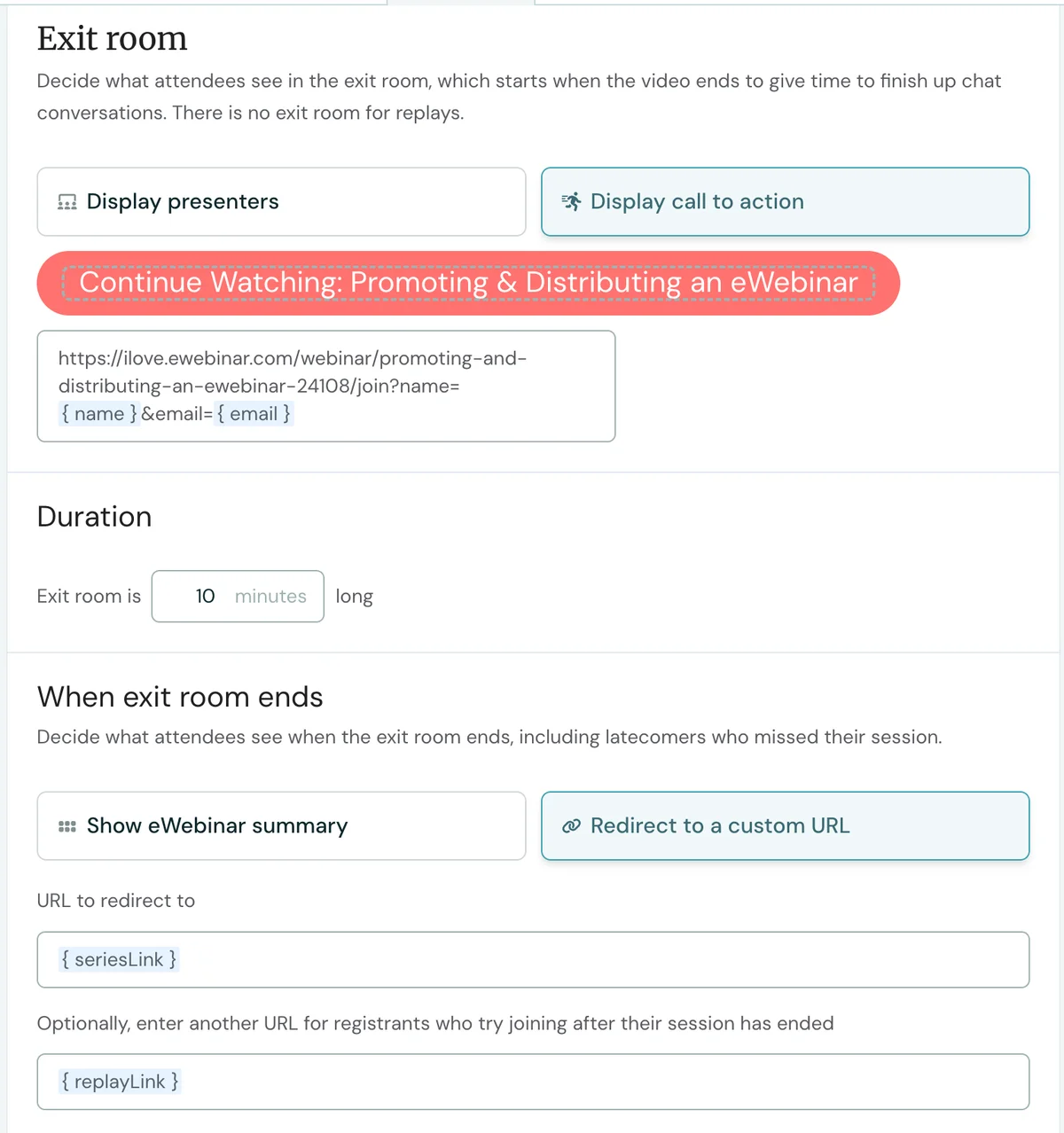
There's no exit room for replays. For people watching replays, the Next eWebinar interaction and your emails do this job.
Give people two choices in your own emails
When you email people from your own tools, give them two ways in. Put the emphasis on watching now, and give them a fallback for later:
- A button to watch now: a personalized instant join link to the eWebinar you want them to watch. One click and they're in.
- A text link to pick a time for later: your series page link.
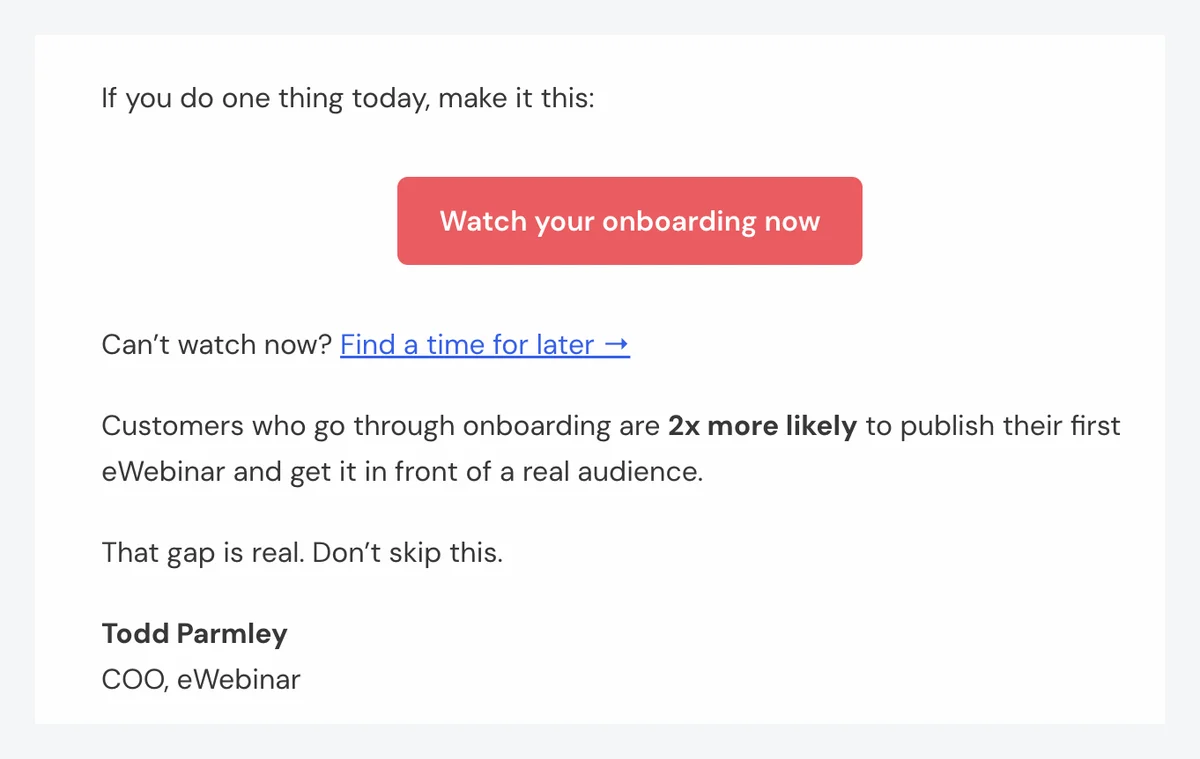
Making it one click to start has increased attendance for us, and offering a time for later gives people a chance to sign up for a future session instead of leaving and forgetting to come back.
Start here
You don't need to do all of this at once. Start with one thing today.
Today: Replace every training link you have with your series page link. Give the page a name people will remember.
Next: Add your series page link to your emails, in-app messages and product. If you know who people are, personalize the links.
Then: Add a Next eWebinar interaction to each eWebinar, set up your exit room, and use { seriesLink } in your follow-up emails.