Quick Summary
Seven training video creation tools compared for 2026, evaluated on output quality, ease of use, AI capabilities, and team fit. Plus how eWebinar works with any of these tools to solve the delivery problem that creation tools were never built for.
Our top three picks at a glance:
# | Platform | Best For |
1 | Synthesia | AI avatar videos at scale |
2 | Camtasia | Screen recording and editing |
3 | Loom | Quick async clips and walkthrough |
Video Is Great for Training. Static Delivery Isn’t
Video has become the default format for training, and for good reason. It is consistent, scalable, and easier to update than a static PDF. But creating a great training video and delivering it effectively are two completely different problems.
The tools on this list largely solve the first one. What none of them solve is what happens after you hit export. A video dropped in a knowledge base is passive. No chat, no lead capture, no way for a learner to ask a question, and no data on whether the content landed.
At the end of this article, we explain how eWebinar solves that.
Why Listen to Us
Video creation tools have improved dramatically. But the real problem was never making training videos. It was making them worth watching after you hit export. We built eWebinar to solve the delivery side of that: registration, scheduling, interactions that fire automatically, and chat that works without anyone present.
But we did not just build eWebinar. We staked our own revenue on it. We demo eWebinar using eWebinar. We run our own training on our own platform and have worked with thousands of teams across customer success, sales, and education.
Pairing eWebinar with Your Preferred Video Creation Tool for Maximum Impact
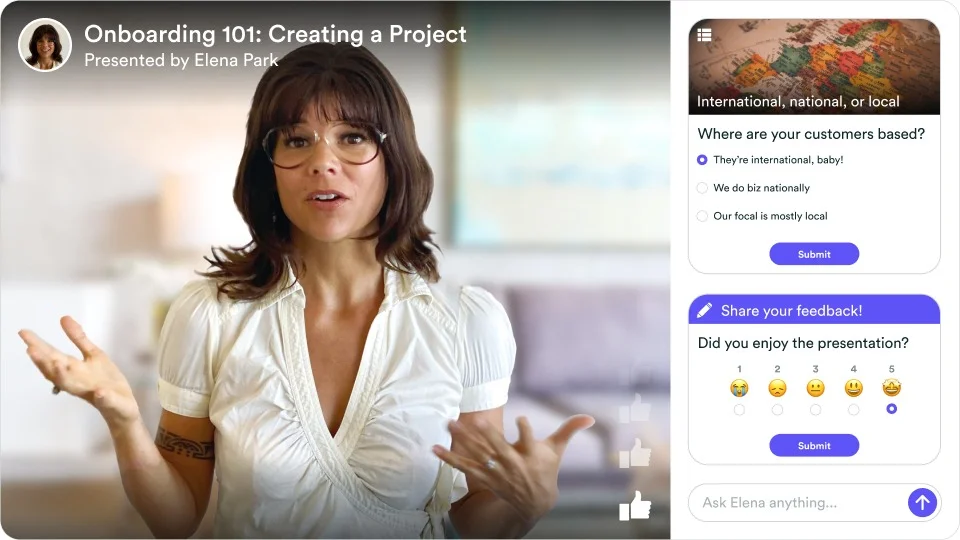
Every tool on this list helps you create videos. What they don't solve is what happens after someone starts watching.
A prospect has a question. A customer gets stuck. A viewer wants clarification before taking the next step. At that point, the video is doing all it can, and there's nobody there to answer the question that could have completed the onboarding process or closed the deal.
We built eWebinar specifically for what comes after export. It takes your finished video and adds exactly what creation tools were never designed for:
- Registration and scheduling: Your video becomes a session people sign up for. You know exactly who watched, when, and how far they got before dropping off.
- Interactions that fire automatically: Polls, quizzes, and CTAs appear at the right moment during playback without anyone triggering them. Every viewer gets the same experience regardless of when they watch.
- Chat that works without anyone present: A viewer watching at 11pm can ask a question and get a real answer. The reply gets sent in real-time if the team is there, and goes to their email if the team responds later.
- Series for sequential learning: Multiple videos become a structured course with minimum watch times, quizzes between sessions, and completion certificates.
The creation tools make the content. eWebinar makes the delivery part of the content itself.
Join our on-demand demo to see how it works.
Top 7 Video Training Software: Full Comparison Table
# | Tool | Best For | Primary Scalability Feature | Learning Curve | Capterra Rating | Starting Price |
1 | Synthesia | AI-generated avatar training | Multi-language translation in one click | Low: As simple as typing a script | ⭐ 4.6 | From $18/mo |
2 | Camtasia | Screen recording and editing | Reusable templates and cursor smoothing | Medium: Requires basic timeline editing skills | ⭐ 4.5 | From $179.88/year |
3 | Loom | Quick async clips and walkthrough | Instant cloud links (no rendering needed) | Very Low: One-click recording & sharing | ⭐ 4.7 | From $12.50/mo |
4 | Vyond | Animated compliance & soft-skills training | High engagement without needing actors | Medium: Drag-and-drop, but timing takes practice | ⭐ 4.7 | From $58/mo |
5 | Descript | Fast editing via text/transcripts | AI voice cloning to fix audio mistakes | Low: Edits exactly like a text document | ⭐ 4.7 | From $12/mo |
6 | Vimeo | Secure hosting and video analytics | Centralized corporate video library | Low: Standard upload & folder management | ⭐ 4.6 | From $12/mo |
7 | iSpring Suite | Converting PowerPoints into LMS courses | Native SCORM/xAPI compliance | Low: Works entirely inside PowerPoint | ⭐ 4.6 | From $720/year |
1. Synthesia
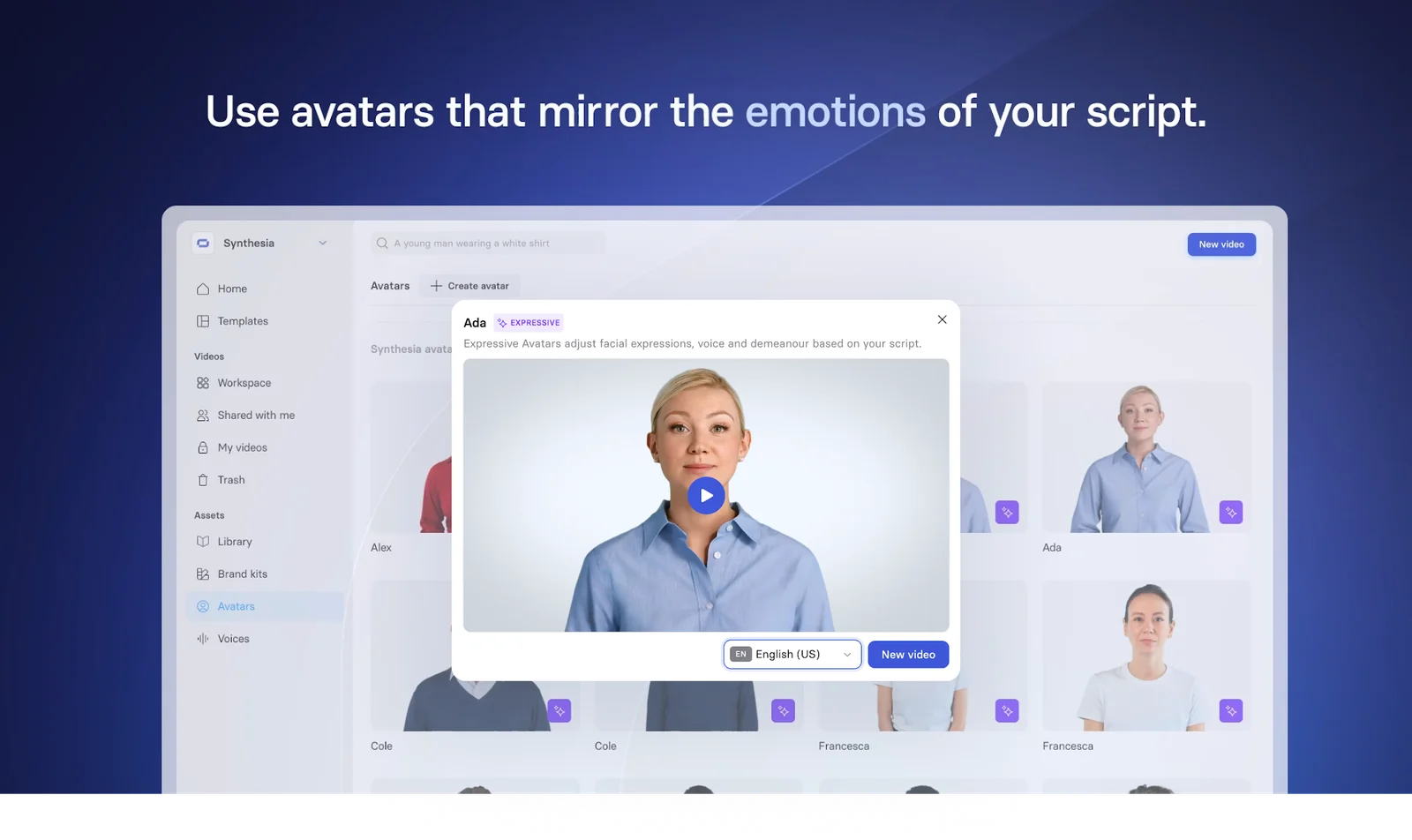
Best for: AI-generated training videos with avatars, at scale
Synthesia is the go-to platform for teams that need to produce a high volume of consistent, professional training videos without a camera or recording studio. By turning written scripts into presenter-led videos, it excels at scaling process training and compliance content.
However, because AI avatars lack true human authenticity, they are less effective for high-trust content like leadership training or sales enablement, where a real human recording still outperforms synthetic media.
Key Features:
- Text-to-video generation from a simple script
- 180+ diverse AI avatars to deliver content
- Instant translation into 130+ languages
- Built-in screen recording alongside avatar
- SCORM export directly to your LMS
Pros:
- Fastest production speed of any tool on this list
- Best multilingual support, covering 130+ languages
- Consistent output quality regardless of who creates it
Cons:
- AI avatars feel synthetic for high-trust content
- SCORM export locked behind Enterprise pricing
- Studio avatar cloning costs extra on standard plans
Capterra Rating
⭐ 4.6
Pricing
Free tier available; paid tiers start at $18/month.
2. Camtasia
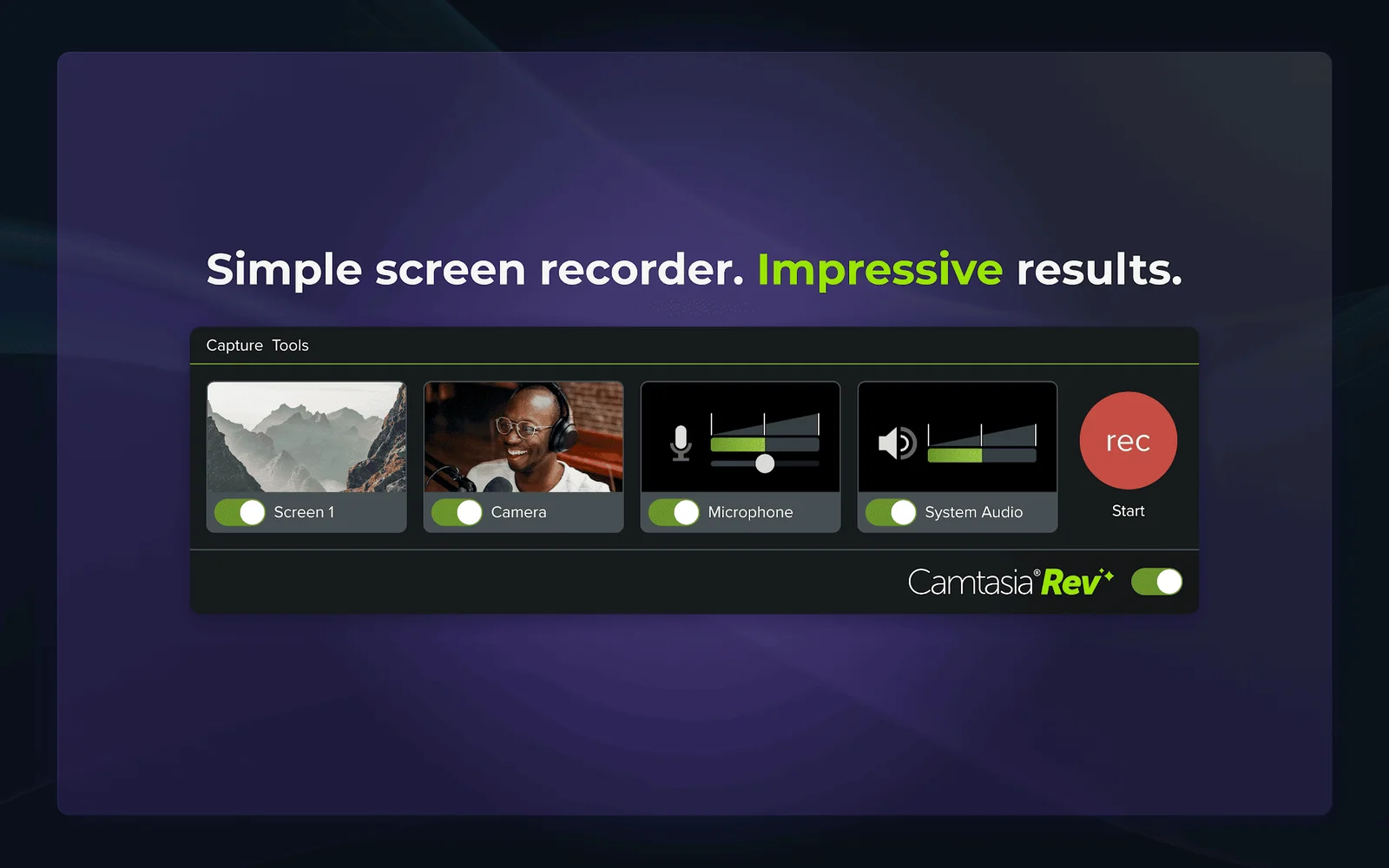
Best for: Screen-recorded training videos and software walkthroughs
Camtasia is the industry standard for screen-recorded training videos, producing exceptionally clean and polished technical walkthroughs. Its specialized zoom effects, cursor smoothing, and annotation tools make complex on-screen workflows easy for learners to follow.
The main trade-offs are its desktop-only nature and feature-rich interface, which create a steeper learning curve. While it is a powerful asset for a dedicated training creator, the ramp-up time can be a bottleneck for decentralized teams where everyone needs to produce their own content.
Key Features:
- High-definition screen recording of software walkthroughs
- Interactive zoom and pan tools
- Visual annotations, shapes, and callouts
- Reusable project templates with cursor smoothing
Pros:
- Best screen recording quality of any tool on this list
- Strong annotation and callout tools for technical content
- Reliable, well-supported, and widely used
Cons:
- Desktop-only with no collaborative editing
- Steeper learning curve than browser-based alternatives
- No native SCORM export without a separate authoring tool
Capterra Rating
⭐ 4.5
Pricing
30-day free trial available, with paid individual plans starting at $179.88/year.
3. Loom
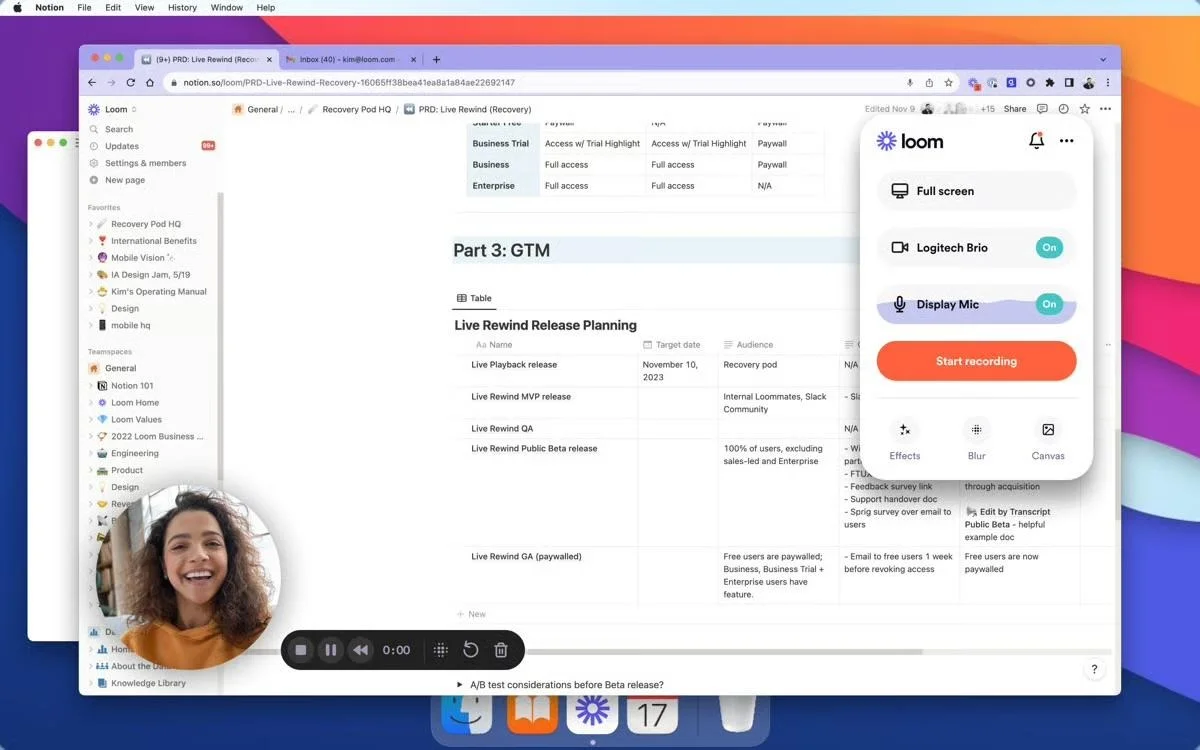
Best for: Quick async clips, walkthroughs, and informal onboarding
Loom functions primarily as an asynchronous communication tool rather than a formal video production platform. It excels at quick, informal walkthroughs such as explaining design feedback or sharing product updates, where a rapid screen recording replaces a lengthy email.
However, Loom is not built for polished, highly structured L&D programs due to its minimal editing suite and emphasis on functional brevity over production depth.
Key Features:
- Instant cloud recording with zero rendering time
- Simultaneous screen and webcam capture bubbles
- Interactive transcript-based text editing
- Automated video titles, summaries, and chapters
Pros:
- Fastest creation of any tool on this list
- Free plan is genuinely useful for small teams
- Strong for informal async communication and quick walkthroughs
Cons:
- Not suited for formal, polished training production
- Limited editing capabilities
- No SCORM or LMS integration
Capterra Rating
⭐ 4.7
Pricing
Free plan available; paid Business plans start at $12.50/month per user.
4. Vyond
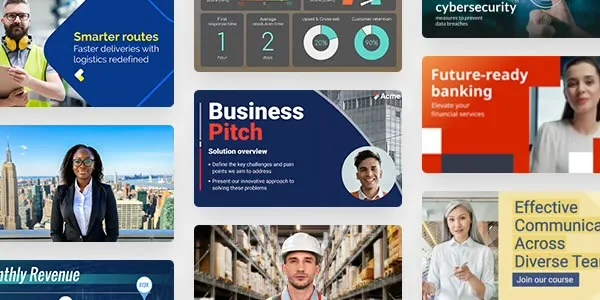
Best for: Animated scenario-based training and compliance content
Vyond is the strongest option when training content calls for a narrative or scenario format rather than a screen recording. It excels at compliance training, soft skills, and onboarding storylines where custom characters and visual storytelling drive engagement.
While its drag-and-drop setup and AI video generator speed up production, the highly stylized animation style is less suited to crisp technical walkthroughs or software demos.
Key Features:
- Drag-and-drop editor with pre-made scene templates
- AI script-to-video engine with automated video generation
- Extensive library of customizable characters, settings, and props
- Automatic lip-syncing with multi-language text-to-speech voices
Pros:
- Best animated video quality of any tool on this list.
- Strong for scenario-based and compliance content
- AI script-to-video reduces production time significantly
Cons:
- Expensive entry point with no free option
- Animation style is not suited for software demos or product walkthroughs
- SSO and advanced features are only on Enterprise
Capterra Rating
⭐ 4.7
Pricing
Free trial available; paid plans start at $58/month.
5. Descript
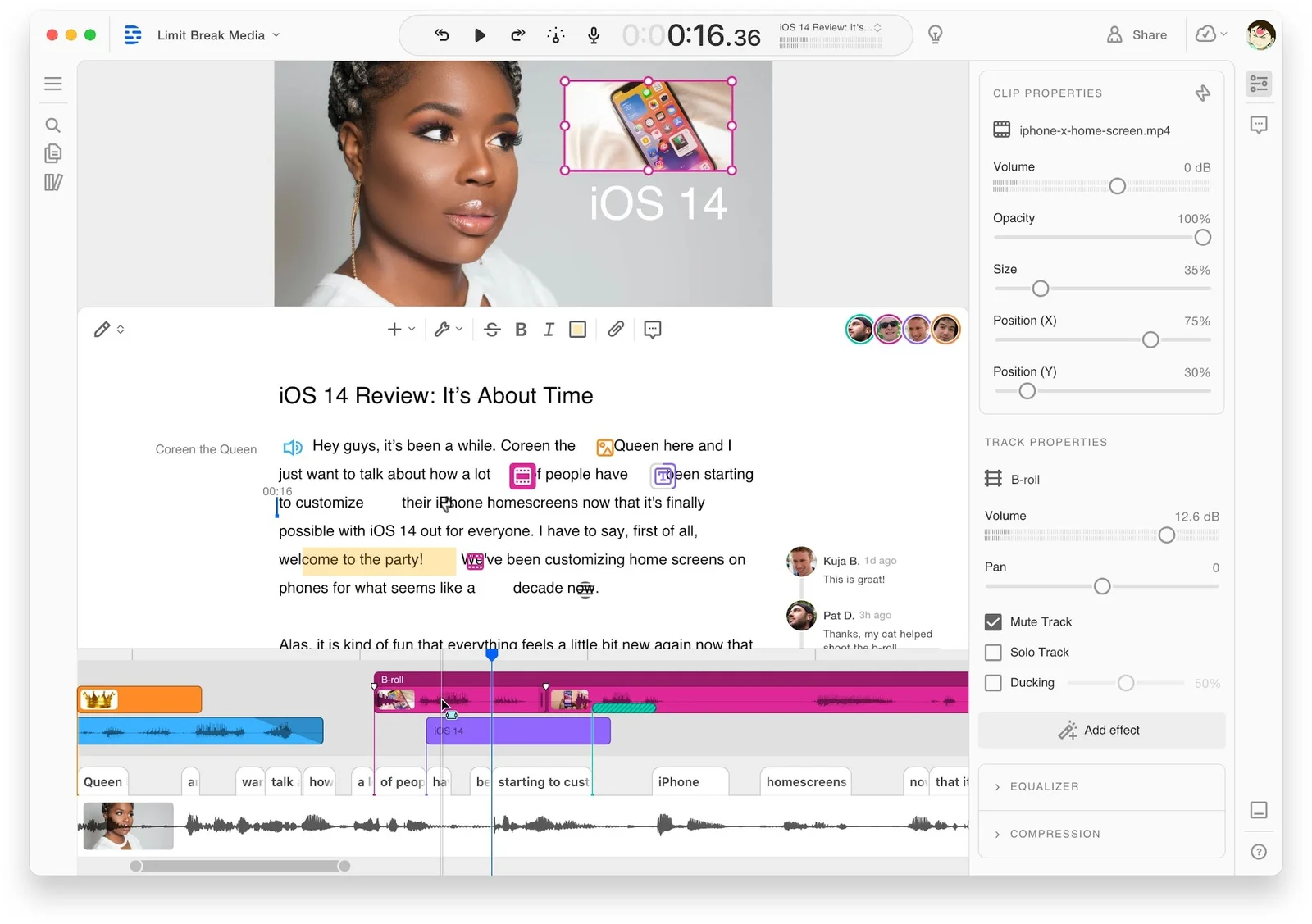
Best for: Script-based editing and teams that think in text rather than timelines
Descript reverses the traditional video production workflow by allowing users to edit audio and video files directly through a text transcript. Deleting a sentence in the transcript automatically cuts the corresponding footage, making the software highly accessible to non-editors.
Additionally, its AI voice cloning tool lets creators swap out text to fix mistakes or update outdated training information without re-recording the original video.
Key Features:
- Transcript-based video and audio editing
- Instant footage trimming via text deletion
- AI voice cloning with automated dialogue updates
- Automated transcription and dynamic subtitles
Pros:
- Script-based editing is genuinely faster for non-editors
- AI Overdub makes content updates fast without re-recording
- Strong transcription and automatic captions
Cons:
- One of the more expensive options on this list
- Limited focus on screen recording as a primary use case
- Variable Overdub voice quality depending on original recording conditions
Capterra Rating
⭐ 4.7
Pricing
Starts at $1,499/user/year
6. Vimeo
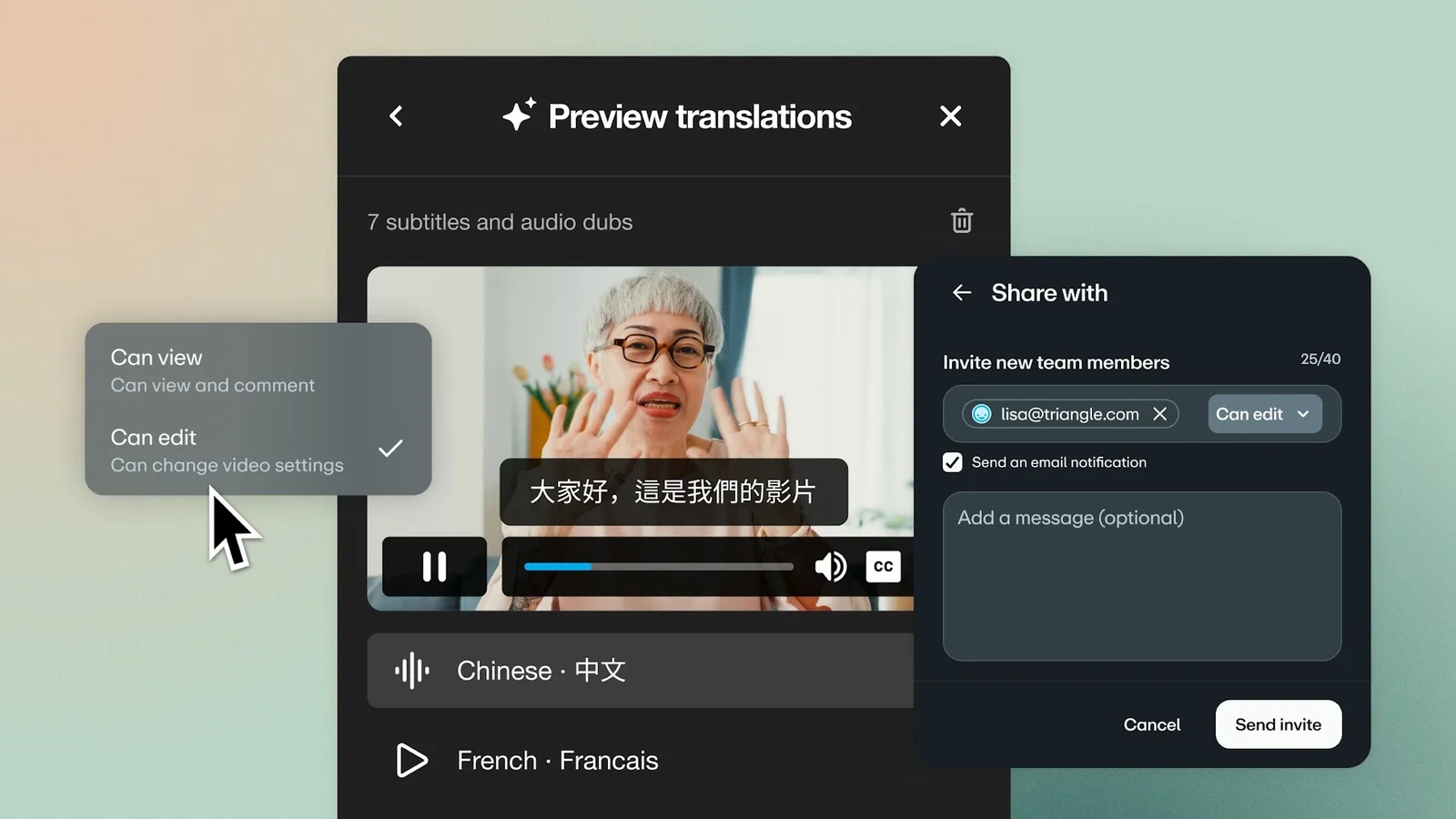
Best for: Teams that need reliable video hosting with lightweight creation tools
Vimeo pairs essential hosting infrastructure with modern, lightweight video creation options. While its video production utilities are secondary to its core storage capabilities, the built-in AI script generation and automated transcript editing tools are useful additions for current users.
It earns its spot on this list primarily through its exceptional distribution network, giving teams absolute control over content security, custom embedded players, and foundational view analytics.
Key Features:
- Prompt-based AI script generation
- Automated text-based transcription tools
- Granular folder and domain-level privacy controls
- Embeddable video players with view-level analytics
Pros:
- Best video hosting and distribution network on this list
- Strong security features and player customization controls
- Helpful AI video creation utilities for existing users
Cons:
- Secondary video creation tools lack standalone suite capabilities
- Basic view-based analytics instead of deep learner-tracking metrics
- Heavy feature restrictions on the free version
Capterra Rating
⭐ 4.6
Pricing
Free plan available; paid tiers cost $20/month for Starter.
7. iSpring Suite
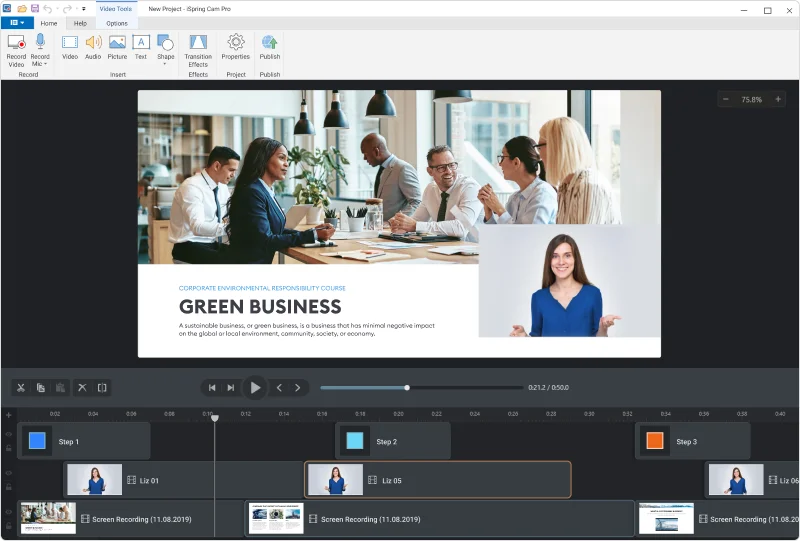
Best for: Teams converting PowerPoint presentations into SCORM-tracked courses
iSpring Suite operates as a specialized PowerPoint plugin, transforming existing slide decks into LMS-ready training packages. For organizations where subject matter experts construct material using slides, it provides the fastest path to fully compliant course exports.
The biggest limitation is the final aesthetic, which keeps a rigid slideshow feel instead of a modern video flow.
Key Features:
- PowerPoint conversion into SCORM-compatible training courses
- Interactive quiz building with custom grading rules
- Branching scenario templates simulating real-world decisions
- Audio narrative recording tools with slide synchronization
Pros:
- Best SCORM output of any tool at this price point
- Minimal learning curve for PowerPoint users
- Good quiz and branching scenario capabilities
Cons:
- Final output retains a recognizable PowerPoint look and feel
- Usability is limited to teams working in PowerPoint
- High per-author subscription costs for large teams
Capterra Rating
⭐ 4.6
Pricing
14-day free trial available, with annual plans starting at $720/year.
How We Evaluated
Creating great training content and delivering it effectively are two different problems, and the tools in this category only solve one of them. We evaluated each tool based on the criteria that actually determine whether training content gets made, delivered, and absorbed.
- Ease of creation: How quickly a non-editor can produce something that looks professional without a dedicated production team or video editing background. The best tools in this category should feel accessible on day one, not after a week of tutorials.
- Output quality: Whether the finished result looks polished enough to put in front of customers, new hires, or partners without undermining the brand. A training video that looks like it was made in a hurry does more damage than no video at all.
- AI capabilities: Whether the AI features meaningfully reduce production time or simply exist as a checkbox on the marketing page. Useful AI handles real bottlenecks like scripting, translation, and editing. Cosmetic AI does not change how long it takes to produce anything.
- Format flexibility: Whether the output works across an LMS, knowledge base, email, or product embed without requiring additional tools or manual reformatting at every step.
- Value for money: Whether the pricing is proportionate to what the tool actually delivers at that price point, not just what the highest tier unlocks.
How to Choose the Right Training Video Software
The right tool depends entirely on the type of training content you are producing and who you are producing it for. A compliance module for a thousand employees has different requirements than a product walkthrough for a new customer.
Getting that distinction right before evaluating tools saves significant time and budget.
- If you are building formal L&D and compliance courses: Go with Synthesia, Vyond, or iSpring Suite. These platforms scale structured learning using AI avatars, animated scenarios, or direct PowerPoint conversions.
- If you are creating technical walkthroughs or capturing rapid knowledge: Choose Camtasia, Loom, or Descript. These tools prioritize speed and visual clarity by letting you record pristine screen annotations, share instant async clips, or edit video just like reading text.
- If you are prioritizing secure distribution and learner engagement: Pair Vimeo with eWebinar. Vimeo provides robust hosting and strict privacy controls. eWebinar transforms these static files into interactive sessions using automated scheduling, polls, and real-time chat.
Final Word
The tools listed above solve the content creation puzzle. To guarantee actual learning, pair your chosen software with eWebinar to transform static files into interactive, automated, and scalable conversations.
Join our on-demand demo to see how eWebinar works.
FAQ
What is training video software?
Training video software helps teams create instructional content. The category includes screen recorders, AI avatar platforms, and animation builders. These tools simplify production, allowing trainers to build professional content without a dedicated video team.
What is the difference between training video software and an LMS?
Video software creates your content. An LMS delivers and manages it within a structured learning program. Teams typically use both together. Creation tools produce the media, while the LMS handles housing and tracking.
Once the videos exist, something has to deliver them on demand. See the best asynchronous learning platforms.
How often should training videos be updated?
Training videos should be reviewed whenever the product, process, or policy they cover changes. The practical answer for most teams is quarterly for customer-facing content and annually for internal training.
Tools like Descript and Synthesia make updates faster than traditional editing because you can swap out a script or re-record a section without rebuilding the entire video. eWebinar’s analytics data helps identify exactly which parts of a session are losing viewers, so updates are targeted rather than guesswork.
What is the best free training video software?
Loom offers the best free plan for quick async clips. Descript provides excellent script-based editing on a budget. Synthesia includes a limited testing tier. However, polished professional production usually requires a paid subscription.
Why pair video creation tools with eWebinar?
Creation tools build the media, but they lack delivery mechanics. eWebinar takes your finished file and adds automated scheduling, interactive polls, and asynchronous chat to ensure learners actually engage with the material.
What video formats work best with eWebinar?
MP4 is universally compatible for most training. eWebinar natively supports MP4, MOV, WMV, and AVI files up to 2GB. For larger files, simply host the video on Vimeo and paste the link directly.
Curious to see how eWebinar can help run your demos, onboarding, and training sessions on autopilot?
Watch a one-minute explainer video for a quick overview of the eWebinar platform. Or, better yet, join our on-demand demo to learn more!