We're excited to introduce the Attendee Hub, a personalized dashboard for every one of your attendees!
Instead of digging through old follow-up emails to find a replay, your attendees now have a single place to come back to for every eWebinar they've attended from your team, along with their personalized summaries, bookmarks, and notes.
It's available to all customers at no extra cost. It's already on, so your attendees can start using it right now.
Here's why this is a big deal
- Every attendee gets their own dashboard. It's called "My Hub," and shows all of their eWebinars in one place, organized by what's coming up and what's past.
- Your eWebinars become a library, not a one-time event. Attendees have one link they can use to return to any session, see their progress, and pick up where they left off.
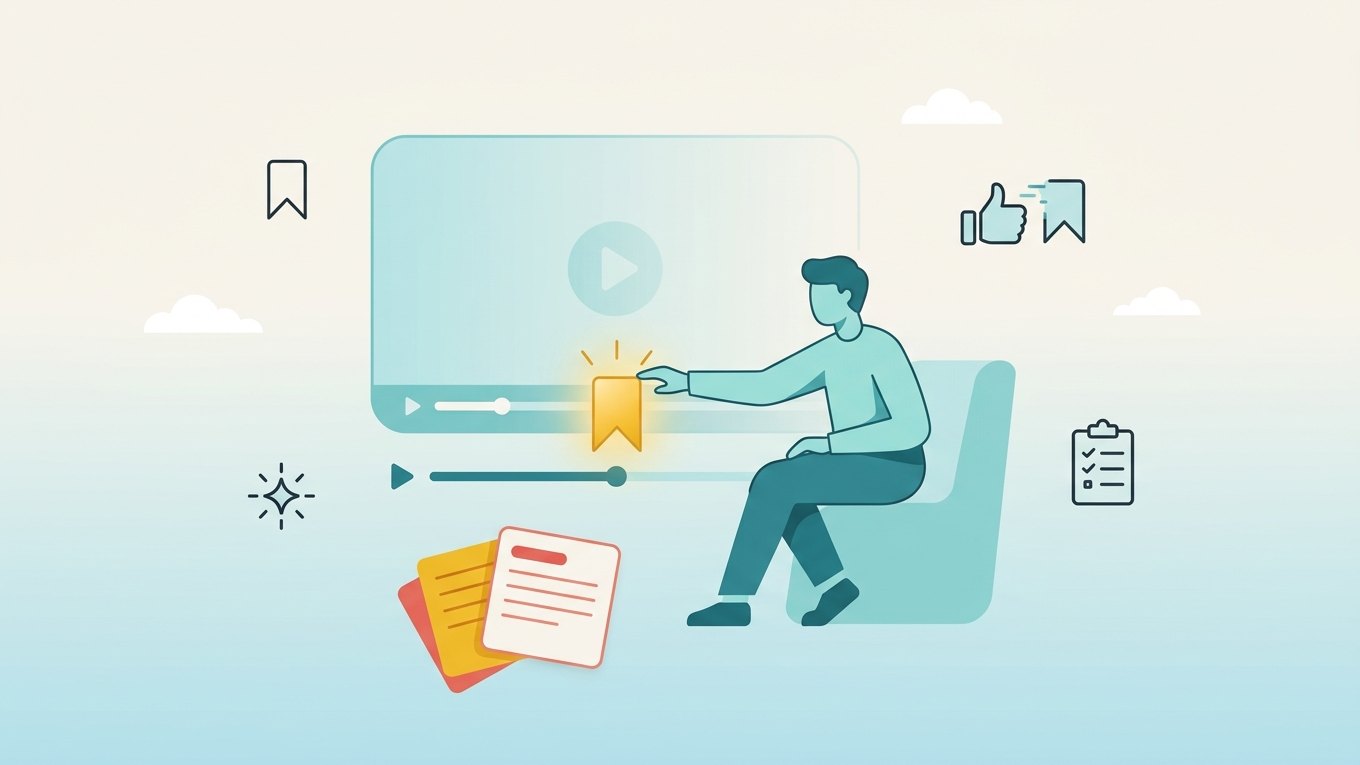
- Personalized summaries, bookmarks, and notes are all there. The Hub brings together everything from their individual sessions into one place.
- No account or password needed. Attendees verify their email, enter a one-time code, and they're in. That's it.
See it in action
For a closer look at how everything works, read the help article on the Attendee Hub.
What your attendees see
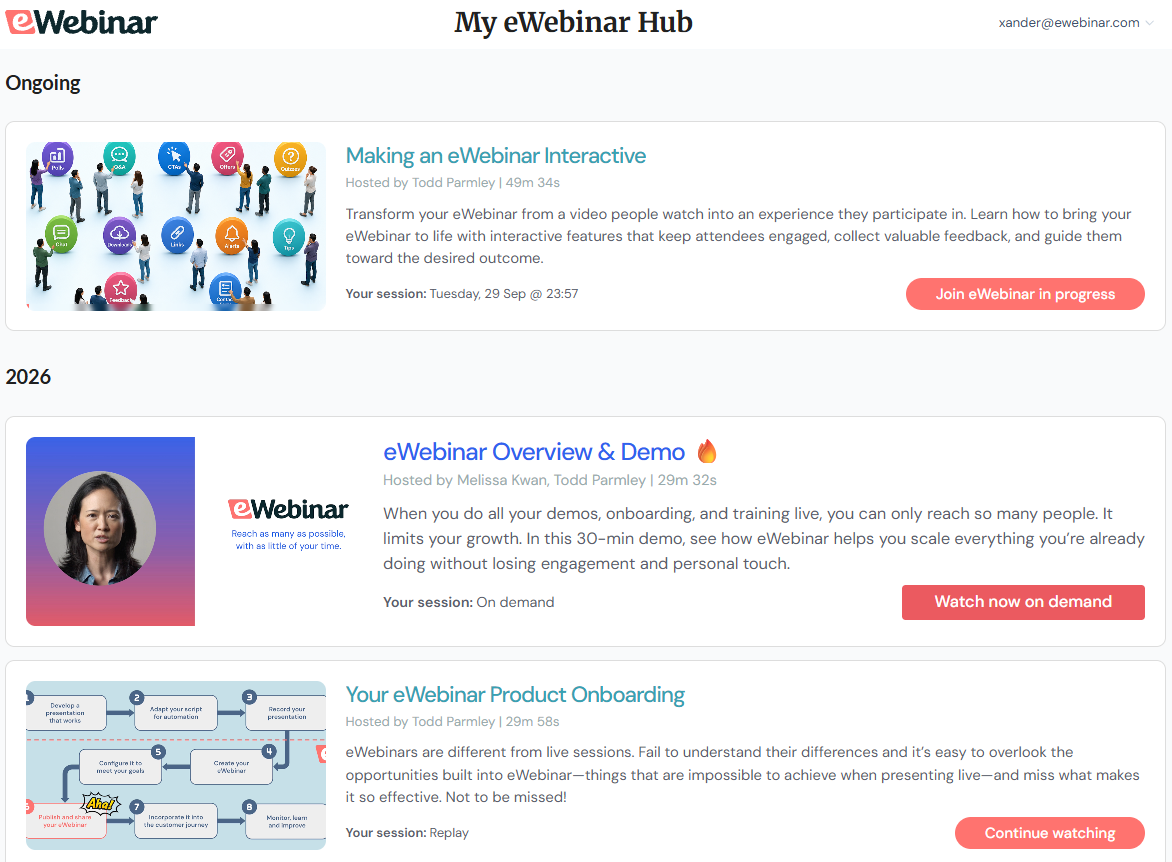
When an attendee visits hub.ewebinar.com and verifies their email, they land on a personalized dashboard called "My eWebinar Hub."
Their eWebinars are organized into three sections:
- Ongoing for any session happening right now
- Up next for upcoming sessions they've registered for
- Watch history for everything they've already attended
Each eWebinar shows up as a card with the session thumbnail, title, and their session time or type.
How attendees get there
There are two ways in:
- Directly at hub.ewebinar.com, where they verify their email to access their dashboard
- From any session summary page, using the "See all my eWebinars" link at the top
Either way, it's the same passwordless login: enter the email they registered with, get a 6-digit code, and they're in.
It's already on
The Hub is live right now. Every published eWebinar your attendees have registered for will appear in their Hub automatically. There's nothing for you to configure.
If you'd prefer your eWebinars not appear in the Hub, you can turn it off under Settings → Defaults → eWebinar in your account settings.
If you have the "remove branding" add-on, your attendees' summary pages don't point to The Hub.
Give it a try
If you've ever attended an eWebinar yourself, click here to see your hub.
Never attended an eWebinar? Register for our demo and it'll show up in your Hub right away.
Not a customer yet? Start a free trial.
If you have questions or feedback about the Attendee Hub, we'd love to hear from you at support@ewebinar.com.