We're happy to announce:
- A bunch of new (actually useful, not pointless) AI-powered features
- New Share and Widgets pages that are easier to get to and to use
Let's go through everything real quick...
New AI-powered features
Using the transcriptions of your videos, our new AI features make it much easier for you to build out your webinars, saving you a ton of time while sparking new ideas.
You’ll find them while editing your webinars, on the Notifications, Interactions, and Registration tabs — just look for the blue buttons with the sparkle icon ✨.
They can do two things:
1. Generate something new for you
2. Help you rework what you already have
Notifications tab
On the Notifications tab, you'll see a big blue button at the top: ✨Generate new notifications with AI.

When you click it, AI will generate a new set of notifications for you to review. (More on this later.)
If, on the other hand, you edit an existing notification, you'll see at the bottom where you can give AI instructions to rewrite or tweak what you've written
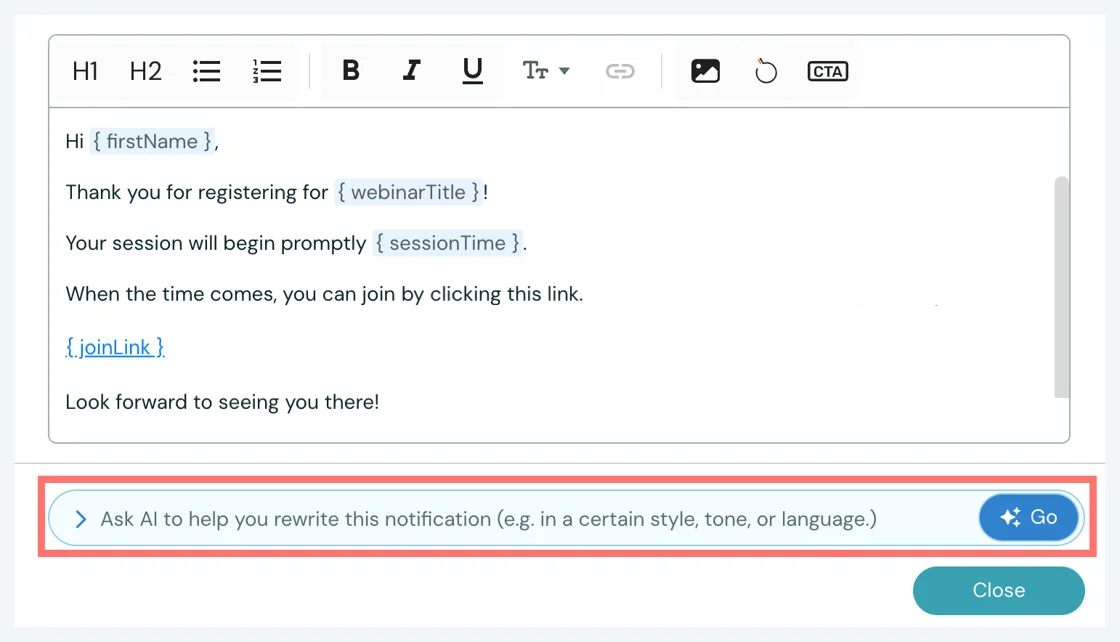
You might ask it to:
- "Translate this to French."
- "Make the tone more casual and fun."
- "Include the list of benefits from the webinar."
Interactions tab
Things work the same on the Interactions tab. You can:
1. Generate new interactions
2. Rework existing interactions
Let's look at the first of these two, since Notifications follow the same basic process:
Start by clicking the big "Generate new" button. Wait 10 - 30 seconds while the AI agent creates a variety of interactions for you, writing the copy and even deciding where they should go on the video timeline.

Then, repeat the following two steps for all the new interactions:
Step 1: Select an interaction to review and, if you want, make changes to it.
Step 2: Click Add interaction. Or click to Discard it.
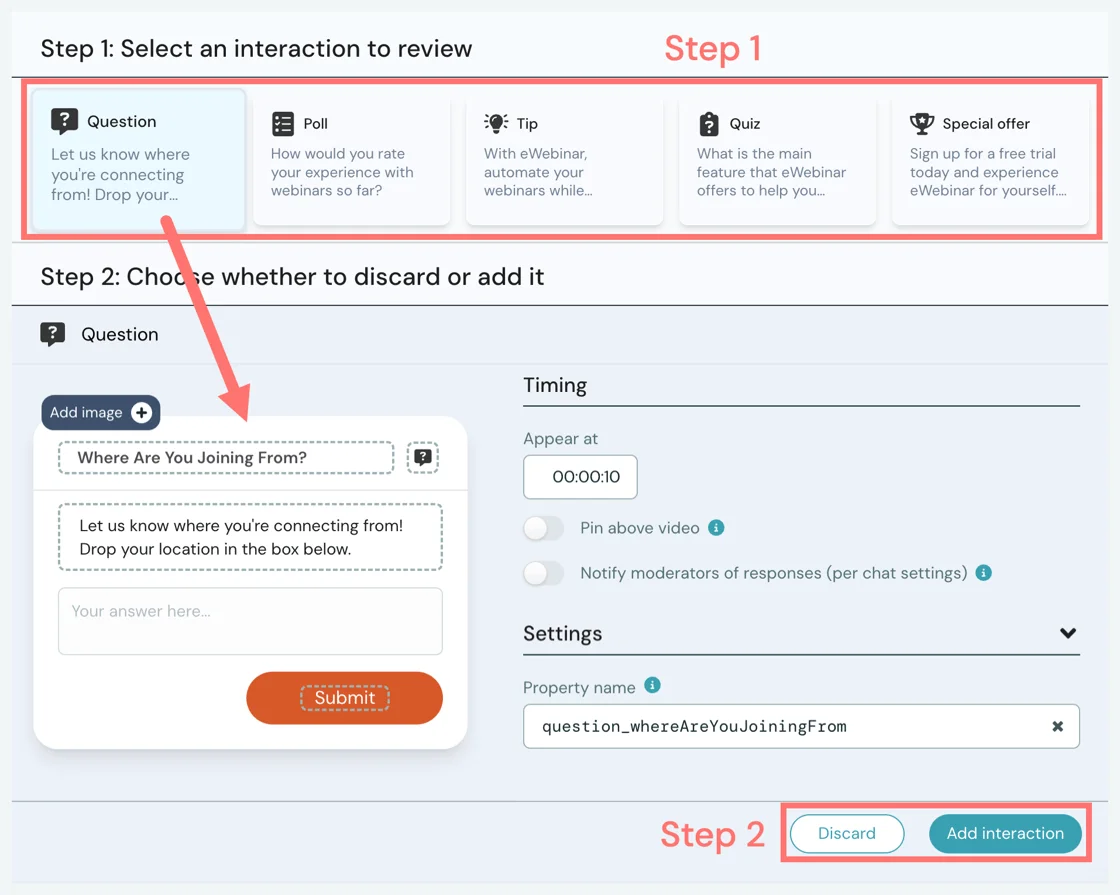
If you aren't happy with the interactions that were created, or simply want to generate a new set to review, give specific instructions as to what you are looking for and click Generate new to start the process over.
Registration tab
The AI features on the Registration tab can be found while editing your landing and thank you pages.
You can either use AI to rewrite a particular section of the page.
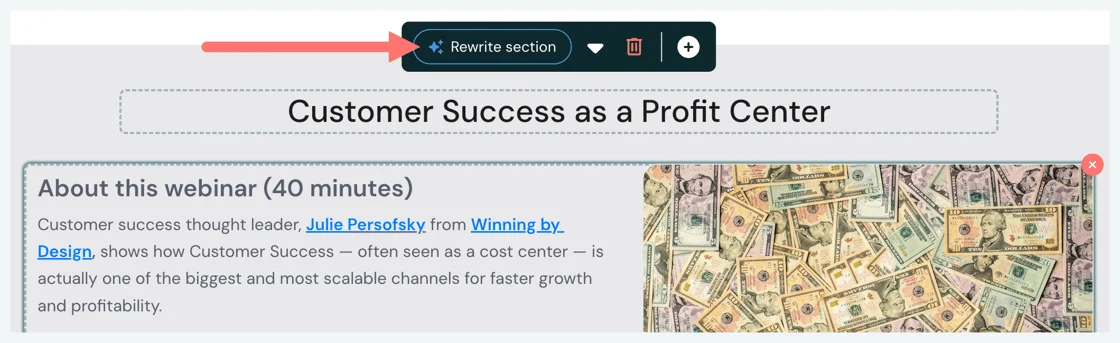
Or, regenerate the entire page from scratch , choosing whether or not to give instructions for how you want the page redone.
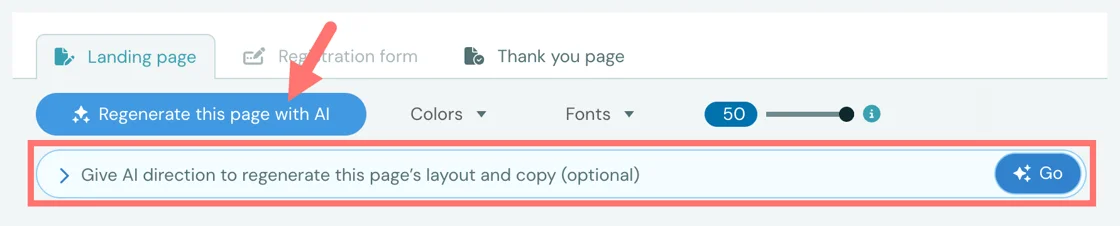
AI will not just rewrite the page, it will suggest new sections, recommend their order, and even add images.
And that's all for now! We hope you'll try our new AI features and push them to their limit. We'd love to hear your feedback so we can make them better.
 O n the topic of AI, our friends at Lindy.ai built an integration with eWebinar that lets you trigger AI agents after a webinar — like automatically sending personalized follow-up emails based on info submitted during the webinar and public data.
 Sign up for Lindy for free to give it a try!
New Share and Widgets pages
Now, whether you click Share or Widgets for a particular webinar on the home page, you'll be taken to where you can tab between the two.
What's more, you can get to either of these two pages by clicking Share in the main navigation of any webinar.
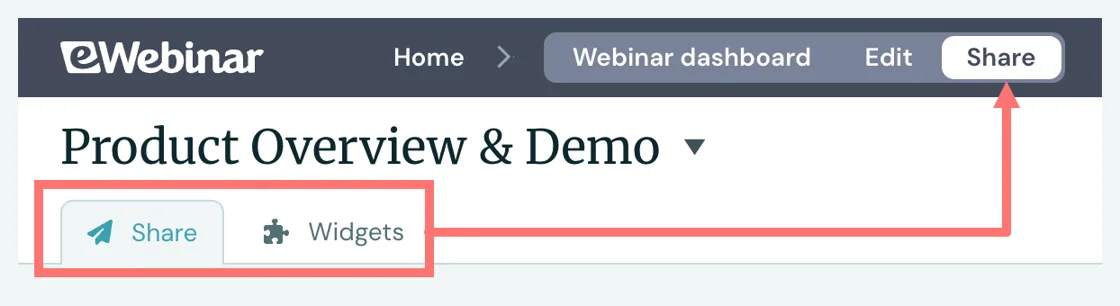
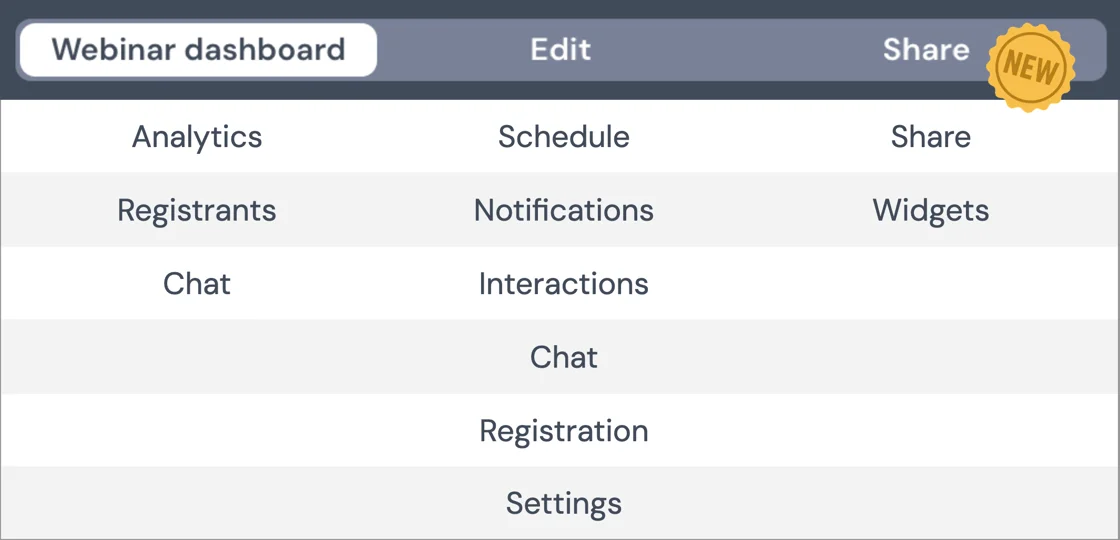
This change, though small, makes it incredibly easy now to get to any of a webinar's core pages (listed below), no matter where you happen to be at the time.
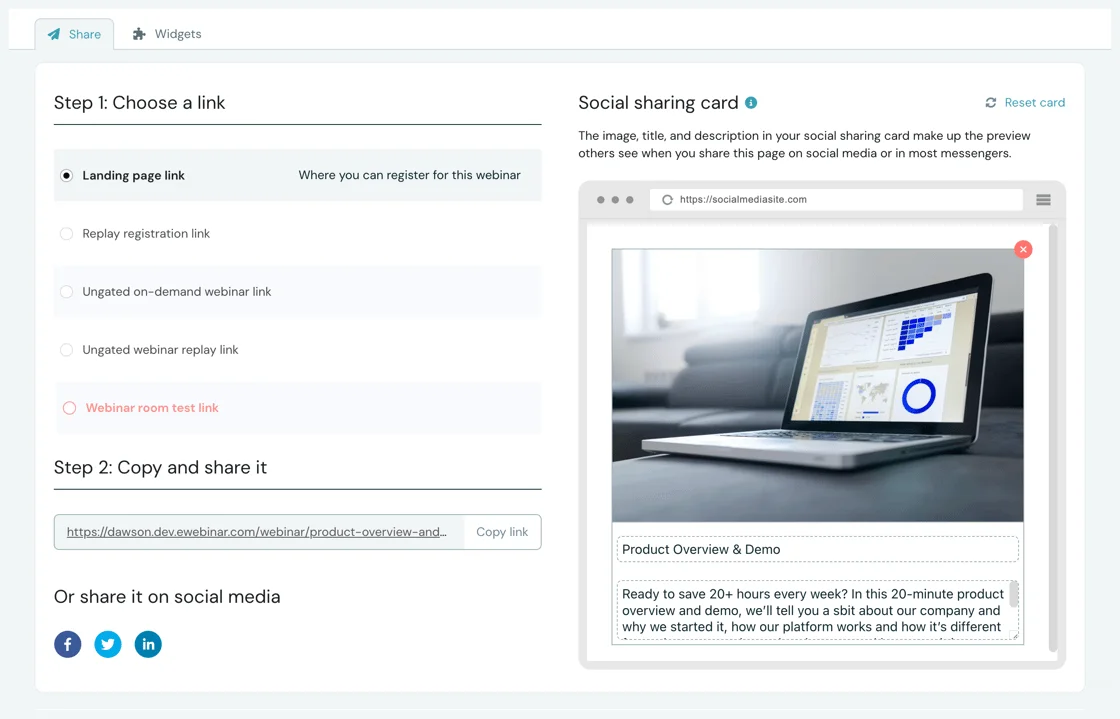
New 'Share' page
The new Share page has one significant change: the Social sharing card has been moved here from the Settings tab (when you are editing a webinar).
New 'Widgets' page
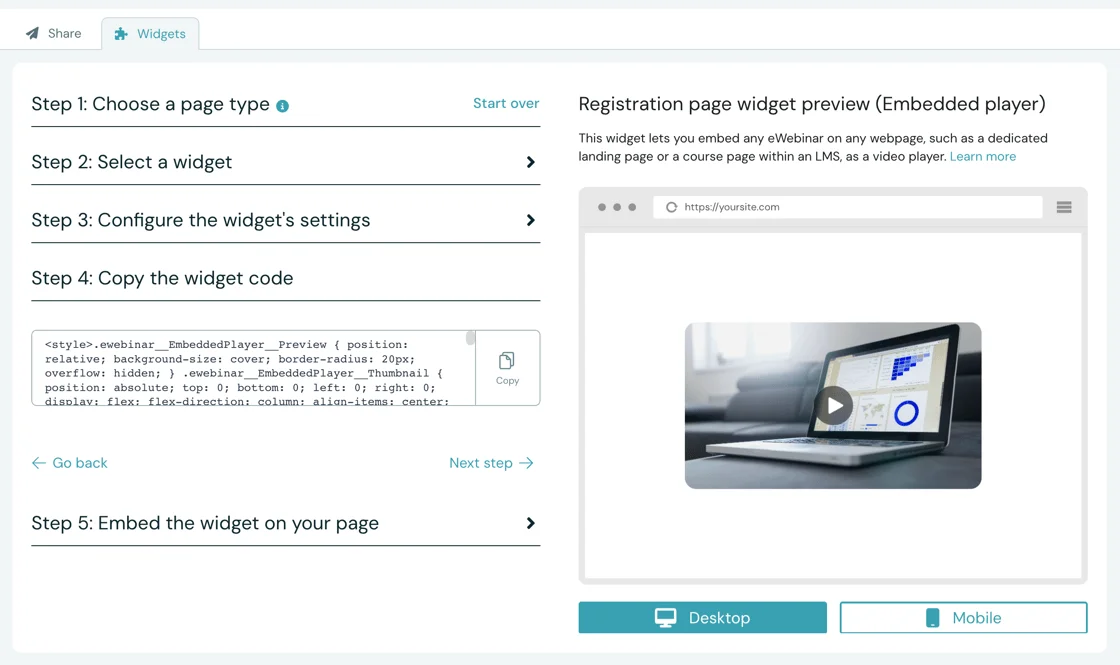
The new Widgets page is much easier to use, as the process of choosing and configuring a widget has been broken down into five simple steps.
Bada bing bada boom!