
Every subscription to eWebinar comes with all standard features. For most, this gives them what they need to automate their eWebinars and achieve their business goals.
There are some eWebinar customers, however, who have more sophisticated needs, either because of the size of their company or because of the level at which they need their businesses to function.
To help meet the specific needs of these users, eWebinar has developed add-ons that may be tacked on to your base subscription for an additional fee.
How do I subscribe to (or unsubscribe from) a subscription add-on?
You may subscribe to or unsubscribe from subscription add-ons from the Subscription page of your eWebinar account, provided you are an account Admin. Look under Available add-ons to subscribe and under Subscription details to unsubscribe (or to resubscribe during the same billing cycle).
What do subscription add-ons cost?
The rates associated with each add-on may be found on our Pricing page.
What subscription add-ons does eWebinar offer?
Below are the subscription add-ons eWebinar currently offers including a description of what each one is and its benefits:
Additional registrants per month
Each subscription level has a limit to the number of registrants you may have each month for your eWebinars. Visit our pricing page to see what those limits are.
If you hit your monthly registrant limit, people will be unable to sign up for your eWebinars until the beginning of the next monthly cycle, when your registrant limit resets. We will warn you by email if you are getting close to that happening.
If you would like to see how many registrants you have left in the current month and the date your limit will reset, visit the Subscription page.
If you find you need more monthly registrants than the limit set under your subscription level, you may purchase additional registrants in increments of 1,000 and add them to your subscription.
To do this, go to the Subscription page and look for Additional registrants/month listed under Subscription details. Use the drop-down menu (shown below) to choose how many additional registrants you would like each month and then follow the prompts.
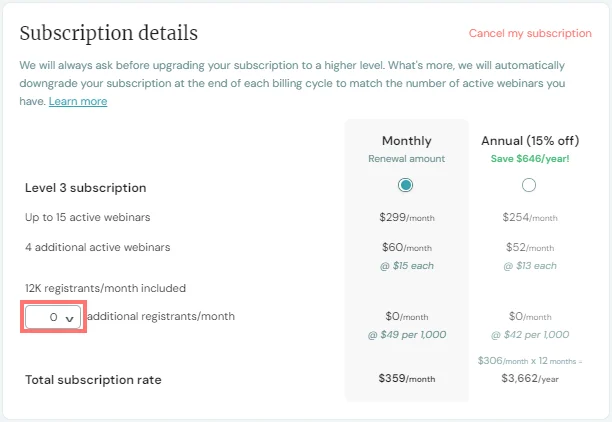
You can increase or decrease the number of additional registrants included in your subscription at any time. Keep in mind, however, that once purchased, additional registrants are non-refundable for the monthly or annual billing cycle in question.
Again, we will warn you by email if you are getting close to hitting your registrant limit for the month so you can take action accordingly.
Advanced access control
One of eWebinar's standard features is basic Access control. This feature allows you to block certain individuals (by email address) from registering for a particular eWebinar.
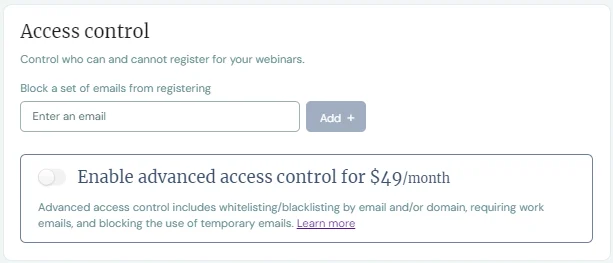
Advanced access control, which can be enabled from the Registration tab while editing any eWebinar, is a more sophisticated set of features that gives you more control over who can and cannot register for and attend your eWebinars.
The features of Advanced access control fall into one of two categories:
- Features that let you block certain registrants
- Features that let you only allow certain registrants
Once Advanced access control is enabled for an eWebinar, this is the first decision you must make. Do you want to block certain registrants or only allow certain registrants?
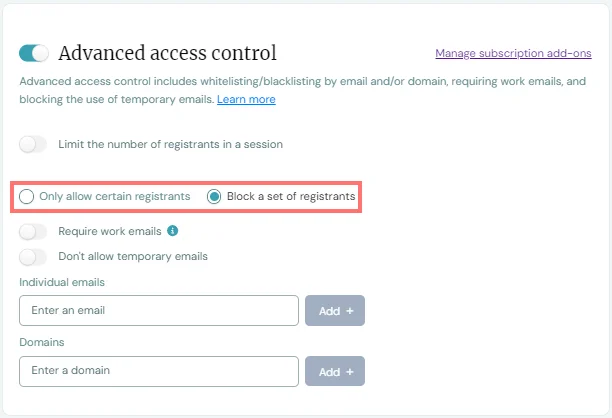
Here is a summary of the two sets of features available to you once you have made that decision:
Features that let you block certain registrants
To block certain people from registering for your eWebinars, here are your options:
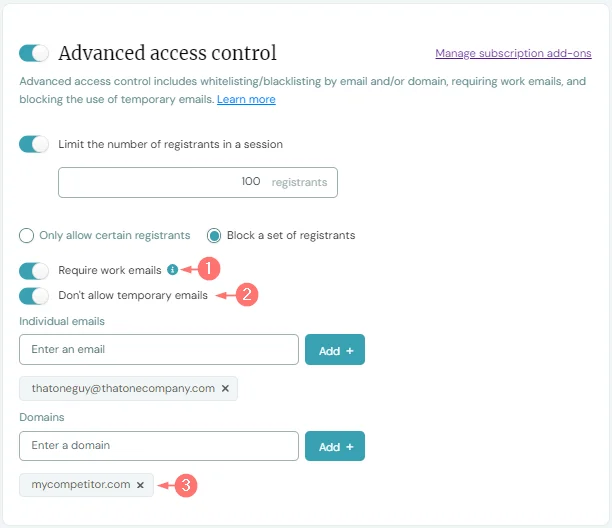
1. Require work emails
We use a service that keeps tabs on the most common types of non-work email addresses people use (like Gmail and Outlook) and prevents them from using those email addresses to register for your eWebinar. All other types of email addresses are considered work emails.
2. Don't allow temporary emails
eWebinar has a standard feature that tests if an email is deliverable before allowing someone to use it to sign up for one of your eWebinars. This helps ensure the quality of emails you collect from registrants is as high as possible, since it prevents people from using fake ones.
However, people can also use something called a temporary email address to get around giving you their real email.
A temporary email address (also known as a disposable email address or DEA) is a self-destructing, throwaway address that people use to sign up for websites and stay anonymous. (Software exists to create DEAs for people.)
This feature of Advanced access control is able to detect temporary email addresses and prevent people from using them when registering for your eWebinar, thus adding an additional layer of validation to the email addresses you capture.
3. Block groups by email domain
While basic access control lets you block certain individuals by their email addresses, Advanced access control lets you block whole groups of people by the domain in their email address. So, for example, if you didn't want people who work for one of your competitors to access your eWebinars, you could simply block all emails that use that company's domain (i.e. mycompetitor.com).
This is especially effective if you also Require work emails, as described above.
Features that let you only allow certain registrants
If you choose to only allow certain people to register for your eWebinars, here are your options:
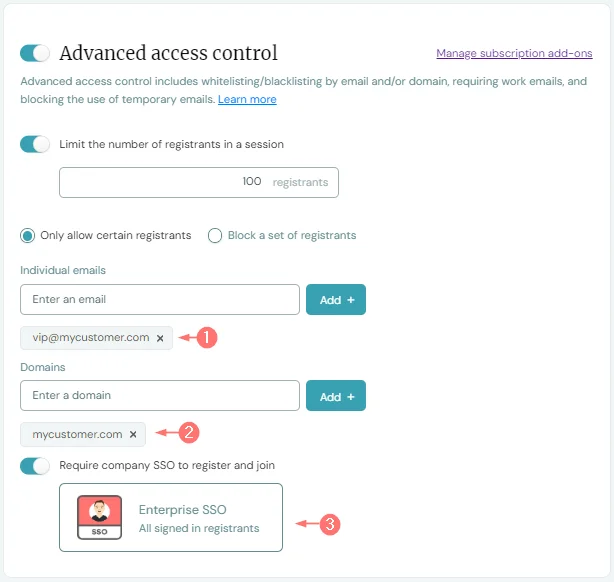
1. Only allow certain individuals
Blocking individuals from registering for your eWebinar is a part of basic access control. Advanced access control, however, also makes it possible for you to only allow certain individuals to register for your eWebinars by whitelisting their email addresses. That way, you can be very particular about who has access to your eWebinars.
2. Only allow groups by email domain
Similar to how it works when blocking groups of people by the domain in their email address, this feature lets you only allow people to register for your eWebinars using emails that have whatever domains you specify. Thus, you can target the companies you want to give access to your eWebinars, and only those companies.
3. Require SSO
Single Sign-On (SSO) allows members of large companies and organizations to sign in to all of the tools they use with one central login controlled by the company. This makes it easier for users, because they only need to remember one login and, as they move from tool to tool, they are automatically logged in since the system remembers who they are. SSO is beneficial to the company since it makes it easy to grant and revoke access to all tools as people come and go.
The Require SSO feature of Advanced access control makes it possible to plug eWebinar into your company's ecosystem of products in this way, by requiring people to sign in with their company login.
NOTE: Before you can use this feature, you must set up the SSO integration, which requires participation from your IT department.
Limit number of registrants per session
One more feature of Advanced access control, regardless of whether you decide to block or only allow certain registrants, is to choose to limit the number of registrants in a session and then specify that number.
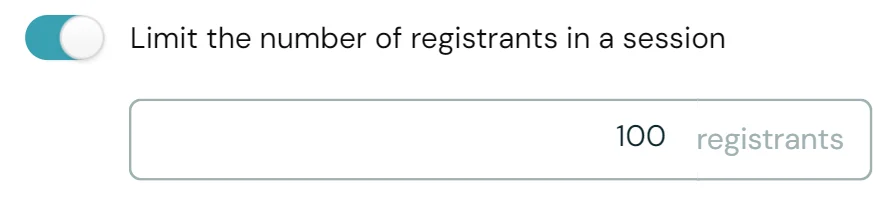
Once the limit you specify has been reached, no new registrants will be allowed to register for that session.
To subscribe to the Advanced access control add-on, login to your eWebinar account (you must be an Admin), go to Subscription, and look for it under Available add-ons.
Custom domain
The Custom domain subscription add-on may be found on the Domains page, which you can get to from the profile menu, provided you are an Admin.
This add-on lets you host your eWebinars and landing pages on your website or on any domain you own, thus making it possible to track people more effectively by keeping them on the same domain as they register for and attend your eWebinars, per Apple's new privacy terms. (Learn more about implementing better tracking.)
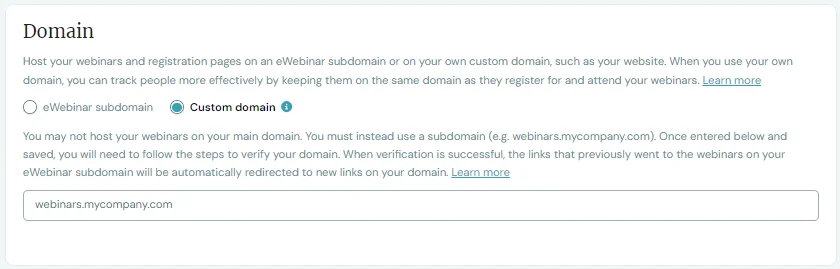
NOTE: When you choose to put your eWebinars on your domain, you must do it under a subdomain, such as webinars.mycompany.com.
To subscribe to the Custom domain add-on, login to your eWebinar account (you must be an Admin), go to Subscription, and look for it under Available add-ons.
You can find the instructions for setting up your Custom domain here.
Marketo integration
The Marketo integration with eWebinar automatically creates Contacts for you in Marketo as people register for your eWebinars. These Contacts are then kept up-to-date with other data, such as information submitted via the eWebinar registration form (e.g. name, email, and any custom fields you wish to add), behavioral data (e.g. eWebinar attendance, watch time, and engagement), and data captured from your eWebinar interactions (e.g. Polls, Questions, and Quizzes).
Marketo and Salesforce are the only CRM integrations that require a subscription add-on. Every other CRM and marketing automation integration eWebinar offers (HubSpot, ActiveCampaign, Mailchimp, and so on) is included with your base subscription.
To learn more about our Marketo integration and how to set it up, read this article:
Remove eWebinar branding
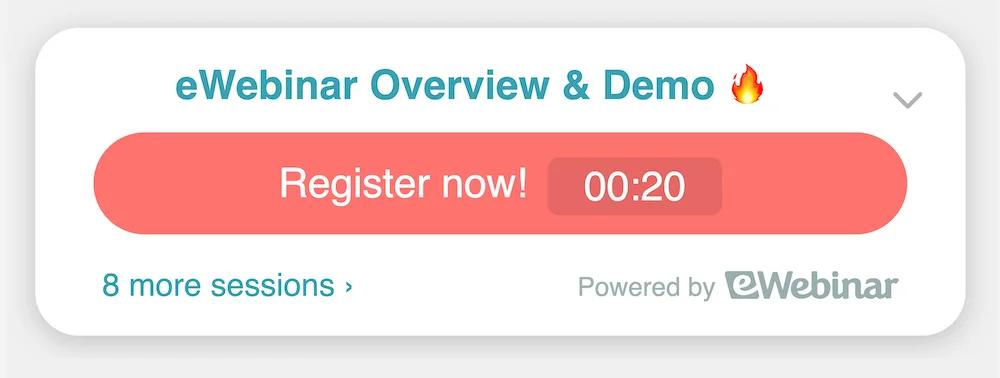
‘Powered by eWebinar’ appears to eWebinar registrants and attendees in several places and links to our home page. It shows up on your registration pages, forms and widgets, in the eWebinar room, and at the bottom of your notification emails. As a bootstrapped startup, this kind of exposure is vital to our growth.
Here is what it looks like on the pop-up registration widget:
To remove our branding and all mentions of 'Powered by eWebinar', subscribe to the Remove eWebinar branding add-on.
This add-on also includes the ability to upload your own favicon.
If you leave our branding in place, as a thank you, your team can earn a $100 cash reward for every referral that clicks 'Powered by eWebinar', is taken to our homepage, and subsequently becomes a customer.
To set this up, sign up for our rewards program. When you do, your referral link to our homepage will be automatically added to 'Powered by eWebinar' wherever it appears.
After signing up for our rewards program, go to the Subscription page and verify you were added as the Team rewards recipient under Team rewards. (If more than one team member has signed up for our rewards program, you must choose one to be the rewards recipient. Or you create a new team member specifically for this purpose.)
Even when you subscribe to this add-on, "via eWebinar" will still appear after the sender's name in all email notifications because of legal requirements. If you wish to remove this as well, you must use our integration with SendGrid or via the SMTP service of a third-party email provider.
Salesforce integration add-on
The Salesforce integration add-on with eWebinar automatically creates Leads or Contacts in Salesforce for you when people sign up for your eWebinars. Actions then taken by these eWebinar registrants (such as 'Registered', 'Attended', or 'Missed') create Events or Campaign Members in Salesforce for the Lead/Contact in question.
Leads/Contacts are kept up-to-date in Salesforce with data such as information submitted via the eWebinar registration form (e.g. name, email, and any custom fields you wish to add), behavioral data (e.g. eWebinar attendance, watch time, and engagement), and data captured from your eWebinar interactions (e.g. Polls, Questions, and Quizzes).
Try the 5-day free trial now from the Subscription page.
To learn more about our Salesforce integration add-on and how to set it up, read this article:
Universal Dashboard
The Universal Dashboard add-on lets you track unique registrants and run analytics across all, or any set of, your eWebinars. And respond to all chat from a single inbox. You get universally better data too!
With this add-on, you get access to:
Universal Analytics
Start with all eWebinars or select a few to compare, pick a date range, and run cross-eWebinar analytics to find out how your eWebinars are performing on the whole as well as relative to each other, so you can easily see what's working and what's not.
Universal Registrant List
A duplicate-free master list of unique registrants (by email) from all of your eWebinars lets you easily see how many eWebinars each person attended, engaged in, completed, and converted from.
Universal Registrant Record
Pull up any registrant to see all of their info and eWebinars in one spot. Data is smartly combined across eWebinars and sessions so only the most relevant values appear in each person's record – and in your CRM!
Universal Chat
No more bouncing from eWebinar to eWebinar to respond to messages from different inboxes. Instead, you and your moderators can manage chat for all of your eWebinars from one central inbox.
Universally better data
Once the Universal Dashboard is enabled, eWebinar and session data is automatically consolidated on the backend by unique registrant. The result? Higher data quality everywhere, including on your individual eWebinar dashboards!
To learn more about the Universal Dashboard, read these two articles:
- How does subscribing to the Universal Dashboard universally improve my data?
- Universal Dashboard FAQ
eWebinar Series
The eWebinar Series subscription add-on lets you build fully automated, multi-eWebinar trainings and deliver them on demand to anyone in the world at any time. You can create learning paths from your eWebinars, and keep attendees on track with their own progress pages.
This add-on lets you quickly create an eWebinar series from scratch or from a tag.
Hand pick eWebinars to include in your series. Or instantly select all eWebinars with the same tag. You can also gamify series completion and offer certification. Determine your own completion requirements:
- Set a minimum watch % for each eWebinar
- Add mandatory quizzes
- Require attendees to perform a task, like use a product feature
Once "complete" has been defined, turn on a progress bar, enable certification, and offer a personalized PDF certificate or other reward to motivate attendees to finish the entire series.
This add-on gives every single registrant a dedicated training hub with all of their eWebinars in one place. The landing page you share with your audience becomes automatically personalized to them when they sign up for your series, giving them one central place to return to:
- Join the next eWebinar
- Keep track of their progress
- Watch replays of past eWebinars
- Refer back to chat conversations
- Collect their certification at the end
The Universal Dashboard comes included with eWebinar Series and lets you run cross-eWebinar analytics, track unique registrants, and respond to chat for all, or any combination of, your eWebinars.
To learn more about eWebinar Series and how to set it up, read these two articles: