
In eWebinar, your eChat agent works as an AI moderator: a member of your moderator team, not a bot sitting in front of it. It answers attendees in the same chat as your human moderators. It knows who else is on the team, lets a human answer first when one is around, flags messages your team should look at, and leaves them private notes. Most of the time nothing is "escalated" at all. The AI and your people simply share the work.
A real hand-off, where the conversation is passed to a person, is the exception. It only happens when your agent uses Human hand-off and the webinar's eWebinar settings allow attendees to reach a person. This article covers how the AI works with your moderators day to day, the wait time that gives them the first word, flagging, notes, stepping back when someone jumps in, when a real hand-off happens, and what to check when something looks off.
How the AI works with your moderators
What it is
The AI moderator behaves like a colleague on shift with your team. It takes the routine questions, leaves anything that needs a person clearly marked for your team, and gets out of the way when a human is handling the chat.
How it works
- It knows the team. On every message, eWebinar tells the AI which moderators are on the webinar, whether each one is available or away, whether someone is typing, and who replied last. The AI only mentions a colleague by name when it knows their current status. For example, it might say it's covering because they're busy, or picking up because they seem to be away. It never makes up a name, never guesses whether someone is available, and never says a specific person is joining the chat right now.
- It gives humans the first word. With a wait time set in eWebinar, your moderators are notified when a question comes in, and the AI only answers if nobody replies in time. See the wait time below.
- It marks work for humans without walking away. The AI can flag a specific attendee message as Needs reply and leave a private note explaining why, then keep helping the attendee.
- It steps back when a human steps in. When a moderator replies, starts typing, or leaves a private note, the AI adjusts rather than talking over them.
- It hands off only when you've allowed it. Passing the conversation to a person is limited to Human hand-off mode, and eWebinar decides whether that's possible on each webinar.
How much of this the AI does depends on your mode, under Escalation on the agent's Agent screen. With Chatbot only it works alone: no flags, no notes, and it never mentions your team. Leave a note adds flagging and notes. Human hand-off adds real hand-offs on top. See choosing a mode.
Best practices
Set your moderators' availability in eWebinar and keep it accurate. It's what the AI uses to decide whether to wait for a person and how to talk about your team.
The wait time: giving your team the first word
What it is
Each webinar's AI moderator settings in eWebinar include AI answers if a human doesn't answer in … sec, in the AI moderator's Behavior section of the webinar's Moderators settings. This is an eWebinar setting for each webinar, not something you set in eChat. It only affects conversations in eWebinar.
How it works
The setting. Enter any whole number of seconds from 0 to 900 (15 minutes). 0 means the AI answers right away. When you attach an agent in eWebinar, Human hand-off agents start at 120 seconds (2 minutes) if the webinar can reach a person, and Chatbot only / Leave a note agents start at 0. If the wait was never set, it defaults to 120.
While the AI waits. When an attendee asks something, your moderators are notified right away (by email, SMS, or Slack, per the webinar's notification settings) and the AI holds back:
- If a moderator replies during the wait, the AI doesn't answer that message.
- If a moderator starts typing, that counts as taking the turn, and the AI's pending answer is cancelled. If you then abandon the draft, answer the attendee yourself. Their next message starts a fresh wait.
- If nobody replies in time, the AI answers, covering everything the attendee sent in the meantime. Extra messages during the wait don't restart the clock.
- Your moderators see a countdown in the eWebinar inbox showing when the AI will answer. The attendee doesn't see the AI typing during the wait. The typing indicator appears only once the AI actually starts writing.
- No credits are used while the AI waits. If a human answers first, the AI never writes a reply to that message.
When the AI doesn't wait.
- The AI is already in the conversation. If the most recent reply on your side came from the AI, the attendee is talking to the AI, so it answers follow-ups at once. This ends as soon as a human moderator sends a chat reply in that conversation. Private notes don't count.
- Nobody is available. If no moderator assigned to the webinar is currently available (based on their status, schedule, or a temporary override), there's nobody to wait for and the AI answers right away. The exception is a moderator who replied in that conversation in the last 15 minutes: they count as present even outside their scheduled hours.
After a human replies. For up to 15 minutes after a moderator's own reply, while theirs is still the latest reply on your side, the AI gives them the first word on the attendee's next message too. It waits at least your wait time, and never less than 60 seconds, even if the wait is 0. If the webinar's auto-responder is on, it waits the auto-responder's delay instead when that's longer. When the wait ends, if the attendee's message doesn't need an answer (a simple "thanks!", for example), the AI stays quiet.
How it depends on your mode. The wait only applies when attendees can ask for a person on that webinar (Attendees can request escalation is on in eWebinar). With that off, which is always the case for Chatbot only and Leave a note agents, the wait box is greyed out and eWebinar explains that the AI answers right away. The 60-second pause after a human reply still applies in every mode.
Notifications. With a wait above 0, moderators are notified about each new question so they can answer first. With 0, they aren't notified about every question, only when a conversation is handed off or the AI flags a message as Needs reply.
Best practices
- If your team actively moderates live sessions, keep a short wait (the 2-minute default is a good start) so people answer first and the AI fills the gaps.
- For automated sessions nobody watches, use 0. The AI answers at once, and your team only hears about flagged or handed-off conversations.
- If you start typing and change your mind, send the attendee something anyway. Typing cancels the AI's answer to that message.
Flagging messages as Needs reply
What it is
When a person should follow up on something, the AI marks that attendee's message as Needs reply. It does this for things it couldn't fully resolve, account-specific issues, bug reports, or requests that need a person after the webinar. This is not a hand-off. The AI keeps talking with the attendee, and the flag just makes sure a human sees the message.
How it works
- Only your moderators see flags. Attendees never do.
- In the eWebinar inbox, the Needs reply filter lists conversations with flagged messages. On desktop it sits next to Unread. On phones it's in the mailbox menu under Inbox. It appears where the AI moderator is an eChat agent.
- Flagging doesn't hand the conversation over and doesn't switch the AI off. The AI doesn't flag the same message twice.
- A flag usually comes with a private note explaining why.
- Other things raise a Needs reply flag too: a real hand-off, an attendee asking for a person, and your account running out of credits (the attendee's newest message is flagged so your team can cover it).
- When a moderator replies to the attendee, that usually settles a flag the AI raised. Flags from a hand-off or an attendee's request for a person stay until someone on your team deals with them.
- Flagging is available with Leave a note and Human hand-off. With Chatbot only, the AI never flags.
Best practices
Use Needs reply, not Unread, as your team's to-do list. When the AI replies, the conversation counts as read, so flagged conversations won't necessarily show as unread.
Leaving private notes
What it is
The AI can leave a private note on the conversation for your moderators. The note is colleague-to-colleague context that the attendee never sees.
How it works
- Notes appear to moderators as yellow Private note from <agent> bubbles (the same style as eWebinar moderator notes). Attendees never see them live — the visitor chat doesn't receive note messages. In eChat Chat Logs view-only replay, those yellow notes are included so you can review what the AI told your team.
- The AI leaves a moderator note only on turns that matter to your team: a real hand-off, an offer to bring a person in, or a reply that flags a message as Needs reply. It doesn't leave casual summary notes on ordinary turns (those would look like something owed in the inbox).
- Notes are written in the attendee's language. Every real hand-off comes with a note saying what the attendee actually needs, so whoever picks it up doesn't have to reread the whole chat.
- With Leave a note, the AI may briefly tell the attendee it has left a note so your team can give a more accurate answer later. It never promises a live reply, a specific person, or a timeframe.
- Poll, quiz, and question-card answers are never treated as notes or folded into hand-off notes. They're answers the attendee gave, which the AI can respond to in chat. See how the AI answers.
- With Chatbot only, the AI never leaves notes.
Best practices
Treat the AI's notes as a brief. If the same reasons keep showing up, answer them once in Q&A so the AI can handle them itself next time.
Stepping back when a human jumps in
What it is
The AI stays in the conversation even after one of your moderators joins, because it's a peer rather than a bot that gets switched off. But it takes its cue from the humans.
How it works
- You reply or start typing. The AI's pending answer to that message is cancelled, and it gives you the first word on the attendee's next message. See the wait time.
- You leave a private note. The AI reads it straight away as a note from a colleague, not as a question from the attendee. It replies to the attendee only if the note makes that useful. Otherwise it stays silent.
- You hand the conversation back. When a moderator turns the AI back on for a conversation, the AI answers the attendee's waiting message right away, with no wait, or stays quiet if there's nothing to answer. If the attendee had asked for a person, the AI knows your team was already alerted and doesn't promise a new connection.
- It picks up after a colleague. If the AI answers after a human was talking with the attendee, it says so naturally. For example, it covers for a colleague who is busy but still around, or picks up from one who seems to be away.
Best practices
If you want to handle a conversation entirely yourself, turn the AI off for that conversation in eWebinar, and turn it back on when you're done. Use private notes to steer the AI, for example "offer the annual plan" or "she's already a customer", rather than typing instructions where the attendee can see them.
Choosing an escalation mode
What it is
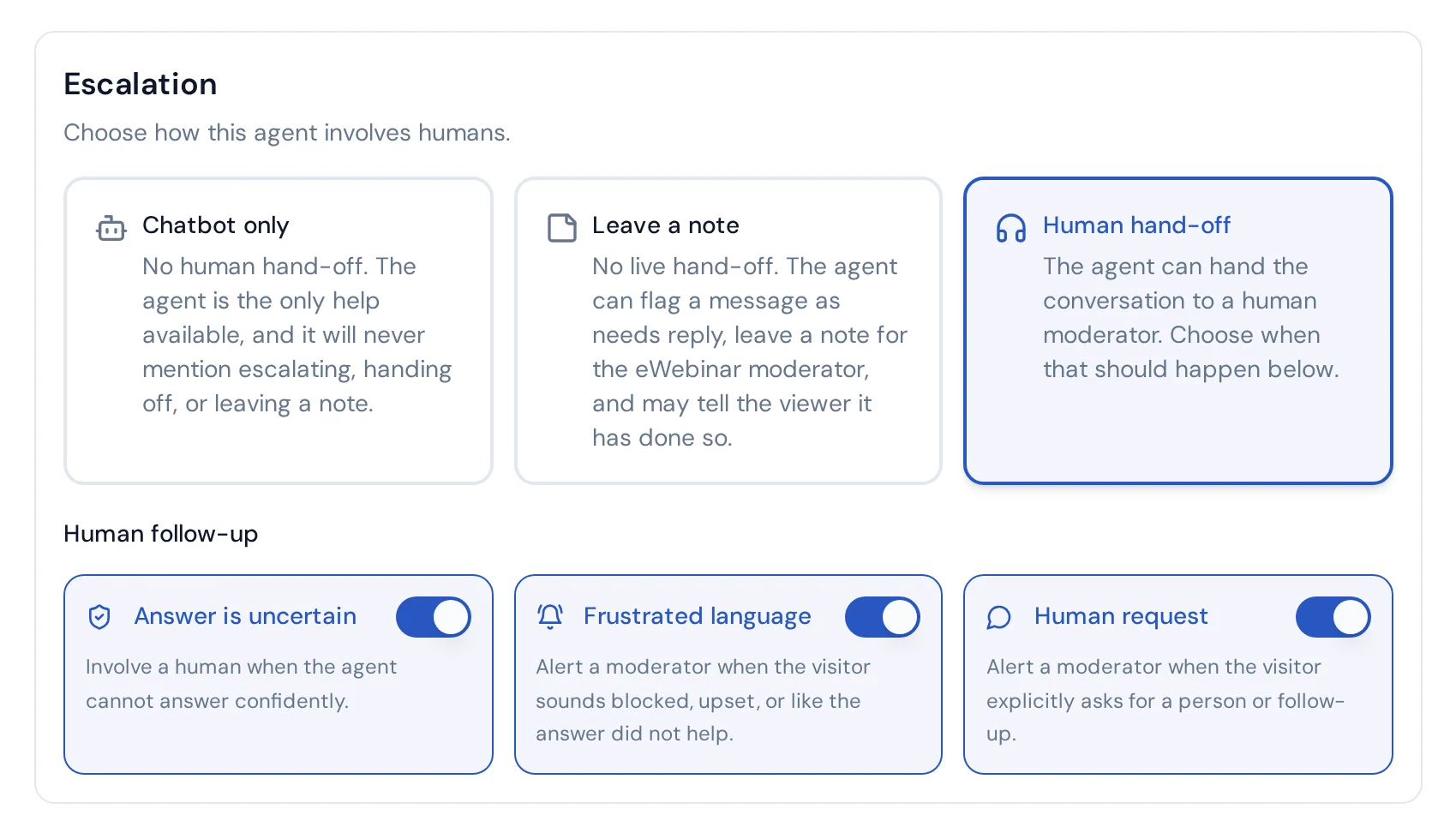
The mode decides how far the AI involves your team. For agents linked to an eWebinar, choose Chatbot only, Leave a note, or Human hand-off under Escalation on the agent's Agent screen.
How it works
Chatbot only. The AI is the only help available. It never mentions escalating, handing off, or leaving a note. If an attendee asks for a person, it keeps helping them itself. It doesn't flag messages or leave notes.
Leave a note. No live hand-off. The AI can flag messages as Needs reply, leave private notes for your moderators, and may tell the attendee it has done so. It stays the attendee's helper for the whole chat and never offers to bring someone in.
Human hand-off. Everything Leave a note does, plus the AI can hand the conversation to a person, based on the Human follow-up triggers you turn on and what eWebinar allows for each webinar. This is the only mode where a person can be brought into the conversation. See when a real hand-off happens.
Agents that aren't linked to an eWebinar (standalone agents) use a different set of options: No escalation or Email follow-up. An Integration option is also shown, but there's nothing to connect yet.
Best practices
- Pick Chatbot only only if nobody on your team will ever look at these chats.
- Leave a note suits automated sessions. Your team gets a clear list of what needs a person without promising anyone live help.
- Choose Human hand-off when moderators really are around during sessions and can pick up a conversation.
When a real hand-off happens
What it is
A hand-off passes the conversation to your human moderators. It only happens in Human hand-off mode, and only when the webinar's eWebinar settings allow attendees to reach a person.
How it works
eWebinar decides whether a hand-off is possible. In each webinar's AI moderator settings:
- Attendees can request escalation must be on. eWebinar only lets you turn it on when at least one human moderator is assigned to the webinar and first-chat-message notifications are on (Slack, email, or SMS). See prerequisites for human hand-off.
- Only allow escalations when a human moderator is available is optional. When it's on, neither the attendee nor the AI can start a hand-off unless an assigned moderator is available at that moment.
If escalation is off, or only allowed while someone is available and nobody is, the AI won't offer or start a hand-off. It keeps helping the attendee itself. If escalation is allowed but nobody is available right now, the AI can still pass the conversation to your team, but it tells the attendee nobody is available live and that someone will follow up later. It never promises a live connection.
What happens during a hand-off.
- The AI tells the attendee that a person is being brought in, without naming who or promising when they will arrive.
- Every moderator assigned to the webinar is notified through your chat notification settings.
- The attendee's message is flagged as Needs reply, and the AI leaves a note explaining what they need.
- The AI stays in the conversation. Its reply is the holding message, and it keeps helping while your team gets there. It won't offer another hand-off, guess when someone will arrive, or name who's coming.
- If nobody picks the conversation up in time, the AI follows up with the attendee, making clear the team has already been told, without promising a new connection. Your moderators are notified once per request.
- Once a human replies, that request is done. If the attendee later needs a person for something new, the AI treats it as a fresh request.
Best practices
Keep the Needs reply filter open during live sessions so hand-offs don't sit waiting. The AI keeps the attendee informed, but only a person can finish a hand-off.
Asking first: consent before a hand-off
What it is
In Human hand-off mode, the AI asks the attendee before handing off rather than paging your team on its own judgment.
How it works
When the AI hits a reason to involve a person (it isn't confident about an on-topic answer, the attendee sounds frustrated, reports a problem, or needs something tied to their own account), it helps as far as it can and then asks whether they'd like a person to help. The attendee accepts by typing yes (or otherwise clearly agreeing). Nothing is handed off, and no one is flagged, until they accept. If they decline or move on, the AI keeps helping.
The one exception is an explicit request. If the attendee asks for a person, that request is their consent, so the AI can hand off without asking again, as long as the Human request trigger is on.
Best practices
Match the mode to your real staffing rather than relying on the ask. If nobody will see a hand-off, choose Leave a note instead.
Human follow-up triggers
What it is
With Human hand-off selected, the agent's Agent screen shows three Human follow-up cards that decide which situations can lead to a hand-off: Answer is uncertain, Frustrated language, and Human request.
How it works
- Answer is uncertain: the AI can offer a person when it can't answer an on-topic question confidently.
- Frustrated language: the AI can offer a person when the attendee sounds blocked, upset, or like the answer didn't help. This leads to an offer, never an automatic hand-off.
- Human request: the AI hands off when the attendee explicitly asks for a person or follow-up.
All three are on by default, including for agents created from eWebinar that you haven't opened and saved yet. Turning one off means that situation no longer leads to an offer or a hand-off. Turning off Human request also means an explicit request is no longer handed off automatically. Reported problems and account-specific questions have no toggle of their own. With hand-off available, they can always lead to an offer, and the attendee still has to accept.
These cards also depend on eWebinar. If escalation is turned off for every linked webinar, the cards are disabled and a notice says: "Escalation is turned off for all linked webinars in eWebinar. Turn it on there to enable these triggers, or choose Chatbot only or Leave a note instead." If only some linked webinars have escalation turned off, or some allow escalation only while a human moderator is available, a notice says so. Each webinar's own setting still applies to its conversations.
Best practices
Leave Human request on unless you truly have nobody to hand off to. Attendees who ask for a person and don't get one tend to leave unhappy. If moderators get pulled in for questions the AI should know, close the training gap before turning off Answer is uncertain.
Troubleshooting
The AI didn't answer right away. That's usually the wait time working: a moderator was available, so the AI gave them the first word. It also waits at least a minute after a human's own reply in that conversation. Check the webinar's AI moderator settings in eWebinar, or set the wait to 0 for sessions nobody watches.
The AI never answered a message. A moderator probably replied, or started typing, during the wait. Either one cancels the AI's answer to that message. If the moderator abandoned their draft, reply to the attendee directly. Their next message starts a fresh wait.
The AI keeps replying after I jumped in. That's expected: the AI is a peer and stays in the conversation. After your reply, it waits before answering the attendee's next message and stays quiet on messages that don't need an answer. To take a conversation over completely, turn the AI off for that conversation in eWebinar.
An attendee asked for a person but nobody was brought in. Check that the mode is Human hand-off, that Human request is on, and that the webinar allows attendees to request escalation. If the webinar only allows escalation while a moderator is available, nobody may have been available. Look for the eWebinar notices under Escalation on the Agent screen.
I can't turn on attendee escalation in eWebinar. The webinar needs at least one assigned human moderator and first-chat-message notifications (Slack, email, or SMS).
Moderators aren't notified about new questions. With a wait of 0, eWebinar only notifies moderators when a conversation is handed off or the AI flags a message. Set a wait above 0 to notify them about every new question.
The Needs reply list is empty. With Chatbot only, the AI never flags anything. Otherwise, the AI may simply have handled everything itself. Check Chat Logs to review its answers.
The AI stopped answering and messages are being flagged. Your account has probably run out of credits. The AI goes quiet and the attendee's newest message is flagged for your team. See Plans, Credits & Usage.
The same questions keep getting flagged. Add answers to Q&A. Conversations themselves aren't training data. eChat can suggest Q&A pairs from past conversations, but only the Q&A you approve becomes training.