
Every time your eChat agent runs the model for a turn — whether it posts a reply or stays silent after looking at a notify-moderators interaction card — it uses up a small amount of usage called a credit. How many credits a turn costs depends on the agent's AI Model setting and the model that ran the turn - cheaper, faster models cost less than higher-quality ones.
Your plan sets how many credits you get each month, how many agents you can run, and how much training material those agents can hold between them. eChat doesn't have its own separate subscription - it's billed through your eWebinar account, so there's one bill and one place to manage upgrades. The card and billing address you keep on file are shared with your eWebinar subscription too.
This article covers what a credit is, what else uses credits, what each plan includes and costs, how credit packs and account credits roll over, the first-visit credits intro, how extra agents and training storage work, how auto-recharge works, where subscription settings live, how payment details are shared with eWebinar, and which billing emails you may receive.
Credits: the unit of usage
What it is
A credit is the unit eChat uses to measure usage. Every model call your agent makes in an eWebinar's live chat - whether it's answering a visitor's question on its own, working alongside a human moderator, or deciding not to speak after a notify-moderators interaction card - costs a certain number of credits.
How it works
The cost per turn depends on the AI Model you choose on the agent's Agent screen. Available models and their credit cost per response are shown in the AI Model card, so you always see current costs before you choose. Lighter models cost fewer credits per response; more capable models cost more. On Auto (Smart) or Auto (Efficient), each response is billed at the credits of the model that answered it, within the range shown for that setting.
Your monthly credit allowance is shared across every agent on your account - if you run more than one agent, they all draw from the same pool.
Staying silent still uses credits when the model ran. On a notify-moderators interaction card, if the agent decides not to post anything, no chat messages are written and no escalation starts — but the look still settles against your balance. See how the AI answers.
Best practices
Match the setting to the job. Most agents do best on the default, Auto (Smart). A high-volume agent - one fielding hundreds of routine questions a day - can switch to Auto (Efficient) to spend fewer credits per reply, while agents where getting the answer exactly right matters more stay on Auto (Smart). See Choosing an AI Model.
Other things that use credits
What it is
Replies aren't the only thing that draws on your balance. A few training and testing tools use credits too.
How it works
- Conversation imports - reading past chats and turning them into suggested Q&A is charged at what the processing actually cost, plus 30%, with a minimum of 1 credit per import run. eWebinar imports let you set Max credits to use so an import stops at your budget. See Training: Conversations.
- Evaluation runs - scoring your agent in Evaluate is charged the same way: the measured cost of the successful test cases plus 10%, minimum 1 credit per run. Failed cases aren't charged. See Evaluating Your Agent.
- Check training - on a Needs answers card, asking eChat to check your training for an answer uses 1 credit when it runs.
These charges show up in your usage ledger alongside replies, and they count toward auto-recharge on paid plans. For a fuller walkthrough, see What Uses Credits.
Plans and what's included
What it is
eChat has a free plan and paid tiers. For current plans, prices, and what each one includes, see the eChat pricing page. Your current plan and upgrade options are always on the Subscription page in eChat.
What it's best for
- Free - trying eChat on a real webinar before committing to a paid plan
- Starter - a single agent handling one webinar program at low volume
- Pro and Premium - growing programs that need more monthly credits, more training storage, or both
How it works
- Each plan sets a monthly credit allowance, a training storage cap, and the number of agents included. Paid plans can be billed monthly or annually, with a discount for annual billing.
- Free costs nothing and includes a small monthly credit allowance (some new eWebinar-created accounts may get a larger one while an optional launch offer still has slots — see below).
- Exact prices and allowances are on the eChat pricing page and in Subscription settings, since they can change.
Extra credits come in one-time packs in a range of sizes; current pack prices are shown when you buy credits in Subscription settings. Purchased packs don't expire at the end of the month — unused pack credits roll over until you use them. Only your plan's monthly included allowance resets each cycle. Credits from packs and complimentary account credits are spent oldest-first. In every case, the credit allowance is account-wide, not split up per agent.
Complimentary Account credit additions (for example credits eWebinar adds for your team) work the same way as purchased packs: they don't expire, they roll over until used, and they show up in your usage ledger. You can spend rolled-over credits while your account has a current credit cycle (an active plan cycle, including Free).
First-visit credits intro
The first time each person on a team with no agent yet lands in eChat, a short modal shows how many credits the team gets each month — Free (or the larger allowance if the team holds the launch offer below) or a paid plan's allowance. It links to this article under See how credits work. Dismissing it (Got it, close, or Escape) remembers that choice per person in that browser. It doesn't appear once the team has an agent.
Optional eWebinar launch offer
Some new accounts created from an eWebinar team may get a larger Free monthly credit allowance while an optional launch offer still has slots. The offer is ops-enabled and can be off (it ships off). If your team has it, the first-visit modal explains the larger Free allowance. Paid-plan teams use their plan's monthly credits instead. Holding the offer doesn't change pricing — it only raises the Free monthly allowance for that account.
Best practices
Size your plan around a typical month of total conversation volume across all your agents, not your busiest single day - credits are pooled at the account level, so a quiet agent and a busy agent even each other out over the month.
Extra agent slots
What it is
Each paid plan comes with 1 agent included. An extra agent slot lets you run more than one agent on the same account.
What it's best for
Selling more than one product, where each one needs its own focused agent and training material so its knowledge and instructions stay accurate. If your agents are all covering the same product, keep them on one agent instead - even across multiple webinars, different session times, or a sales version and an onboarding version of that webinar.
How it works
Extra agent slots are a recurring monthly or annual add-on, on top of your plan, available on paid plans. See the eChat pricing page for the current price. Add one whenever you need another agent beyond the one your plan includes. Keep in mind that one agent can already be linked to several webinars at once, as long as they're all about the same product - you only need a separate agent when the product or topic itself changes. See creating a new agent for when to add one versus reuse an existing agent.
Training storage
What it is
Training storage is the combined size of everything your agents actually train on - crawled web pages, video transcripts, documents and quick docs, and approved Q&A pairs. Imported conversations don't count: they aren't training data. Suggested Q&A that's still in Needs review, Needs answers, or Not needed doesn't count either - a pair only starts using storage once you approve it.
How it works
Storage is capped by plan and shared across every agent on your account, not allotted per agent. Higher plans include more storage; see the eChat pricing page for each plan's cap. If you run three agents, all three draw from the same pool.
When you reach the cap, a web crawl stops adding pages, and uploading a document, saving a quick doc, or approving a Q&A pair shows a storage-limit error until you free up room or upgrade.
Best practices
If you have more than one agent, keep an eye on training storage specifically - it's easy to assume each agent gets its own allowance when they're actually sharing one. Clear out training material that's gone stale, like superseded documents or web pages you no longer crawl, so one agent's clutter doesn't crowd out room another agent needs. See training your agent for how each source contributes to that total.
Auto-recharge
What it is
Auto-recharge buys another pack of credits for you when your balance drops too low, so agents don't go quiet mid-session just because the monthly allowance ran out.
What it's best for
- High-volume webinars where you don't want to watch the balance minute by minute
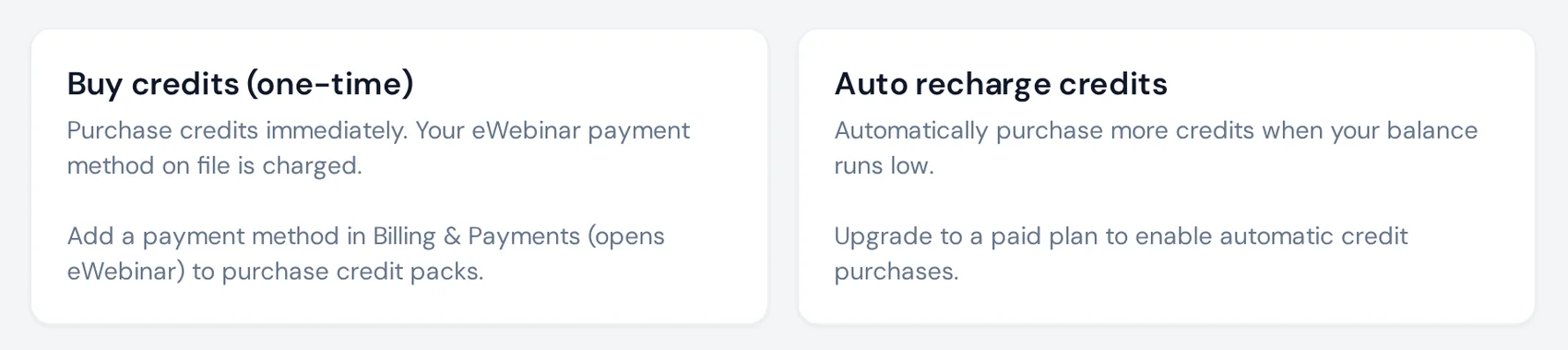
- Paid plans that already have a payment method on file
How it works
On an active paid plan, you can turn auto-recharge on from Subscription settings (/settings/subscription), pick a remaining-credit threshold, and choose a top-up pack size. When your balance crosses that threshold, eChat claims a top-up and charges the pack. While that charge is genuinely in progress, the dashboard shows an Auto-recharging credits banner (and the same notice in subscription settings) for up to about two minutes. The banner does not appear just because your balance is empty and auto-recharge is enabled - only after a real top-up attempt has started. If a top-up fails, the spinner clears instead of hanging for the rest of the session. After billed replies in Playground (including when a turn is blocked for exhausted credits), your remaining-credit count refreshes without a full page reload.
When you turn auto-recharge on or off, your team's billing contacts get a confirmation email that names the pack size, price, and threshold (when those are set). If an automatic top-up charge fails, they get a failure email with what to do next; auto-recharge stays on and will try again after the next billed conversation once the payment method works. Both emails link to your eChat subscription page. Successful pack purchases still send a normal receipt.
Best practices
Keep a payment method on file before you rely on auto-recharge, and set the threshold high enough that a pack can land before a busy session burns through the last few credits. If you see the out-of-credits banner instead of auto-recharging, check that auto-recharge is on and that a recent top-up didn't fail — and check your email for a failure notice.
Your usage ledger
What it is
eChat keeps a running ledger of your credit usage, so you can see exactly where your credits went instead of just watching a total go down.
What it's best for
- Spotting an agent that's set to a more expensive model than its volume justifies
- Understanding a usage spike tied to a specific webinar, launch, or time period
- Deciding when it's actually time to upgrade, rather than guessing
How it works
The ledger groups usage by period (day, week, month, or billing period). Each row shows which model ran and where the usage came from - the eWebinar chat, the widget or API, an evaluation, a conversation import, or an AI answer check - along with message counts, credits added, credits used, and your running balance. Silent looks at notify-moderators interaction cards still show up here when the model ran, even though no chat reply was posted. Check the ledger whenever your monthly allowance is running low or usage looks higher than you'd expect, so you can trace the cause before you upgrade.
Subscription settings
What it is
Account settings in eChat live on nested paths, the same pattern as eWebinar account setup pages.
How it works
Open Subscription at /settings/subscription to manage your plan, credits, auto-recharge, and payment details. Visiting /settings alone, or an older link like /settings?section=subscription, redirects to the matching nested page so bookmarks and emails keep working.
Payment method and billing address
What it is
The credit card and billing address on your eChat subscription are the same ones on your eWebinar subscription.
How it works
On the subscription page, the payment method card explains that this is the same card and billing address as your eWebinar subscription, and that changes update both. When you update the card or address, the dialog repeats that saving here updates both products. There is still one Stripe customer for the team — eChat is not collecting a second card.
Best practices
If you update a card for eChat top-ups, remember it also applies to eWebinar charges (and the other way around). Keep the address current so receipts and tax details stay correct for both products.
Billing emails
What it is
Emails about eChat charging events — plan changes, credit packs, renewals, and automatic top-up notices — are sent through the eWebinar email pipeline to your team's billing contacts (falling back to admins).
How it works
- Subscribe, upgrade, downgrade, cancel, extra agents, credit packs, and renewals: sent when those Stripe events happen. Buttons link to
/settings/subscription. - Automatic top-up turned on or off: a confirmation email when the setting actually flips, including pack size, price, and threshold when available.
- Automatic top-up failed: a notice with what to do next (for example update the payment method or reconnect eWebinar). Auto-recharge stays on.
Escalation notices and signup verification are separate from billing mail and are unchanged.
Billing through your eWebinar account
What it is
eChat billing isn't a separate subscription. It's part of your eWebinar account.
How it works
You sign in to eChat with your existing eWebinar login, and your eWebinar team becomes your eChat account automatically. Upgrades, plan changes, extra agent slots, and payment details are managed from eChat's subscription settings and flow through the shared eWebinar billing customer — there's no separate eChat invoice to track on its own. Only team Admins can manage billing; see Team Roles & Permissions.