
The Custom domain add-on lets you host your eWebinars and landing pages on your website or on any domain you own, thus making it possible to track people more effectively by keeping them on the same domain as they register for and attend your eWebinars, per Apple's new privacy terms. (Learn more about implementing better tracking.)
To set up the Custom domain add-on:
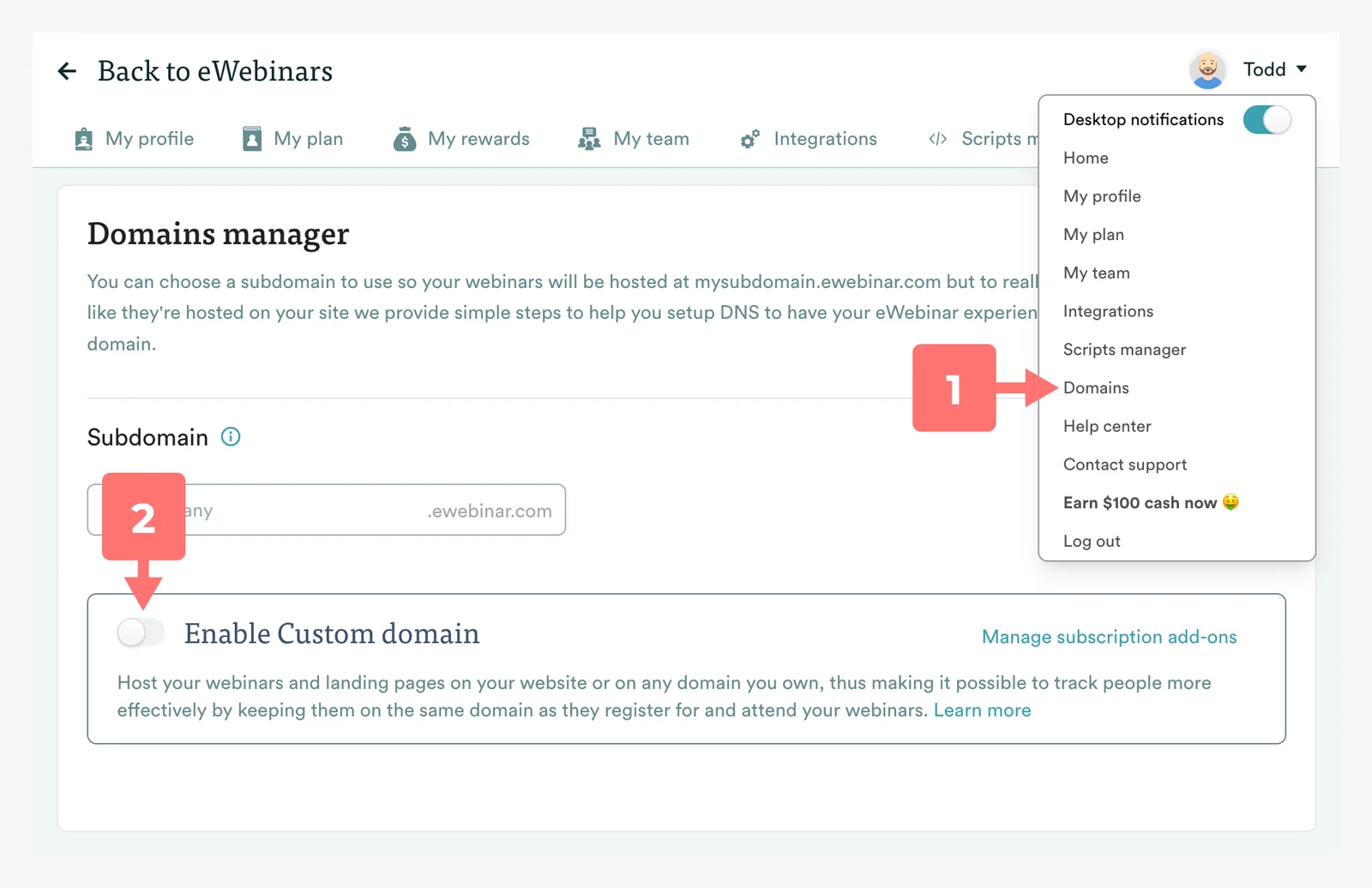
1. Go to the Domains page from the Profile menu
2. Enable Custom domain. (If you have not yet subscribed to this add-on, you will be prompted to do so at this time.)
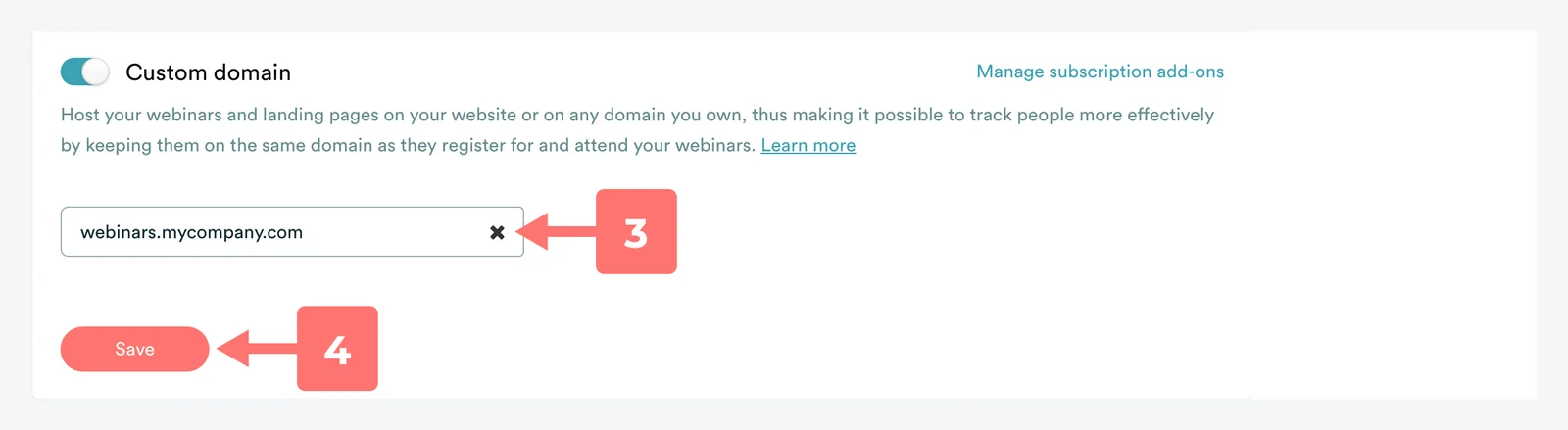
3. Enter your desired subdomain and domain.
NOTE: When you choose to put your eWebinars on your own domain, you must do it under a subdomain, such as webinars.mycompany.com.
The Custom domain add-on is also required for the Embedded player widget, which only loads on domains you have set up here.
4. Click Save and then walk through the 5-step set-up wizard:
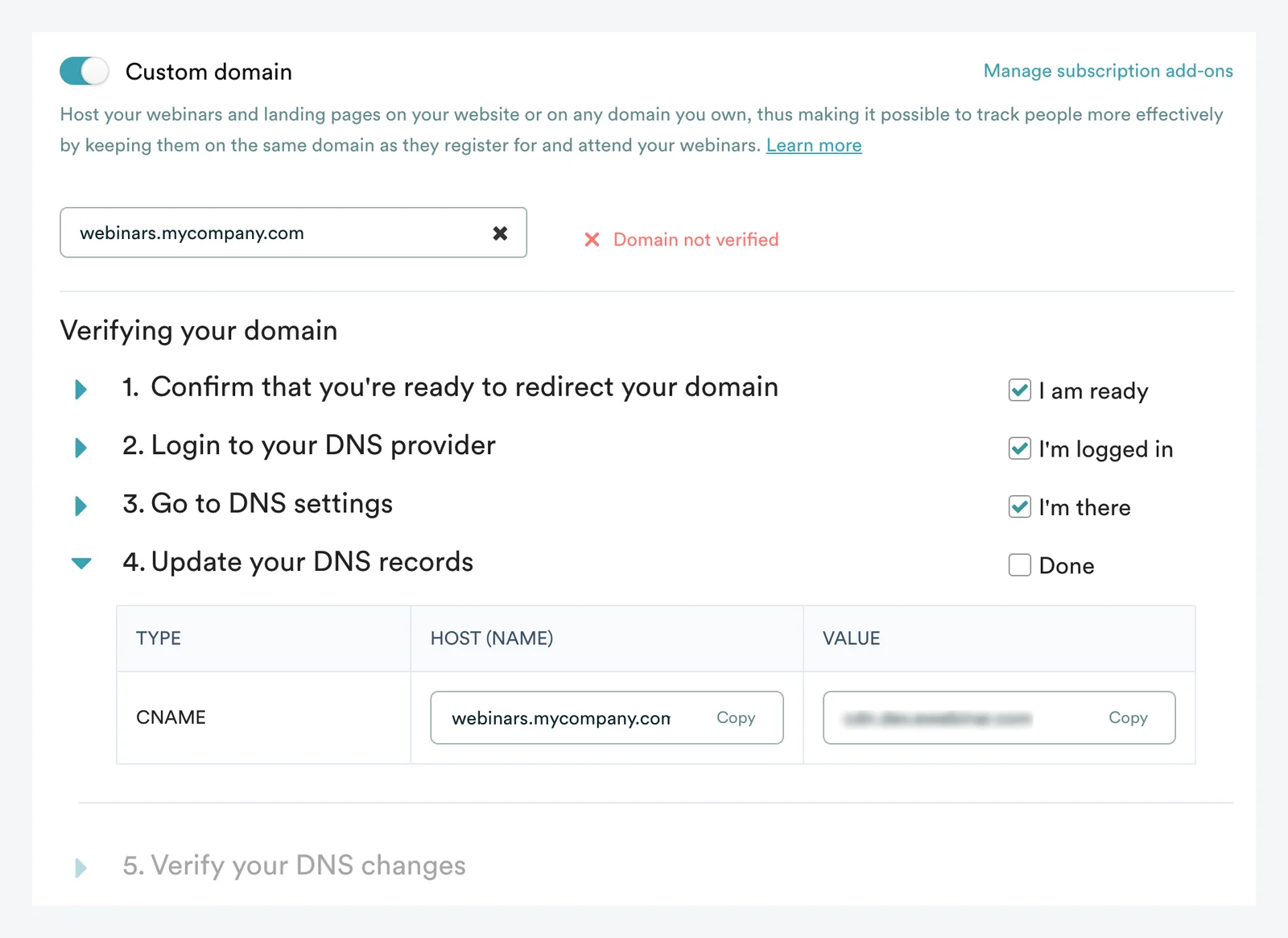
In step 4, you will be asked to update your DNS records, after logging in to your DNS provider and going to your DNS settings, by copying and pasting in the values shown. If necessary, ask for assistance from your IT team to complete the setup.
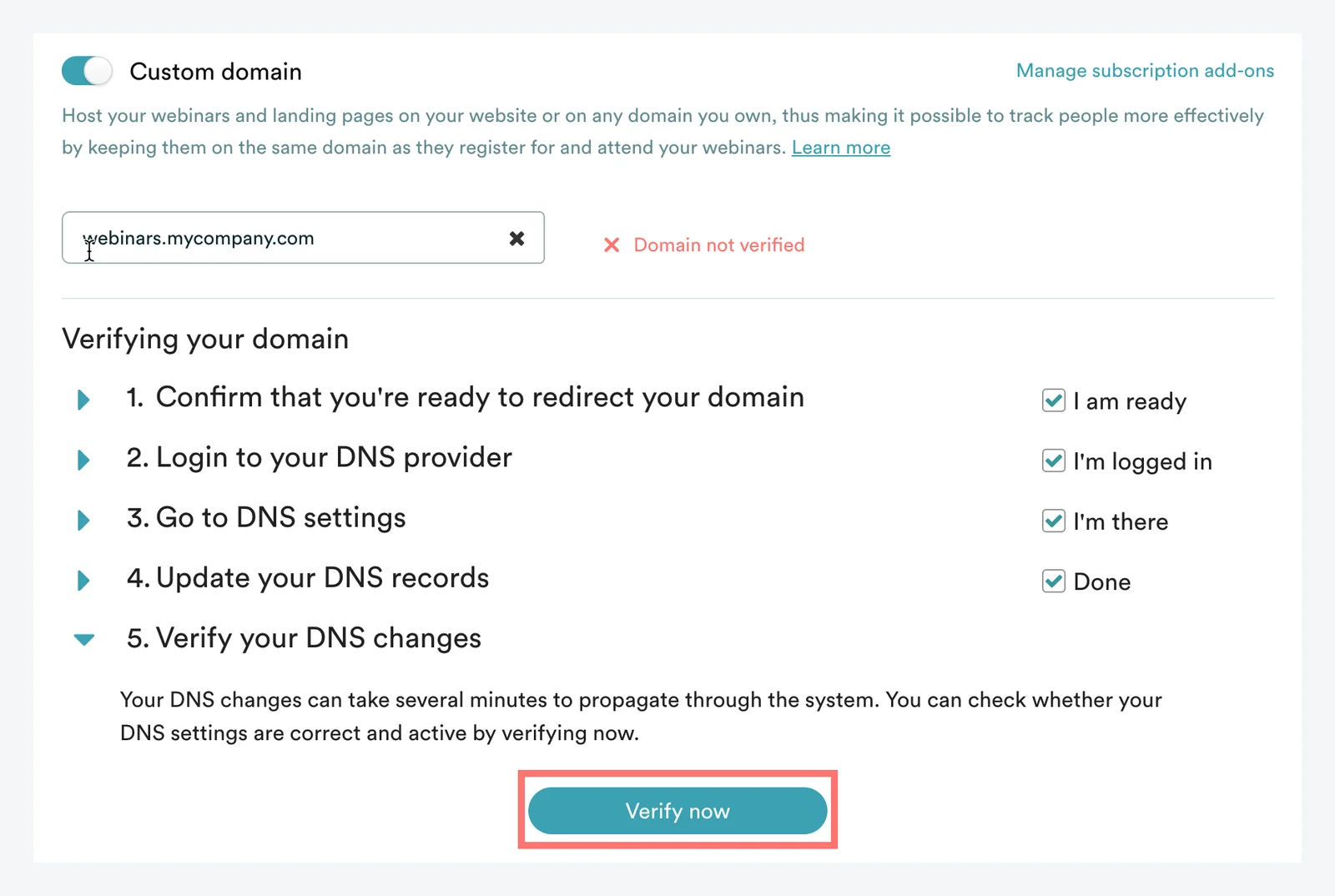
You are done! Your DNS changes may take several minutes to propagate through the system. To check whether your DNS settings are correct and active, click Verify now.
IMPORTANT: Your eWebinars could be disrupted if you remove the Custom domain add-on without taking additional action (described below).
NOTE: Your widgets that have a pop-up registration form will also start using the Custom Domain you've set for the i-frame.
IMPORTANT: If you are having issues with SSL certificates on our pages after enabling Custom Domain you might have to add the following CAA record to your DNS records:0 0 issue "letsencrypt.org"
What action should I take when unsubscribing from the custom domain add-on?
If you unsubscribe from the Custom domain add-on (which you may do from the Subscription page) all of the links you set up on your domain to your registration, thank you and eWebinar pages will automatically revert back to the eWebinar subdomain associated with your account (i.e. subdomain.ewebinar.com). This means that the links on your domain will stop working. Instead, when people visit them, they will appear to be broken or show an error page.
To avoid disruptions, you have two options:
1. Redirect the URLs on your domain
To do this, you would need to setup a domain redirect on your DNS or web site service provider to redirect all traffic from the URLs on your domain (i.e. webinar.your-domain.com) to the corresponding links on your eWebinar subdomain (i.e. your-subdomain.ewebinar.com). The full path of the URL will remain the same, so a generic domain redirect will keep old links working.
2. Manually swap out the links
Replace the links to your domain with links to your eWebinar subdomain wherever they appear to potential attendees. For example, if you share a link to your eWebinar registration page in certain email sequences, those links would need to be updated.
In the case of existing registrants, you can either re-register them manually or share the new registration link with them and ask them to re-register themselves.