
eWebinar's chat is straightforward and easy to manage. Most importantly, it works whether you're there to respond immediately or not.
- Attendees can send messages anytime during a session.
- If you're available, you can reply live in real time.
- If you're not, they can get your reply later by email. No question goes unanswered.
To understand how this works in practice, let's look at it from two points of view:
If you have a specific question about chat, skip ahead to our Chat FAQ.
How does chat work for the attendee of an eWebinar?
The following scenario, of Mary attending a product demo moderated by Melissa, illustrates how chat works for eWebinar attendees:
1. When Mary (the attendee) joins the eWebinar, she gets a personal welcome message from Melissa (the moderator).

This welcome message, which is automated and fully customizable, lets Mary know:
- She can reach out to Melissa if she has questions.
- Chat is private, not public like it is in most webinars. This puts Mary at ease, so she feels more comfortable asking questions.
2. During the eWebinar, Mary decides to ask Melissa a question about pricing.

3. If Melissa is available, Mary can have a conversation with her in real time through live chat.
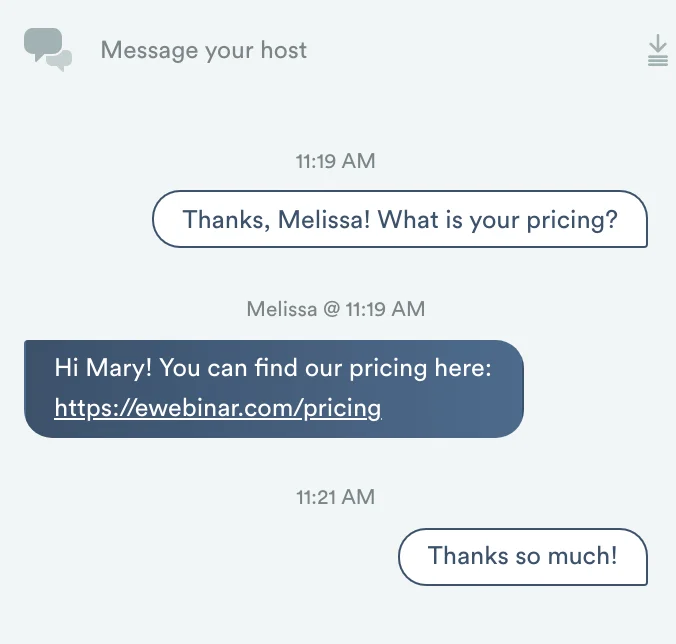
4. If Melissa is not available, an auto response lets Mary know that Melissa will get back to her as soon as possible.
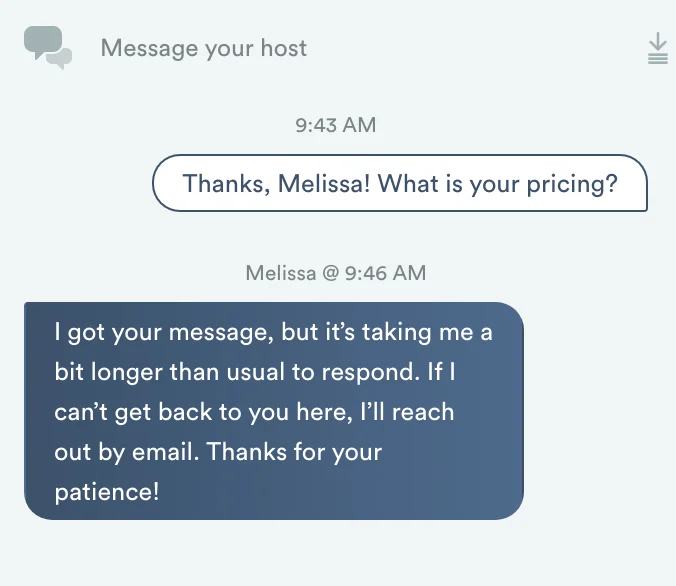
The auto response lets Mary know:
- Her message was received — it didn't go into a void.
- She can expect a response, even if it comes later by email.
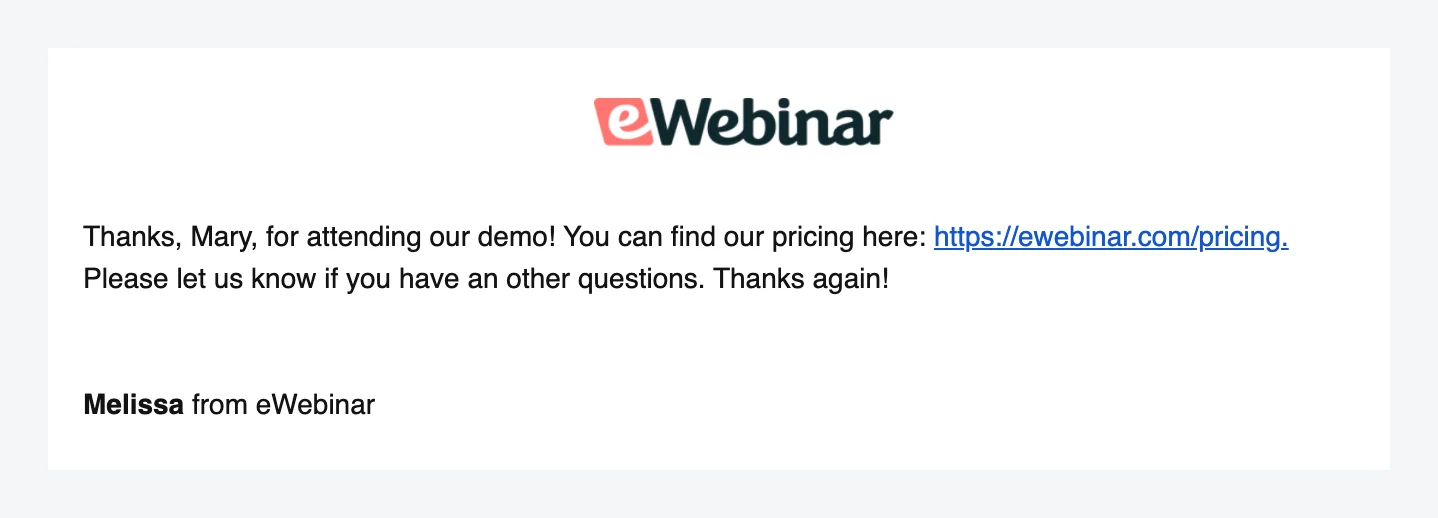
5. If the eWebinar ends or Mary leaves before Melissa can get back to her, Mary will get Melissa's response by email.
How does chat work for the moderator of an eWebinar?
Let's use the same scenario, but from Melissa's perspective.
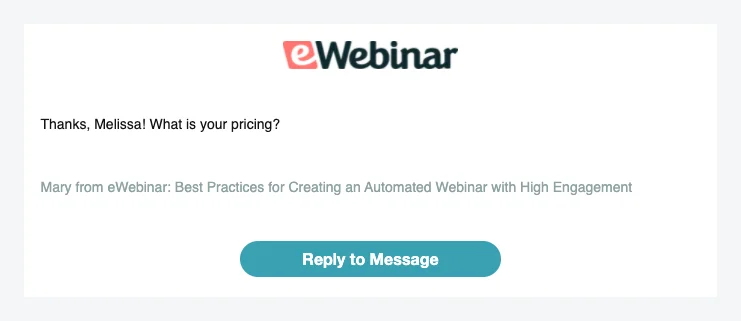
1. Melissa gets notified the moment Mary sends a message.
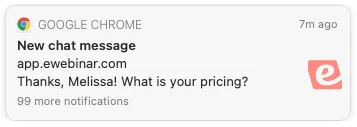
She can choose to be notified by email, desktop browser notification, or Slack. Learn more about notification settings →
By email:
By browser notification:
By Slack:

2. If Melissa is available, she can click the notification and reply in real time.
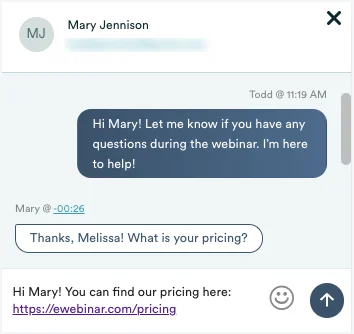
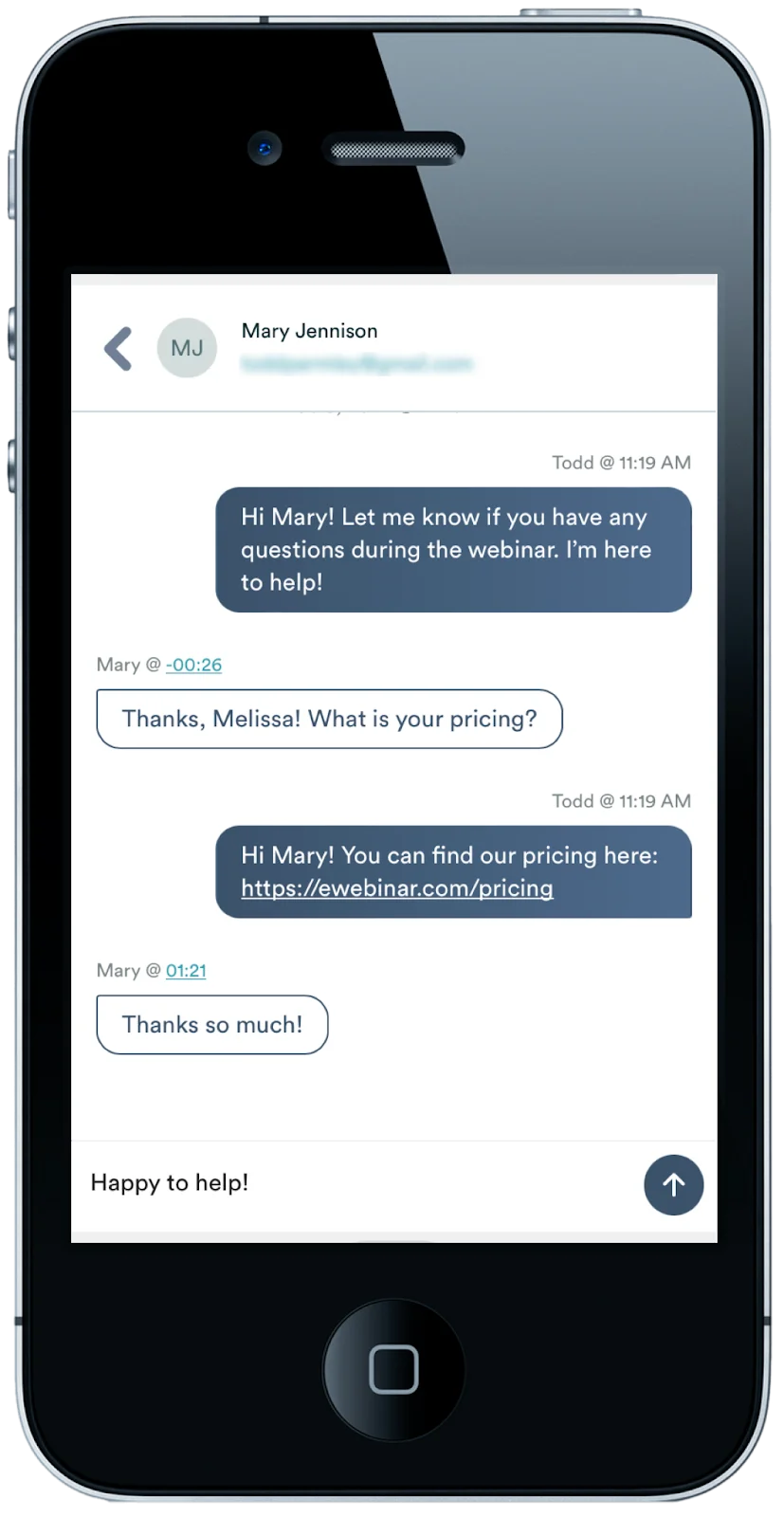
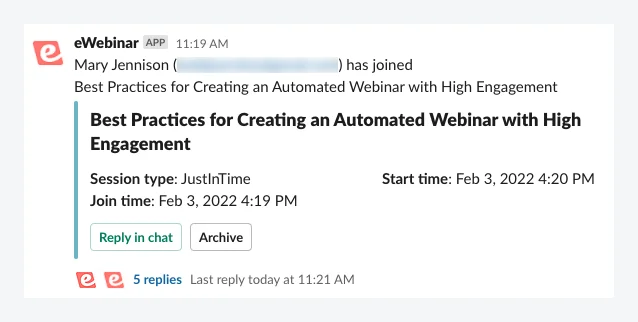
She can do this from eWebinar's chat admin — which works in any browser and on mobile, so she's not tied to her desk. If she uses Slack, she can reply directly from there without ever opening eWebinar.
Desktop chat admin:
Mobile chat admin:
Slack:
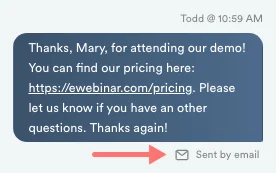
3. If Melissa is not available, she can reply later and her response will be sent to Mary by email.
This is true whether she replies from eWebinar or Slack. And because the auto response already let Mary know a reply is coming, Melissa doesn't need to rush. She can respond at her earliest convenience without worrying that Mary feels ignored.
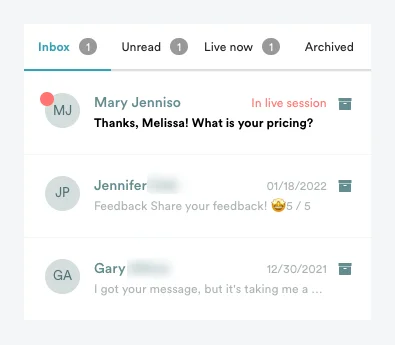
4. Melissa can stay on top of messages from all attendees from eWebinar's chat admin.
When she logs in, she can see at a glance which conversations have unread messages. She can also see which attendees are live in a session right now, if she wants to reach out proactively.
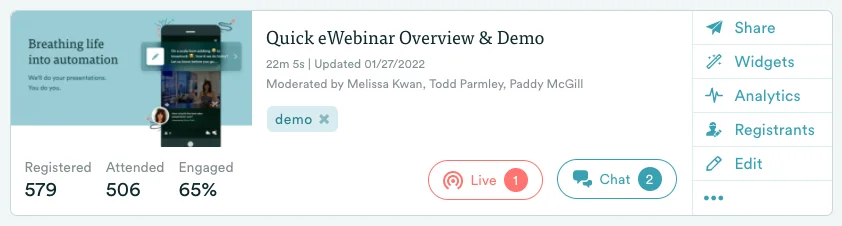
When Melissa clicks the Chat button for an eWebinar, its chat admin opens. She can see all open conversations at a glance — including which ones have unread messages.
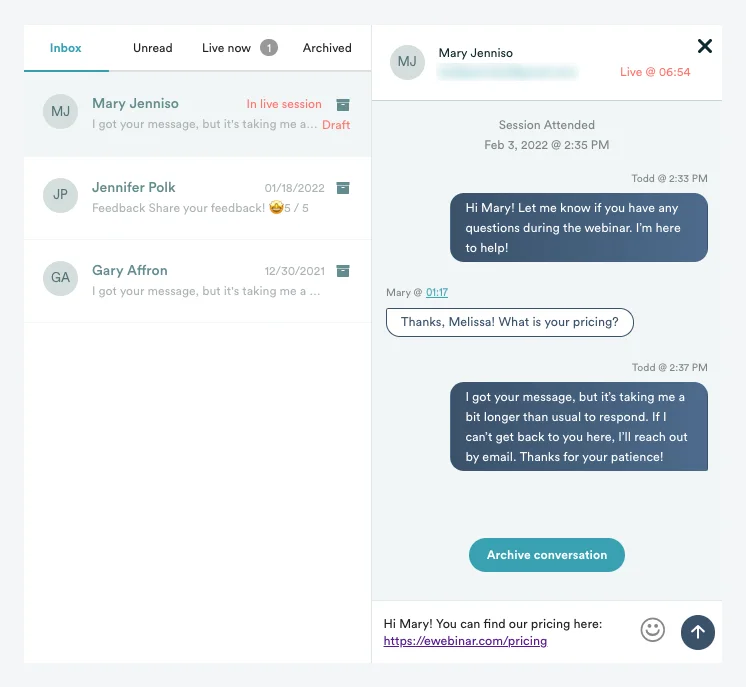
When Melissa wants to respond to a particular attendee, she can click the conversation to open it. From there, she can type and send her reply:
Frequently asked questions about eWebinar's chat
- Can attendees see each other's chat messages?
- Do I have to be available to respond to every chat message in real time?
- Shouldn't I answer every chat message immediately?
- Won't chat messages build up if I don't address them right away?
- How do I set up chat when creating an eWebinar?
- What best practices should I follow when setting up chat?
- What tips should I know for moderating chat?
- Who can answer chat messages from attendees?
- Should I explain how chat works in the video of my eWebinar?
- How does the Slack integration work when responding to chat?
- Can you disable chat?
- Can I use AI to respond to chat?
- Does eWebinar support simulated chat?
- Can attendees or moderators send file attachments in chat?
- Is an attendee's chat history kept if they reload or come back for a replay?
- How is the chat admin organized?
- Why must I provide a physical mailing address for my outgoing marketing emails?
Can attendees see each other's chat messages?
They cannot. Chat in eWebinar is private, not public as it is in most webinars.
The benefit of private chat is that attendees feel more comfortable asking questions. They love the 1-on-1 private experience eWebinar provides. The direct channel of communication they have with moderators makes them feel like they're getting special attention.
Customers who switch to eWebinar from other webinar platforms often report a marked increase in questions from attendees. More questions means higher engagement, greater likelihood of conversion, and a deeper investment on the part of the attendee.
Even with the increased number of questions, these same customers also report how easy it is to stay on top of chat with eWebinar's flexible chat system.
Do I have to be available to respond to every chat message in real time?
The short answer is no.
eWebinar's auto response will manage attendees' expectations when you cannot get back to them immediately, so they never feel ignored. And our chat system will let you reply to messages from attendees later at your convenience and send your response by email.
How much you choose to chat live with attendees and how quickly you respond to messages in general is entirely up to you, based on your business needs and affinity for automation.
That said, if your team does have strict response-time requirements, the Schedule + Chat Setup Guide covers how to set up your schedule and chat to match your coverage window.
Shouldn't I answer every chat message immediately?
While you may be used to responding to every chat message immediately during a live webinar, it's not necessary to do so during an automated eWebinar because eWebinar's chat system allows you to respond even when attendees are no longer in session. So there's no race to respond to them before they sign off.
Since our auto response manages attendees' expectations about your response time, as long as you get back to them in a timely manner via email through our platform, they are generally satisfied.
The benefit of not needing to respond immediately is that you can make your eWebinar available around the clock — which means attendees can join at their convenience, and attendance goes up.
Won't chat messages build up if I don't address them right away?
In a traditional live webinar, when there's only one session a month, you may get a couple hundred people attending, which means chat messages pile up to the point where you can hardly keep up.
When you have automated webinars running frequently, however, the number of people per session is very small. If you use just-in-time sessions, it is extremely rare for there to be more than one person in a session at a time. This means questions are spaced out, arrive sporadically throughout the day, and the volume is manageable.
One of the pleasant surprises our customers share with us is how easy it was for them to stay on top of chat after switching to eWebinar.
If you're worried about having fewer attendees overall with fewer per session, don't be. Attendance usually goes up with webinar automation because you are able to offer exponentially more sessions. One customer reported a 600% increase in attendance.
How do I set up chat when creating an eWebinar?
Start by choosing the scenario that best fits your team from the Schedule + Chat Setup Guide. Each scenario includes recommended settings for both your schedule and chat.
If you need help with specific chat settings, this article walks you through the configuration in detail:
How do I set up chat when creating an eWebinar? →
What best practices should I follow when setting up chat for my eWebinars?
How you set up chat is closely tied to how you set up your schedule — the two are configured together and each affects the other.
In general, the recommended default setup gives you the most availability and immediacy — meaning more attendees can access your content when their interest is highest, and chat works asynchronously in the background without requiring you to be on call.
That said, the right setup depends on your situation. You might have strict response-time requirements, a team with limited availability, or specific reasons to restrict when sessions run. In some cases, you may not want to enable chat at all.
The Schedule + Chat Setup Guide walks you through four common scenarios and recommends a configuration for each. Start there to find the one that fits your team.
What tips should I know for moderating chat?
A few things that make moderating easier:
You can share the responsibility. You can assign more than one moderator to the same eWebinar. All assigned moderators get notified of new messages, and whoever responds first owns that conversation. This is useful if you want to distribute the workload across a team. You can see when another moderator is typing in the chat field, so you know a conversation is already being handled. If replies are set to come from each moderator individually rather than always from the primary moderator, attendees see the names and avatars of up to three moderators in the chat panel.
You can see exactly what an attendee was watching when they sent a message. Click the timestamp next to any message to jump to that moment in the video. This gives you the context you need to reply accurately, without having to guess what prompted the question.
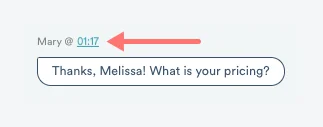
You can save replies to common questions. If you find yourself typing the same response repeatedly, saved replies let you store answers to frequently asked questions and insert them with a click. Learn more about saved replies →
Who can answer chat messages from attendees?
Anyone you assign as a moderator on an eWebinar can answer chat messages for that eWebinar. There are three common ways to set this up:
Assign individual team members. Invite each person to your eWebinar account and assign them moderator permissions or higher. All assigned moderators are notified of new messages. Learn more about team roles →
Use a centralized support email. Create a single moderator account using a shared email address (like support@yourcompany.com) and give your support team access to that inbox. Anyone monitoring that inbox can respond.
Respond through Slack. If you have eWebinar's Slack integration set up, anyone in the designated Slack channel can respond to attendee messages — regardless of whether they've been added to eWebinar as a moderator. This works in combination with either of the approaches above. Learn more about the Slack integration →
In general, whoever responds first owns that conversation. How you coordinate beyond that is up to your team.
Should I explain how chat works in the video of my eWebinar?
Ideally, yes, in the script of your video presentation. Let attendees know that questions will be answered in chat so they know what to do and aren't left expecting a Q&A at the end like they would in a live webinar.
Near the beginning of the video, say something like: "Questions will only be answered through chat, so please make sure to use the chat box to send any questions or comments."
You can also manage expectations around response time: "If we're not able to get back to you during the webinar, we'll reach out by email as soon as possible."
How does the Slack integration work when responding to chat?
Once you've set up eWebinar's Slack integration, new attendee messages appear in a dedicated Slack channel. Anyone in that channel can reply directly from Slack — no need to log into eWebinar. Replies are sent to the attendee just like any other chat response.
Learn more about the Slack integration →
Can you disable chat?
Yes, though we don't recommend it. Chat is one of the main ways attendees get their questions answered, and disabling it removes that channel entirely. If you decide to do it, here is how.
If you're looking to simplify how you manage chat rather than turn it off, there are alternatives worth considering first — including using a third-party chat provider or removing the chat form while keeping email contact available.
Can I use AI to respond to chat?
Yes — there are three ways to add AI to your chat:
eChat (add-on). eWebinar's own AI chat assistant, eChat, can answer attendee questions automatically based on approved sources, keep prospects engaged, and escalate conversations that need a human. Learn more about eChat →
Chatbase integration. Connect Chatbase to let an AI chatbot respond to messages on your behalf, trained on your own chat history, help center, or any other resource. Learn more about the Chatbase integration →
Any AI chatbot with embed code. You can replace eWebinar's chat with any AI chatbot that provides a JavaScript embed snippet. Learn more about using a third-party chat provider →
Does eWebinar support simulated chat?
eWebinar does not support simulated chat.
We deliberately do not develop features that are meant to mislead attendees. It is why we also do not support simulated attendees (shown joining the eWebinar) or simulated sales notifications. Modern consumers are smart and it is not worth risking our credibility (or yours).
Read more about our stance on this →
Can attendees or moderators send file attachments in chat?
No. The chat composer on both sides is text-only. Links you type are clickable in the message, but file uploads (images, PDFs, and so on) are not supported. If you need to share a file, link to one hosted elsewhere.
Is an attendee's chat history kept if they reload or come back for a replay?
Yes. The attendee's name in chat is the one they registered with, and if they reload the session or return later to watch a replay, their previous conversation is restored, so the moderator can pick up where it left off.
How is the chat admin organized?
Every conversation for an eWebinar, including threads an AI agent is answering, lives in one shared Inbox; there is no separate AI mailbox. From there you can filter by Needs reply (the human worklist: hand-offs, attendees who asked for a person, and messages a moderator or the AI marked as needing a human), switch to Live now to see attendees currently in a session (with sub-filters such as Chatting, Interacting, and Viewing), or open Archived for closed conversations (with the optional filters Needed a human and Handled by AI). Archiving a conversation from its header moves it to Archived without deleting it, and it can be reopened later. See AI chat in eWebinar for how AI hand-offs and Needs reply labels work.
Inside a conversation, you can react to a message with an emoji or quote a specific message in your reply. When Slack is connected, emoji reactions added in Slack also show up on the message in eWebinar.
Why must I provide a physical mailing address for my outgoing marketing emails?
A physical mailing address is required in outgoing marketing emails under certain anti-spam laws (for example, Canada's Anti-Spam Legislation). eWebinar includes it in all such outgoing emails to ensure compliance.